

Log every processed Pine Labs order in a Google Sheets spreadsheet
Every time Pine Labs successfully receives payment for an order, this workflow adds a row to Google Sheets, building a running log of paid orders you can reconcile and report from.
 Pine Labs
 Google Sheets
2 steps Setup ~5 min Used on 3.2k sites Free to import
What this workflow does
Reconciling payments usually means exporting reports from your gateway and pasting them into a spreadsheet. If you want a live record instead, this workflow adds each paid order to Google Sheets as it happens, so the sheet is up to date whenever you open it.
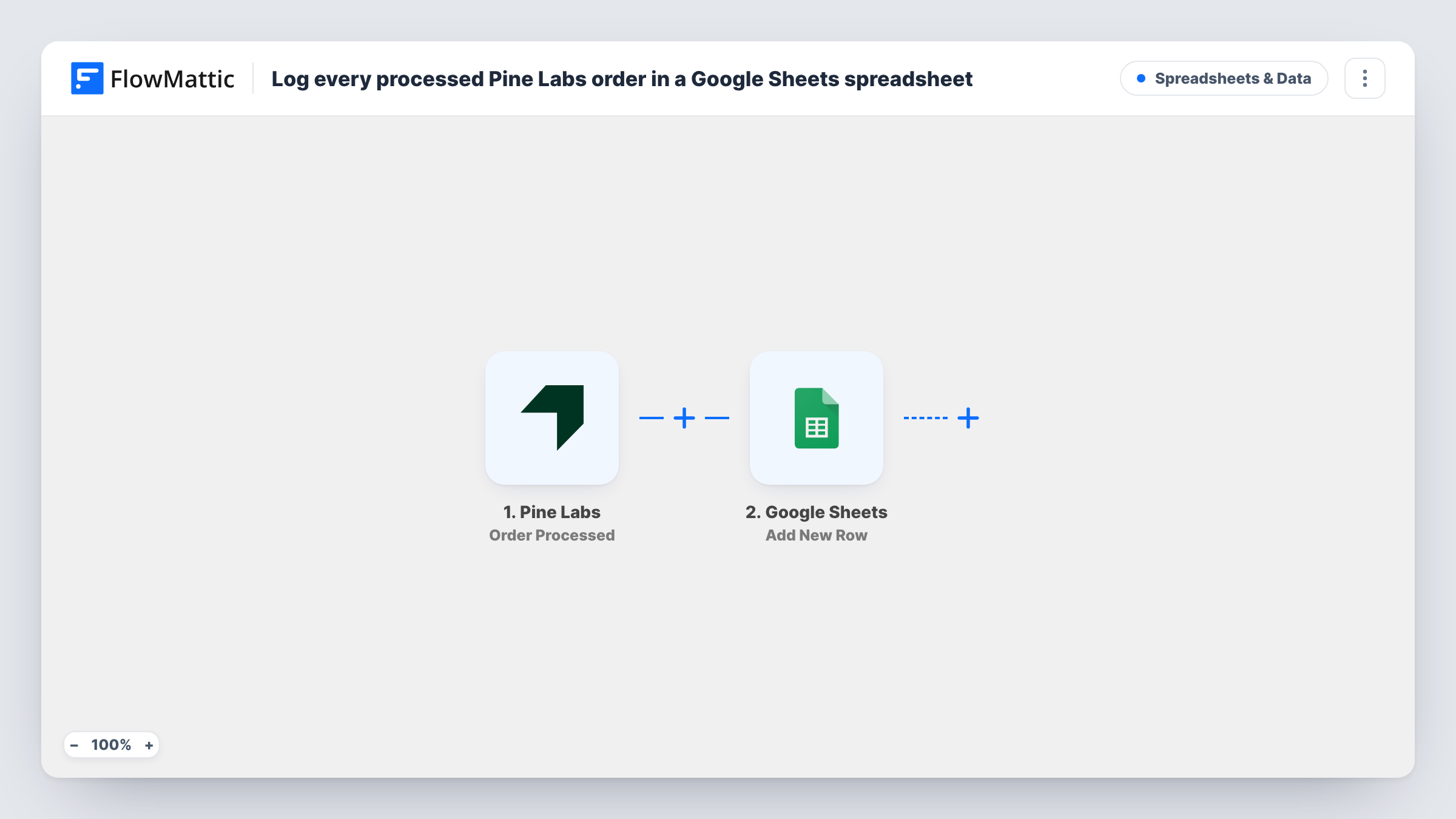
The Pine Labs trigger, Order Processed, fires when the payment for an order is successfully received. FlowMattic captures the order data Pine Labs sends with that event. The Google Sheets step then adds a new row to the spreadsheet you select, and you choose which value goes in each column.
Only processed orders are logged. Failed, cancelled or refunded orders have their own Pine Labs triggers and don't reach this sheet. Rows are only ever appended here, never edited or removed. Task History shows each run, so you can match an order that's missing from the sheet to the run that should have added it.
Daily reconciliation for a finance team
Your accountant compares the sheet of processed Pine Labs orders with the bank settlement report, using one row per paid order.
Sales totals for a small store
A store owner adds a summary tab with formulas over the logged rows to see revenue by day without logging in to the Pine Labs dashboard.
Order hand-off to a fulfilment partner
A shared Google Sheet shows each paid order to the team that packs and ships, so they work only from payments that went through.
How this workflow runs
What happens at each step once the workflow is on, and what you need before you import it.
 Pine Labs Order Processed
Fires when Pine Labs successfully receives the payment for an order. The order and payment data from that event are passed on for mapping into the sheet.
- Google Sheets Add New Row
Appends one row per paid order to the spreadsheet and tab you select. Map Pine Labs values to your columns, then connect your Google account on import.
What you need
- FlowMatticCore
- Pine Labs AccountAccount
- Google Sheets AccountAccount
After importing, map your own data. To keep the template universal, not every step is pre-filled. Open each step in the builder and connect your accounts and fields (channels, lists, sheets, recipients) before you switch the workflow on.
Make it yours
Changes worth making after you import it.
- Set up the sheet's header row before you map, with columns such as order ID, amount and date, so each Pine Labs value has a clear place to go.
- Clone the workflow with the Refund Processed trigger and point it at a second tab, so refunds are logged next to the paid orders for reconciliation.
- Process a test order after import so FlowMattic captures what Pine Labs sends, then finish the column mapping using that sample.
Questions about this workflow
Are failed or cancelled Pine Labs orders logged?
No. Order Processed fires only when payment is received. Pine Labs has separate triggers for failed and cancelled orders if you want those in another sheet.
Does the sheet include orders from before I turn the workflow on?
No. Only orders processed after the workflow is on are added. Use a Pine Labs report export to fill in earlier orders.
What happens if I rename a column in the Google Sheet?
Open the Google Sheets step after any change to the sheet's columns and check each one still gets the right Pine Labs value, then process a test order to confirm.
More Spreadsheets & Data workflows
Other ready-to-import templates from the same category.





Import this workflow into your WordPress site
Download the JSON, import it from the Workflows screen and connect your accounts. Every run stays on your server, with no per-task fees.
30-day money-back guarantee Unlimited workflows and runs Self-hosted