

Log new Motion Tools hailing bookings in a Google Sheets spreadsheet
When a new hailing booking is created in Motion Tools, FlowMattic adds its details to a Google Sheets row, giving your dispatch or operations team a spreadsheet of bookings to sort and report on.
 Motion Tools
 Google Sheets
2 steps Setup ~5 min Used on 2.4k sites Free to import
What this workflow does
Motion Tools runs the dispatch side of a ride or delivery service: drivers, bookings and locations. Reporting often happens somewhere else, in a spreadsheet an owner, accountant or operations lead can open. This workflow copies each new hailing booking into Google Sheets as it is created.
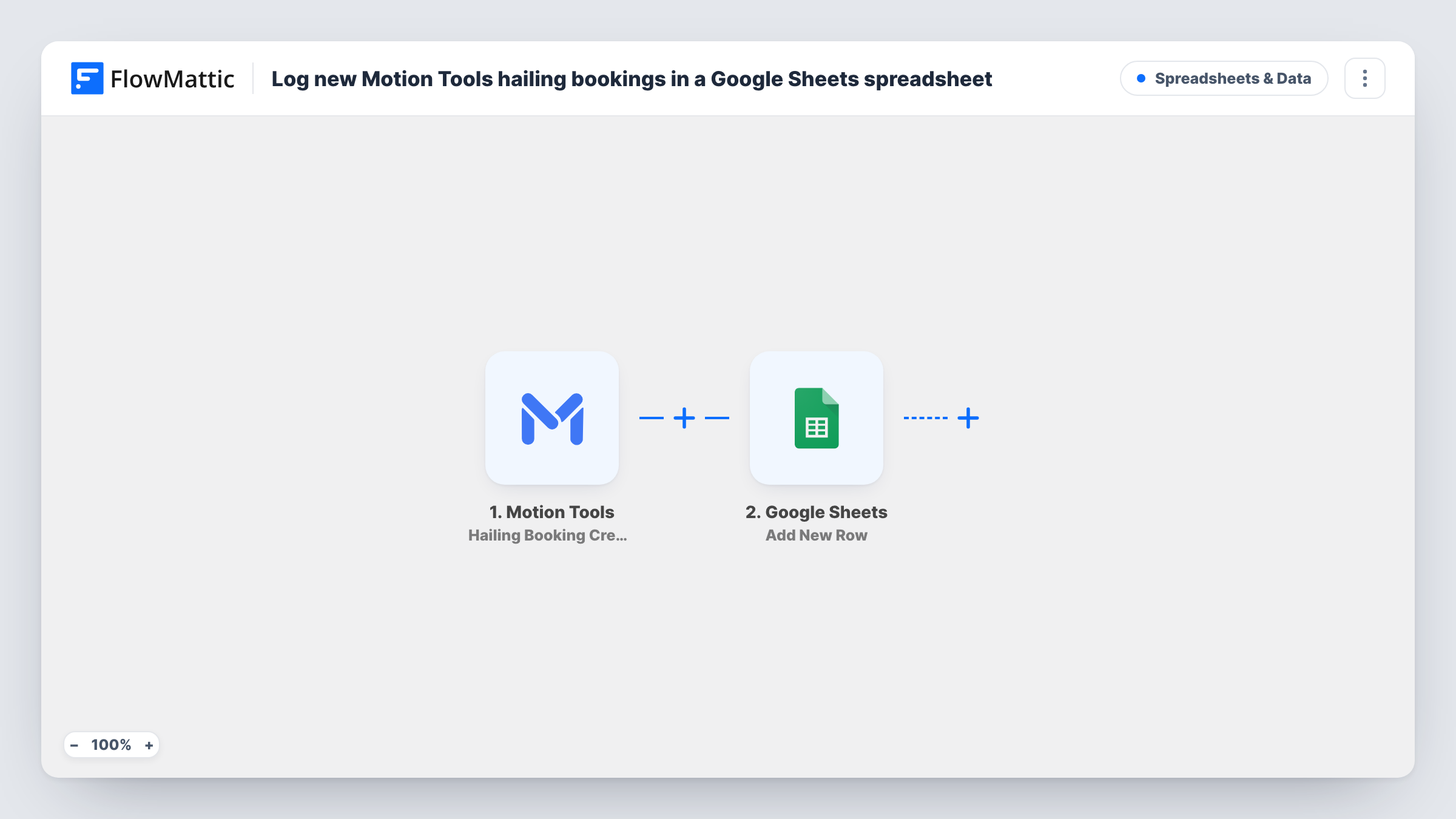
The Motion Tools trigger, Hailing Booking Created, fires when a new booking has been created. The booking data Motion Tools sends becomes values you can map. The Google Sheets step, Add New Row, then adds a row to the spreadsheet and tab you pick, with each value in the column you mapped.
The row is a snapshot of the booking when it was created. Later changes, such as a new driver, a route change or a cancellation, are separate Motion Tools events and don't update the row. Task History lists every booking run, so gaps are easy to check.
Daily booking counts for an owner
The owner of a small taxi or shuttle service opens the sheet each evening and counts the day's hailing bookings without logging in to dispatch.
Booking log for invoicing corporate clients
Operations filters the sheet by client at month end to see which bookings to include on each invoice.
Demand by area or time
If you map pickup details and the booking time, a pivot table shows which areas and hours get the most new bookings.
How this workflow runs
What happens at each step once the workflow is on, and what you need before you import it.
 Motion Tools Hailing Booking Created
Runs when a new hailing booking has been created in Motion Tools. The booking data is passed to the Google Sheets step for mapping.
- Google Sheets Add New Row
Adds one row per new Motion Tools booking to the spreadsheet and tab you choose. Connect your Google account and map the booking values you want to keep to named columns.
What you need
- FlowMatticCore
- Motion Tools AccountAccount
- Google Sheets AccountAccount
After importing, map your own data. To keep the template universal, not every step is pre-filled. Open each step in the builder and connect your accounts and fields (channels, lists, sheets, recipients) before you switch the workflow on.
Make it yours
Changes worth making after you import it.
- Create a test booking in Motion Tools after import so FlowMattic captures real data, then map columns from the values you see in the trigger step.
- Need to track changes too? Build a second workflow on Motion Tools' Hailing Booking Modified trigger that logs edits to a separate tab.
- Add a Filter after the trigger if the sheet should only hold bookings for one service area or client, based on a value the booking carries.
Questions about this workflow
Does a cancelled Motion Tools booking update its row?
No. The workflow only reacts to new bookings and only adds rows. A cancellation or later change doesn't touch the row already in the sheet.
What Motion Tools booking details reach the sheet?
The values in the Hailing Booking Created event that you map to columns. Check a test booking in the trigger step to see the full set.
Are bookings created before import added to Google Sheets?
No. Only bookings created while the workflow is on start a run, so older ones have to be added to the sheet another way.
Can Motion Tools package deliveries go in the same sheet?
Not with this trigger. Packages have their own Motion Tools triggers, such as Hailing Package Created, so use a second workflow pointing at the same or a different tab.
More Spreadsheets & Data workflows
Other ready-to-import templates from the same category.






Import this workflow into your WordPress site
Download the JSON, import it from the Workflows screen and connect your accounts. Every run stays on your server, with no per-task fees.
30-day money-back guarantee Unlimited workflows and runs Self-hosted