

Parse XML File received in Email and add all the data to Google Sheet
Forward an email with an XML file to your FlowMattic parser address, and this workflow reads the file, turns it into data you can map, and writes it to a new row in Google Sheets.
 Email Parser by FlowMattic
 XML Parser by FlowMattic
 Google Sheets
3 steps Setup ~5 min Used on 711 sites Free to import
What this workflow does
Some systems only export XML, and some suppliers send their data that way by email. Opening each file and copying values into a spreadsheet is slow and error-prone. This workflow reads the XML for you and puts the values into Google Sheets.
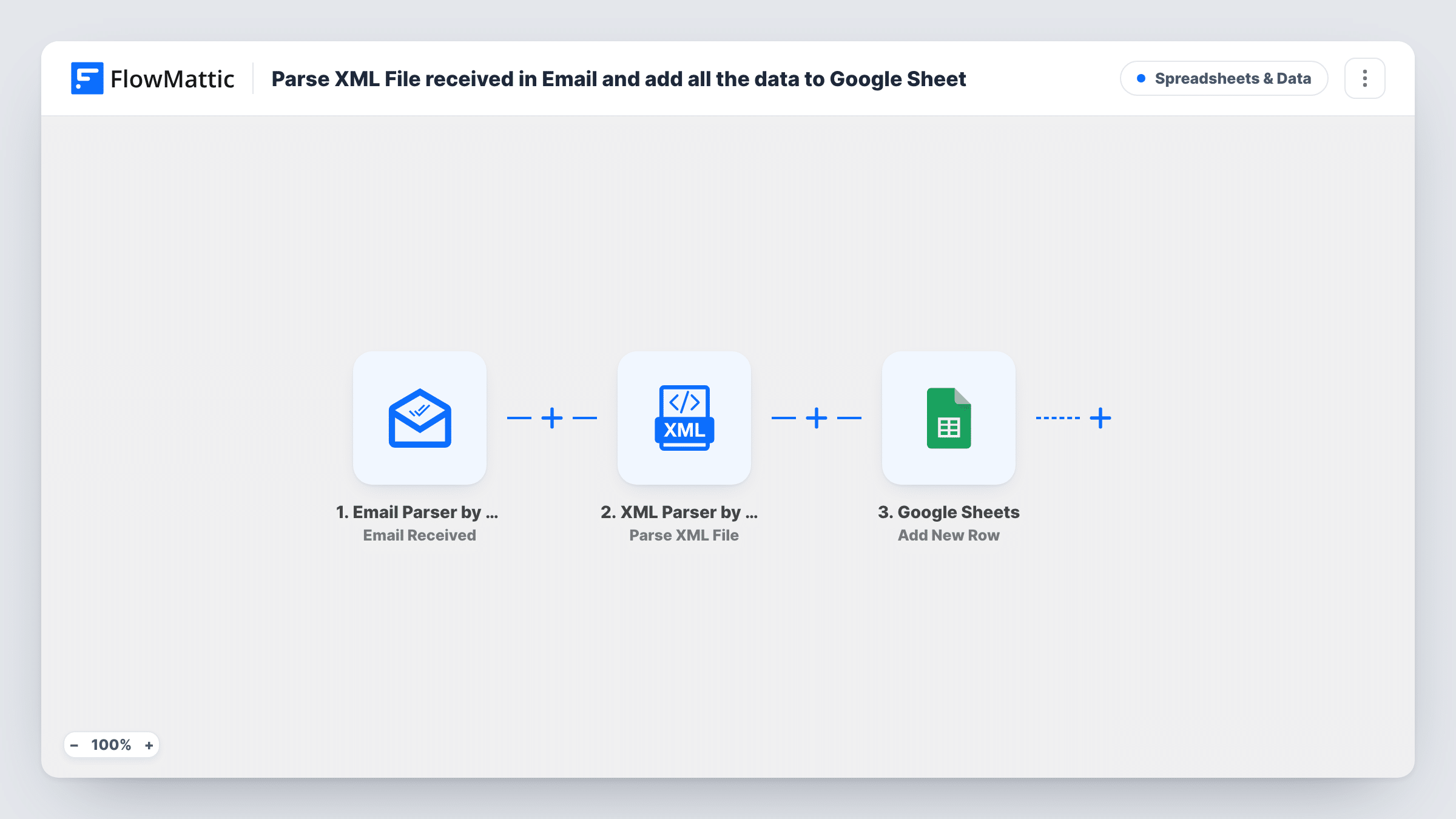
The Email Parser by FlowMattic trigger gives you an email address. When a message arrives there, the run starts and the email's details become available. The XML Parser by FlowMattic step takes the URL of an XML file, which you map from the email, and parses it into JSON data. The Google Sheets step then adds a new row with the parsed values you map to your columns.
As imported, each email produces one row. That suits XML files that hold one record, such as a single order or report. If your file holds a list of repeating records, add an Iterator after the parser so each record gets its own row. Send a sample email after import and use Task History to see the parsed structure before you map columns.
Supplier order confirmations in XML
A supplier emails an XML confirmation for each order. Forward it to the parser address and the order number, date and total go into your tracking sheet.
System exports sent by email
An older system can only email its daily report as XML. The parsed values land in Google Sheets where the team can read them.
Product feed snapshots
A partner sends a product XML file. With an Iterator added, each product in the file becomes its own row for review.
How this workflow runs
What happens at each step once the workflow is on, and what you need before you import it.
 Email Parser by FlowMattic Email Received
Starts the workflow when an email arrives at your Email Parser by FlowMattic address. The email's details, including anything you need to locate the XML file, are passed on.
- XML Parser by FlowMattic Parse XML File
Parses the XML file at the URL you map from the email and returns its contents as JSON data, so each value can be mapped in the next step.
- Google Sheets Add New Row
Adds a row to the Google Sheets spreadsheet you choose, holding the parsed XML values you map to each column. Link the Google account that owns the sheet when you import.
What you need
- FlowMatticCore
- Google Sheets AccountAccount
After importing, map your own data. To keep the template universal, not every step is pre-filled. Open each step in the builder and connect your accounts and fields (channels, lists, sheets, recipients) before you switch the workflow on.
Make it yours
Changes worth making after you import it.
- If one XML file holds many records, add an Iterator between the parser and Google Sheets so every record is written as a separate row.
- Add a Filter after the trigger that checks the sender or subject, so only the emails that carry your XML files reach the parser.
- Send one real sample email after import. Task History then shows what the email provides and how the XML was parsed, which makes mapping the columns easier.
Questions about this workflow
Does every record in the XML file get its own Google Sheets row?
Not as imported. The template adds one row per email. If the file holds a list of records, add an Iterator after the XML Parser step to write one row per record.
What does the XML Parser by FlowMattic step need from the email?
A URL for the XML file. Map it from the data the Email Parser trigger provides, then check with a test email that the parser receives a working file URL.
What happens if an email arrives without an XML file?
The parser step has nothing valid to read and Task History shows its response. The Google Sheets step still runs, so add a Filter after the trigger to stop those emails.
Do I need a separate email account for the Email Parser trigger?
No. The Email Parser by FlowMattic trigger gives you its own address. Forward or send the XML emails there.
More Spreadsheets & Data workflows
Other ready-to-import templates from the same category.




Import this workflow into your WordPress site
Download the JSON, import it from the Workflows screen and connect your accounts. Every run stays on your server, with no per-task fees.
30-day money-back guarantee Unlimited workflows and runs Self-hosted