

When a form submission received in WPForms, extract the URLs and add to Google Sheet
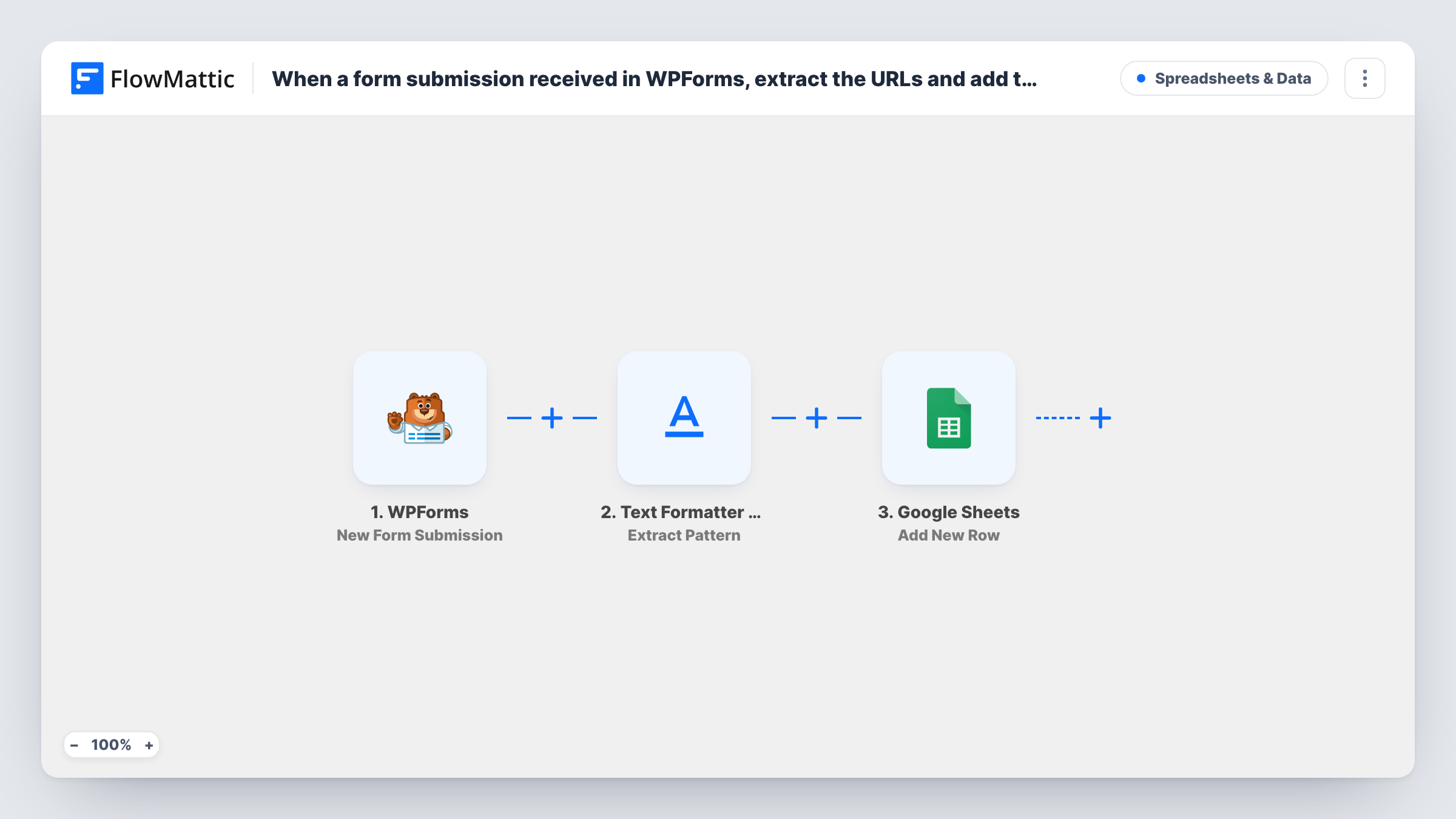
When a WPForms form is submitted, FlowMattic’s Text Formatter pulls the web addresses out of the text you choose, and the workflow adds them to a Google Sheets row alongside the other answers you map.
 WPForms
 Text Formatter by FlowMattic
 Google Sheets
3 steps Setup ~5 min Used on 2.2k sites Free to import
What this workflow does
Forms that ask for portfolio links, reference pages or a website often get them buried in a longer answer. Copying each address out by hand is slow and error-prone. This workflow finds the URLs in the submitted text and writes them to a spreadsheet.
The WPForms trigger runs when a visitor submits a form on your WordPress site. The Text Formatter step, Extract Pattern, applies a regular expression to the field you map and returns each match as its own value: result_0, result_1 and so on. Its Combine Results option joins them into one combined_result value instead.
The Google Sheets step then adds one row per submission. You choose which extracted values go into which columns. Map combined_result to keep every URL in one cell, or map result_0, result_1 to separate columns. The template doesn't add one row per URL; that needs an Iterator. Send a test entry with two links to check the pattern before going live.
Freelancer applications with portfolio links
Applicants paste several portfolio links into one answer. The sheet shows the extracted links, so reviewers can open them without reading the full text.
Guest post pitches
Writers list sample articles in their pitch. Pulling out the URLs gives your editor a column of samples to check against your site's style.
Bug reports that mention pages
Visitors describe a broken page in free text. The extracted address goes to its own column, so your developer can go straight to the page.
How this workflow runs
What happens at each step once the workflow is on, and what you need before you import it.
 WPForms New Form Submission
Starts the run each time someone sends a WPForms form on your WordPress site. Every answer in that entry can be mapped in the next two steps.
- Text Formatter by FlowMattic Extract Pattern
Applies a regular expression to the form text you map and returns each match as result_0, result_1 and so on, or as one combined_result when Combine Results is on. Enter a URL pattern and map the field to search.
- Google Sheets Add New Row
Writes one new row per submission to the Google Sheets spreadsheet you select. Map the extracted URL values and any other form answers to columns, then connect your Google account on import.
What you need
- FlowMatticCore
- WPForms PluginPlugin
- Google Sheets AccountAccount
After importing, map your own data. To keep the template universal, not every step is pre-filled. Open each step in the builder and connect your accounts and fields (channels, lists, sheets, recipients) before you switch the workflow on.
Make it yours
Changes worth making after you import it.
- Turn on Combine Results in the Extract Pattern step and map combined_result, so a submission with three links keeps all three in one cell.
- To write one row per URL, add an Iterator after Text Formatter and place the Google Sheets step inside it, mapping the current URL to the column.
- Add a Filter between Text Formatter and Google Sheets that continues only when result_0 is not empty, if you only want rows for entries that contain a link.
Questions about this workflow
What if a WPForms entry contains no URL?
The extract step finds no match, so the URL values are empty. The Google Sheets step still adds a row with the other answers you mapped, and the URL columns stay blank.
Does the Extract Pattern step come with a URL pattern already set?
The template doesn't show the step's settings, so open Extract Pattern once you've imported it. Enter or confirm a regular expression that matches web addresses and test it with a sample entry.
Can I search more than one WPForms field for links?
Map the field you want into the extract step's input. For two fields, combine them in the input, or add a second Extract Pattern step for the other field.
Will the WPForms entry still be saved and emailed as usual?
Yes. The workflow starts after the form is submitted and doesn't change your WPForms settings, so notifications and any entry storage work as before.
More Spreadsheets & Data workflows
Other ready-to-import templates from the same category.



Import this workflow into your WordPress site
Download the JSON, import it from the Workflows screen and connect your accounts. Every run stays on your server, with no per-task fees.
30-day money-back guarantee Unlimited workflows and runs Self-hosted