

Log Better Uptime monitor changes (created, paused, updated, deleted) in Google Spreadsheet
Every time a Better Uptime monitor is created, paused, unpaused, updated or deleted, FlowMattic adds a row to your Google Sheets spreadsheet, giving you an audit trail of monitoring changes.
 Better Uptime
 Google Sheets
2 steps Setup ~5 min Used on 537 sites Free to import
What this workflow does
When several people can change uptime monitors, it gets hard to answer simple questions: when was the checkout monitor paused, and when did the API check disappear? This workflow writes each monitor change from Better Uptime to a Google Sheet, so you have a dated log outside the monitoring tool.
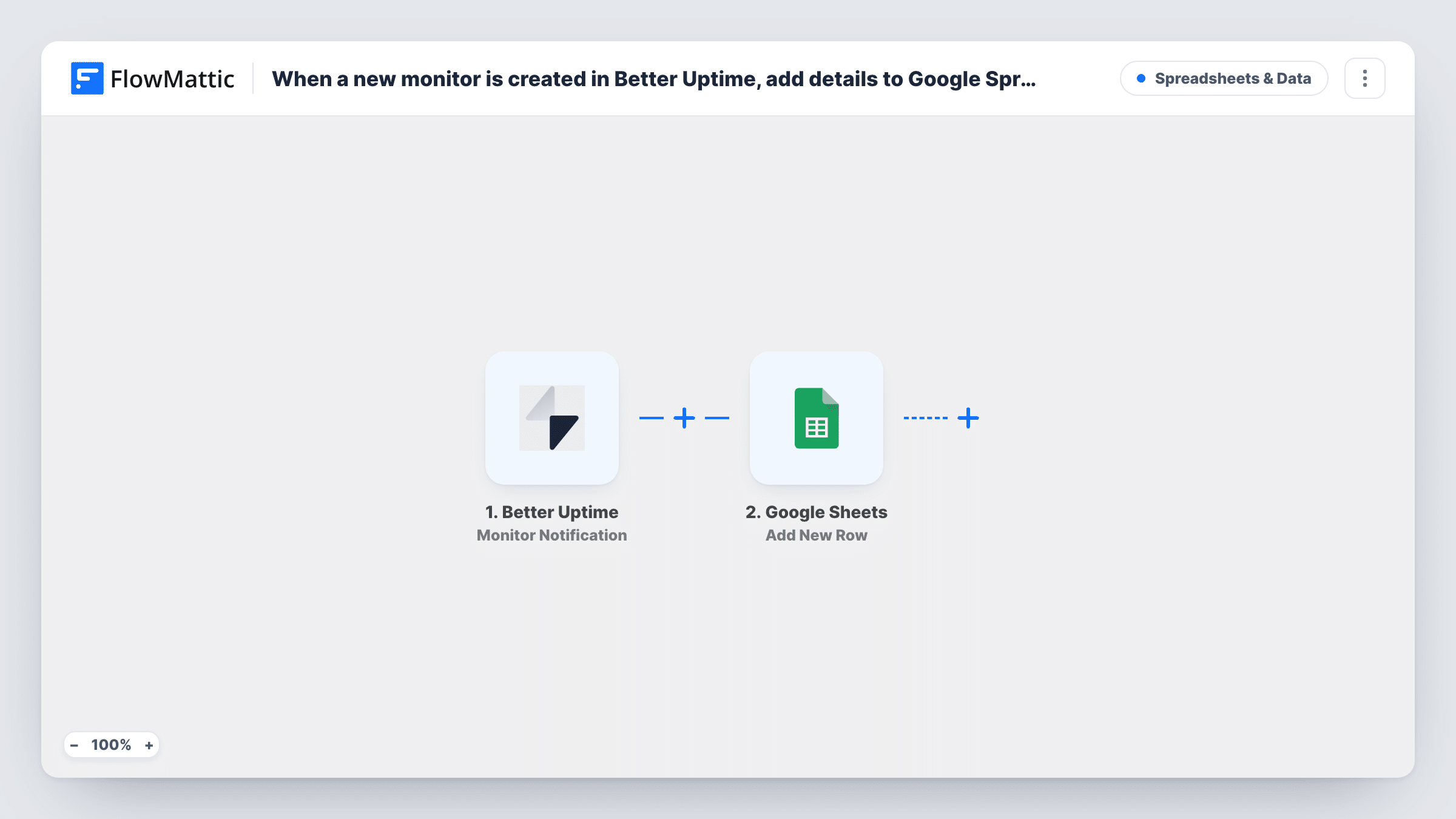
The Better Uptime Monitor Notification trigger covers the whole lifecycle of a monitor. FlowMattic describes it as firing when a monitor is created, paused, unpaused, updated or deleted. Each of those events starts its own run and passes the monitor's details along.
The Google Sheets step writes a fresh row for every monitor event it receives. Nothing is mapped yet, so after import you choose the spreadsheet and sheet and map the monitor details that a test run shows into your columns. Make a change to a test monitor first so the trigger has data to map.
This flow logs monitor settings, not outages. Incidents come through Better Uptime's separate Incident Notification trigger, which you can route to the same sheet with a second workflow.
Change log for an operations team
An ops lead reviews the sheet each week to see which monitors were paused for maintenance and whether they were unpaused afterwards.
Agency tracking client monitors
A web agency that manages Better Uptime for many client sites keeps a record of every monitor it adds or removes, for monthly client reports.
Audit evidence for compliance reviews
A SaaS company exports the Google Sheet when auditors ask how production monitoring changed over the quarter.
How this workflow runs
What happens at each step once the workflow is on, and what you need before you import it.
 Better Uptime Monitor Notification
Starts a run whenever a Better Uptime monitor is created, paused, unpaused, updated or deleted. The monitor's details and the kind of change become available to map into the sheet.
- Google Sheets Add New Row
Adds one row to the Google Sheets spreadsheet you pick for each monitor event. The step ships unmapped, so connect Google, choose the sheet and map the monitor fields into your columns.
What you need
- FlowMatticCore
- Better Uptime AccountAccount
- Google Sheets AccountAccount
After importing, map your own data. To keep the template universal, not every step is pre-filled. Open each step in the builder and connect your accounts and fields (channels, lists, sheets, recipients) before you switch the workflow on.
Make it yours
Changes worth making after you import it.
- If the Better Uptime data names the kind of change, give it a column of its own, so you can filter the log for pauses or deletions.
- If you only care about some events, such as pauses and deletions, put a Filter between the Better Uptime trigger and the Google Sheets step on the event type field you see in a test run.
- Keep the log on a sheet or tab of its own, so the rows the workflow adds don't mix with your notes or other data.
Questions about this workflow
Which Better Uptime monitor changes are logged in Google Sheets?
Every kind the trigger reports, which is a monitor being created, paused, unpaused, updated or deleted. One event means one new row.
Does this log downtime incidents too?
No. The Monitor Notification trigger covers changes to monitors. For outages, use FlowMattic's Better Uptime Incident Notification trigger in a separate workflow.
Can I see the old and new settings when a monitor is updated?
That depends on what Better Uptime sends for the event. Update a test monitor and look at the trigger data in Task History to see which details are included.
Will monitors that already exist be added to the sheet?
Not at import. A monitor only appears once something happens to it, such as an update or a pause, after the workflow is switched on.
More Spreadsheets & Data workflows
Other ready-to-import templates from the same category.





Import this workflow into your WordPress site
Download the JSON, import it from the Workflows screen and connect your accounts. Every run stays on your server, with no per-task fees.
30-day money-back guarantee Unlimited workflows and runs Self-hosted