

Create Google Sheets rows from Zerowork.io TaskBot results
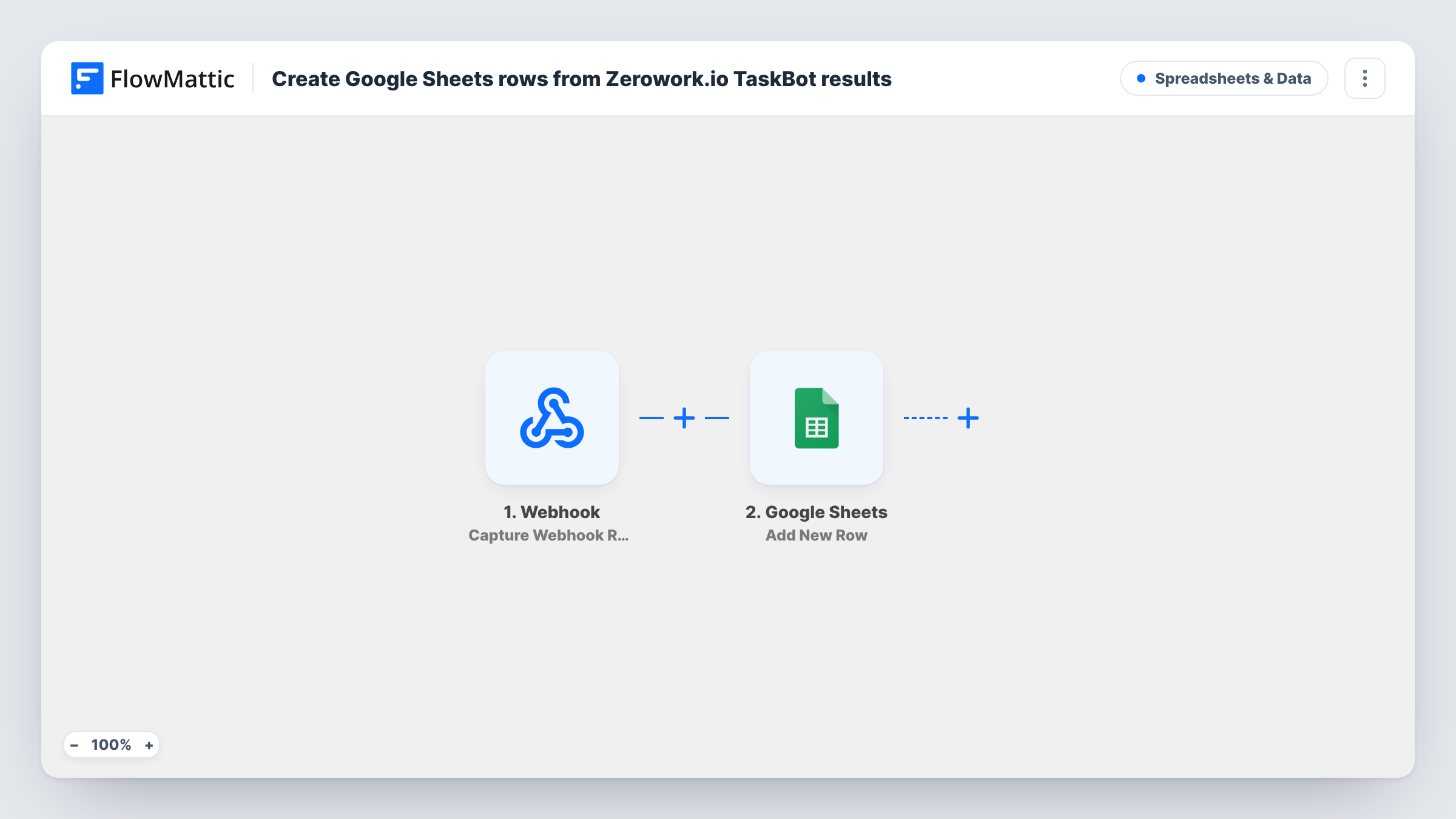
When a Zerowork.io TaskBot sends its results to FlowMattic’s webhook URL, this workflow writes them to a new Google Sheets row, so scraped or collected data builds up in one spreadsheet.
 Webhook
 Google Sheets
2 steps Setup ~5 min Used on 1.9k sites Free to import
What this workflow does
Zerowork.io TaskBots collect data from websites and web apps, but the results are most useful somewhere your team can sort and share them. Google Sheets is a natural home for that data. This workflow gives each TaskBot result a row.
This template starts from a generic Webhook trigger. FlowMattic gives it a URL, and you set your TaskBot to send an HTTP request to that URL with the data it gathered. Zerowork.io's own FlowMattic trigger works the same way, by receiving the request a TaskBot sends, so the generic webhook does the same job. Every request starts a run.
The Google Sheets step then adds a row to the spreadsheet you choose, with each value from the request mapped to a column. If one request carries several records, they arrive as one payload, so check a test run to see how they map. Anyone with the URL can send data to it unless you turn on the webhook's authentication setting.
Price monitoring
A TaskBot visits competitor product pages and sends the price it finds. Each result becomes a dated row, so you can chart price changes over time.
Lead list building
A TaskBot gathers business names and contact details from a directory and sends each one to FlowMattic, building a prospect sheet for your sales team.
Job board tracking
A recruiter's TaskBot collects new job postings from a board and sends them on, so the team reviews openings in a shared spreadsheet.
How this workflow runs
What happens at each step once the workflow is on, and what you need before you import it.
 Webhook Capture Webhook Response
Gives you a webhook URL to paste into your Zerowork.io TaskBot's HTTP request. Each request starts a run, and its data becomes values you can map to sheet columns.
- Google Sheets Add New Row
Adds a row to the Google Sheets spreadsheet you choose with the TaskBot's data. Connect your Google account, pick the sheet and map each received value to a column.
What you need
- FlowMatticCore
- Google Sheets AccountAccount
After importing, map your own data. To keep the template universal, not every step is pre-filled. Open each step in the builder and connect your accounts and fields (channels, lists, sheets, recipients) before you switch the workflow on.
Make it yours
Changes worth making after you import it.
- Run your TaskBot once after import with the webhook URL set, so FlowMattic captures a real request and you can map its fields to columns.
- Turn on the Webhook trigger's Require authentication on incoming requests setting and include the key in the TaskBot's request, if your bot can add it, so only your bot can add rows.
- If the TaskBot sends a list of items in one request, add an Iterator before the sheet step so each item gets its own row.
Questions about this workflow
Why does this use a Webhook instead of a Zerowork.io trigger?
FlowMattic's Zerowork.io trigger, TaskBot Run, also fires when a TaskBot sends an HTTP request. The generic Webhook receives that same request, so either one works.
How does the Zerowork.io TaskBot reach FlowMattic?
Add a step in your TaskBot that sends an HTTP request to the webhook URL FlowMattic shows, with the data you want in the sheet. Check Zerowork.io's own help for building that request.
Will several scraped records in one request become several Google Sheets rows?
Not as imported. One request means one run and one row. Add an Iterator over the list in the payload to write a row per record.
Does this template ask me to connect a Zerowork.io account?
No. The webhook only listens for requests, so the only account you connect is Google. Your TaskBot just needs the webhook URL.
More Spreadsheets & Data workflows
Other ready-to-import templates from the same category.



Import this workflow into your WordPress site
Download the JSON, import it from the Workflows screen and connect your accounts. Every run stays on your server, with no per-task fees.
30-day money-back guarantee Unlimited workflows and runs Self-hosted