

When new form submission is received in Contact Form 7, check if a field contains a word using Filters, and add the data to Google Spreadsheet
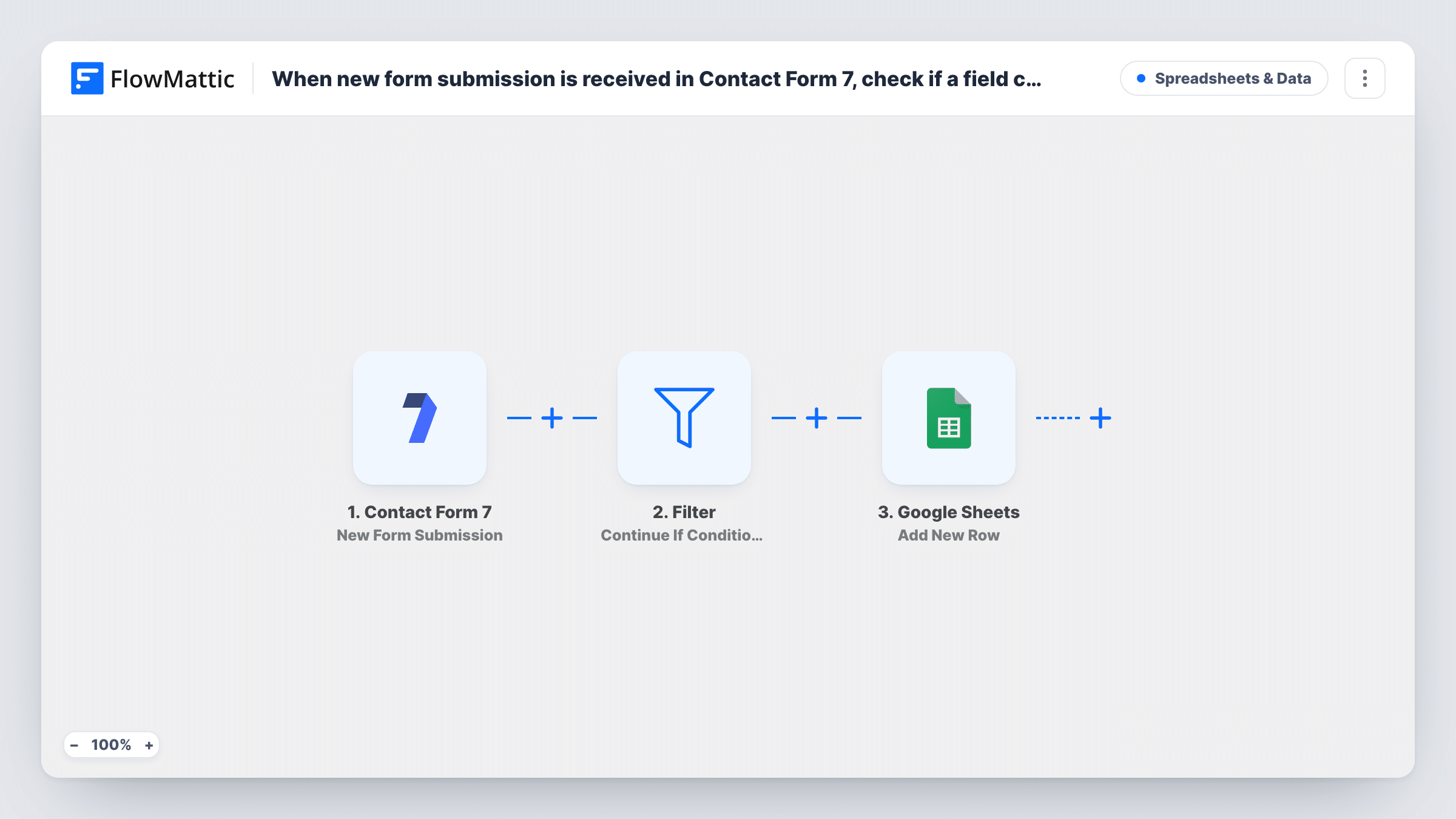
Each Contact Form 7 submission passes through a Filter that looks for a word in a field you choose, and only matching entries are added to Google Sheets. The word itself is yours to set once imported.
 Contact Form 7
 Filter
 Google Sheets
3 steps Setup ~5 min Used on 2.8k sites Free to import
What this workflow does
A single Contact Form 7 form can collect very different messages: sales questions, support requests, partnership pitches. If one team only needs the entries that mention something specific, sending every submission to their spreadsheet makes them sort through the rest. This workflow lets a word in a field decide what gets through.
A run begins when someone sends one of your Contact Form 7 forms. The submission then reaches a Filter step. When its condition matches, the run goes on to Google Sheets, which adds a row with the fields you map. When it doesn't match, the run ends at the Filter.
The Filter comes with no condition. As imported it stops every run, so no rows are added until you set it, for example the message field contains the word you care about. Set that condition before you turn the workflow on.
Route wholesale enquiries to a sales sheet
Set the Filter so the message contains wholesale. Only those enquiries reach the sheet the sales team works from, while Contact Form 7 still emails you every entry.
Collect mentions of a product name
A shop's contact form gets questions about many items. Filtering on one product name gives its manager a sheet of just those questions.
Gather entries for one city or branch
A business with several locations filters on a city name in the location field, so each branch can have its own copy of this workflow and its own sheet.
How this workflow runs
What happens at each step once the workflow is on, and what you need before you import it.
 Contact Form 7 New Form Submission
Starts a run whenever a visitor sends any Contact Form 7 form on your site. Every submitted field is handed to the Filter and the Google Sheets step.
- Filter Continue If Condition Meet
Continues only when the condition you add matches, such as a chosen field containing a word. It ships empty, which stops every run here until you add that condition.
- Google Sheets Add New Row
Adds a row to the Google Sheets spreadsheet you choose for each submission that passed the Filter. Map the form fields into your columns and connect your Google account.
What you need
- FlowMatticCore
- Contact Form 7 PluginPlugin
- Google Sheets AccountAccount
After importing, map your own data. To keep the template universal, not every step is pre-filled. Open each step in the builder and connect your accounts and fields (channels, lists, sheets, recipients) before you switch the workflow on.
Make it yours
Changes worth making after you import it.
- After you set the condition, submit two test entries, one with the word and one without, and check Task History to see where each run stopped.
- Need entries that mention either of two words? Add a second condition group to the Filter so a match on either word lets the run through.
- Contact Form 7 doesn't save entries on its own, so the sheet may be your only record of matching submissions. Keep the form's mail settings on for the rest.
Questions about this workflow
Why are no Contact Form 7 entries reaching my sheet?
As imported, the Filter has no condition, so it halts every run. Open the Filter step, add the field and the word to look for, then submit a test entry again.
What happens to Contact Form 7 entries that don't contain the word?
Their run ends at the Filter and no row is written. Contact Form 7 still sends its normal notification email for them.
Can I check more than one Contact Form 7 field?
Yes. Add more conditions to the Filter, for example the subject contains one word and the message contains another.
More Spreadsheets & Data workflows
Other ready-to-import templates from the same category.




Import this workflow into your WordPress site
Download the JSON, import it from the Workflows screen and connect your accounts. Every run stays on your server, with no per-task fees.
30-day money-back guarantee Unlimited workflows and runs Self-hosted