

When a Formester form submission is deleted, remove the corresponding row from Google Sheets
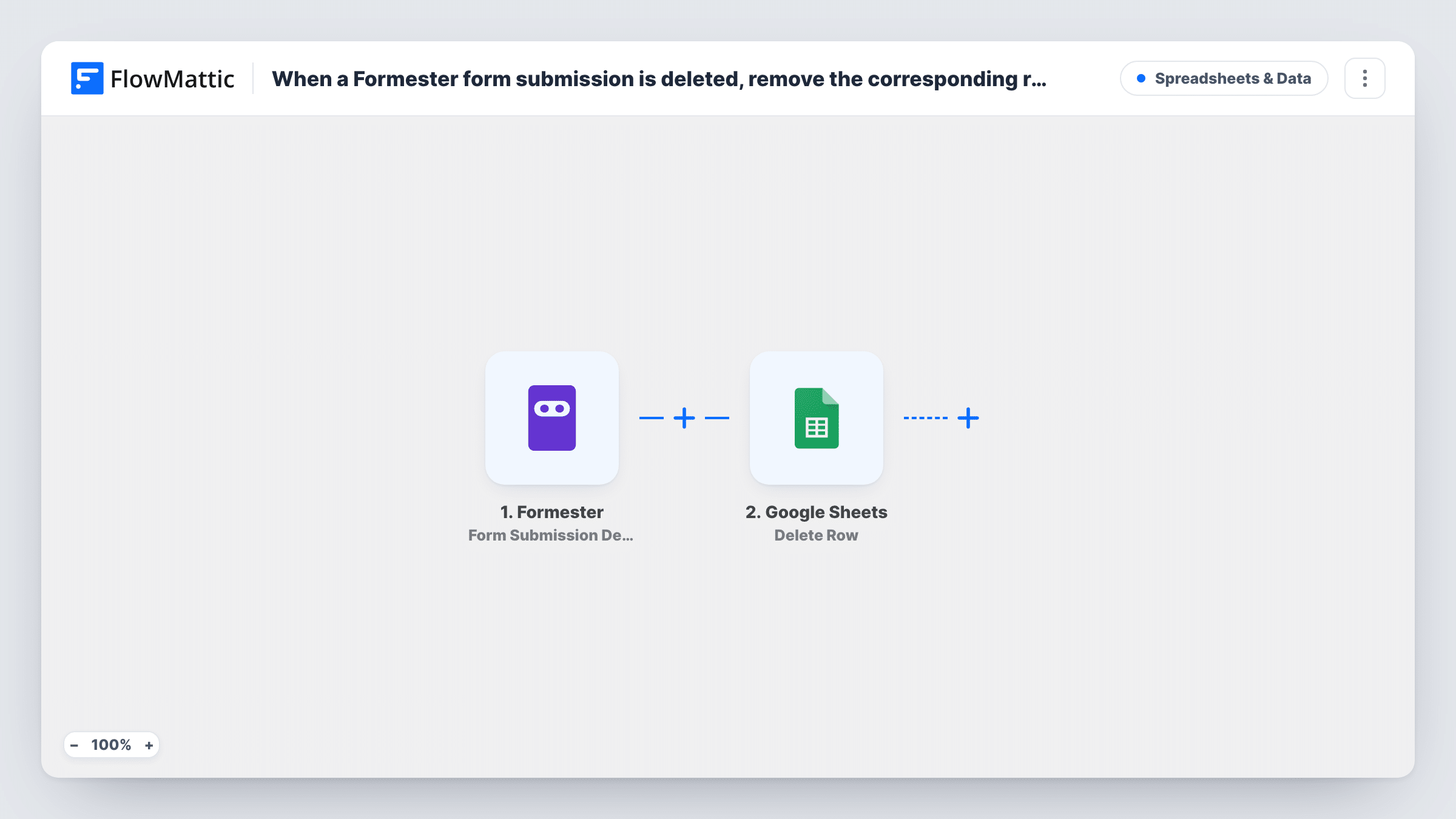
When a submission is deleted in Formester, FlowMattic looks up its row in your Google Sheet and deletes that row, so the spreadsheet stops holding entries you removed from the form.
 Formester
 Google Sheets
 Filter
4 steps Setup ~8 min Used on 358 sites Free to import
What this workflow does
Many teams copy Formester responses into Google Sheets for reporting. When you delete a test entry, a spam response or a request to have data removed, the sheet keeps the old row unless someone finds it and clears it. This workflow removes it for you as the submission is deleted.
The Formester trigger fires when a form submission is deleted and passes that submission's details on. The Google Sheets Lookup Row Data step goes looking for that entry in your sheet. It ships unmapped: after import you choose the spreadsheet and sheet, the column to search and the value from the deleted submission to look for.
A Filter checks that the lookup returned a row number for the first match. When nothing is found, the run stops there and the sheet is left as it is. When a row is found, the Delete Row step removes it using that row number, which the template already maps.
The lookup needs a value that identifies one submission, so the sheet should store something unique for each entry, such as the Formester submission ID. Test by deleting a sample submission and check Task History for the row number the lookup returned.
Clearing spam out of a response sheet
An events team deletes junk registrations in Formester and wants those rows gone from the Google Sheet that feeds their attendee count.
Honouring data removal requests
When someone asks for their details to be erased, deleting the Formester submission also removes their row from the shared spreadsheet.
Keeping test entries out of reports
A marketer submits a few test entries while building a form, deletes them in Formester, and the reporting sheet ends up with only real responses.
How this workflow runs
What happens at each step once the workflow is on, and what you need before you import it.
 Formester Form Submission Deleted
Starts a run each time a form submission is deleted in Formester. The deleted submission's details are passed to the Google Sheets lookup so it can find the matching row.
- Google Sheets Lookup Row Data
Searches your spreadsheet for the deleted submission. Nothing is mapped in the template, so pick the spreadsheet, sheet and lookup column, and map a value from the Formester event that the sheet also stores.
- Filter Continue If Condition Meet
Continues only when the lookup returned a row number for its first match. If no row in the sheet matches the deleted Formester submission, the run ends here and no row is deleted.
- Google Sheets Delete Row
Deletes the row the lookup found, using its row number, which the template maps from the Lookup Row Data step. Only that one row is removed from the sheet.
What you need
- FlowMatticCore
- Formester AccountAccount
- Google Sheets AccountAccount
After importing, map your own data. To keep the template universal, not every step is pre-filled. Open each step in the builder and connect your accounts and fields (channels, lists, sheets, recipients) before you switch the workflow on.
Make it yours
Changes worth making after you import it.
- Save the Formester submission ID in its own column when rows are first added to the sheet, then search that column. Names and emails can repeat across entries, but the ID points to one submission.
- Run a test deletion with a sample entry before using the workflow on a live sheet, and check in Task History that the lookup found the row you expected.
- Keep a copy of the sheet or turn on version history in Google Sheets while you test, so a mistaken lookup value can be undone.
Questions about this workflow
How does the workflow find the right Google Sheets row?
Through the Lookup Row Data step, which searches a column you choose for a value from the deleted Formester submission. Pick a value that is unique per entry, such as the submission ID, so the first match is the right row.
What if the deleted Formester submission isn't in the sheet?
The lookup returns no row number, the Filter stops the run, and the sheet stays unchanged.
Does this add rows to Google Sheets for new Formester submissions?
No. It only removes rows when submissions are deleted. To log new submissions, use a separate workflow with Formester's Form Submission Created trigger and a Google Sheets Add New Row step.
Can several rows be deleted for one Formester submission?
No. The Filter and Delete Row step both use the first match only, so one deletion in Formester removes at most one row.
More Spreadsheets & Data workflows
Other ready-to-import templates from the same category.



Import this workflow into your WordPress site
Download the JSON, import it from the Workflows screen and connect your accounts. Every run stays on your server, with no per-task fees.
30-day money-back guarantee Unlimited workflows and runs Self-hosted