

When a Cardly contact order is sent, log it in Google Sheets, post to Slack, then mark the row notified
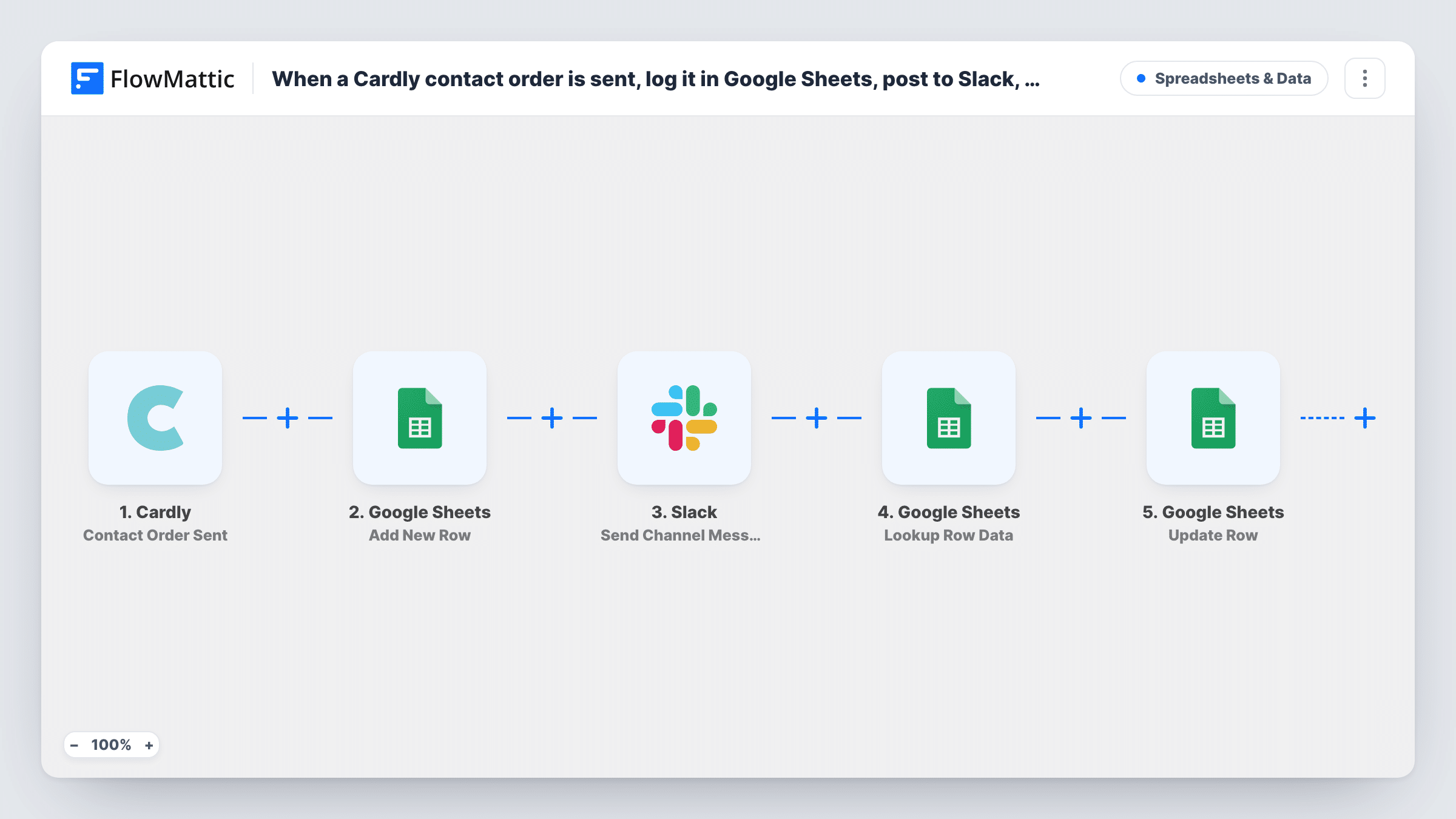
When Cardly dispatches a card as part of an automated send, FlowMattic logs the contact and order in Google Sheets, posts a note to Slack, then finds that row again and marks it as notified.
 Cardly
 Google Sheets
 Slack
5 steps Setup ~8 min Used on 3.1k sites Free to import
What this workflow does
Direct-mail cards are easy to forget once they leave Cardly. Sales and account teams want to know who was just sent a card, and a sheet gives you a running record you can sort and report on. This workflow builds that record and tells the team in Slack each time a card goes out.
The Cardly Contact Order Sent trigger fires when a contact and order are dispatched as part of an automated send, with the associated details. The first Google Sheets step adds a new row with the data you map, such as the recipient's name, address, card and order ID.
The Slack step comes next and announces the card in a channel of your choice. After that, Lookup Row Data searches the same sheet for the row just added, and Update Row writes to it, for example "Yes" in a Notified column. For the lookup to find the right row, search on a value that is unique to each send, such as Cardly's order ID, and map the row it finds into Update Row.
All four action steps ship unmapped, so expect to pick the spreadsheet, columns, channel and message after import. Task History shows what each step received and returned when you test with a real send.
Card log for account managers
A SaaS company sends thank-you cards to new customers through Cardly, and account managers see each dispatched card in Slack and in a shared sheet.
Proof of a follow-up step
A real estate team's sheet shows every card Cardly sent to past clients, with a Notified column confirming the team was told.
Direct-mail reporting by month
A marketing manager filters the Google Sheet by date to count how many Cardly cards went out each month and to whom.
How this workflow runs
What happens at each step once the workflow is on, and what you need before you import it.
 Cardly Contact Order Sent
Fires when Cardly dispatches a contact and order as part of an automated send. The contact, order and card details are passed on to the sheet and Slack steps.
- Google Sheets Add New Row
Adds a row for the dispatched card to the spreadsheet you pick. Unmapped as shipped: choose the sheet and map Cardly fields, including a unique value such as the order ID.
- Slack Send Channel Message
Posts a message about the sent card to a Slack channel. Connect Slack, pick the channel and write the text, mapping in the recipient's name and other Cardly details.
- Google Sheets Lookup Row Data
Searches the same spreadsheet for the row just added. Set it to look in the column that holds your unique value, such as the Cardly order ID, and match it to the trigger's value.
- Google Sheets Update Row
Updates the row the lookup found, for example writing Yes into a Notified column. Map the row from the lookup step and set the value you want recorded.
What you need
- FlowMatticCore
- Cardly AccountAccount
- Google Sheets AccountAccount
- Slack AccountAccount
After importing, map your own data. To keep the template universal, not every step is pre-filled. Open each step in the builder and connect your accounts and fields (channels, lists, sheets, recipients) before you switch the workflow on.
Make it yours
Changes worth making after you import it.
- Add a Notified column to the sheet before import and leave it empty for new rows, so the Update Row step has a clear place to write.
- Keep the Cardly order ID in its own column and search on it in Lookup Row Data, since names can repeat but order IDs don't.
- Write the current date and time into the Notified column instead of Yes, so the sheet shows when the Slack post happened.
- Use Cardly's Contact Undeliverable trigger in a second workflow that writes to the same sheet, so returned cards are visible next to sent ones.
Questions about this workflow
Why does the Cardly workflow look the row up again before updating it?
Update Row needs to know which row to change. Lookup Row Data finds the row added earlier in the run by searching for a value unique to the send, such as the order ID.
Which Slack channel gets the Cardly notification?
You select it when you set up the Slack step after import. Choose a channel your sales or account team reads, and write the message with the Cardly details you want shown.
What if two rows in the sheet share the same order ID?
The lookup may find the wrong row or more than one. Keep the search column unique, and check a test run in Task History to see which row Lookup Row Data returned.
Does this run for Cardly orders that are only created, not sent?
No. Contact Order Sent fires when the card is dispatched. Cardly's Contact Order Created trigger covers orders that are created and pending a send.
More Spreadsheets & Data workflows
Other ready-to-import templates from the same category.




Import this workflow into your WordPress site
Download the JSON, import it from the Workflows screen and connect your accounts. Every run stays on your server, with no per-task fees.
30-day money-back guarantee Unlimited workflows and runs Self-hosted