

When a LendingWise webhook fires, log the loan in Google Sheets, notify the team in Slack, then update the row status
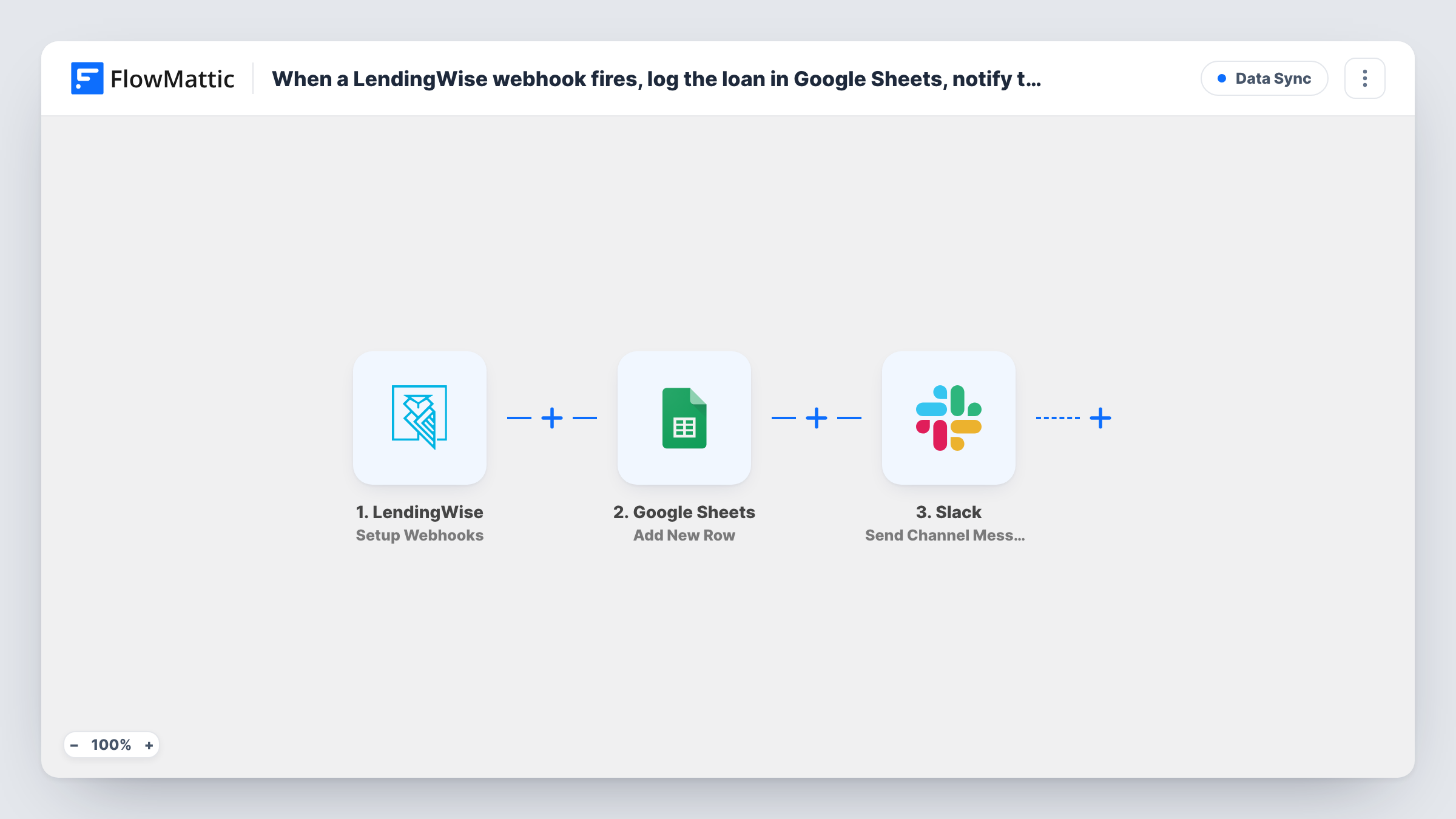
When LendingWise sends a webhook for the events you choose, FlowMattic logs the loan as a new Google Sheets row, notifies your team in Slack, then updates that row’s status using its row number.
 LendingWise
 Google Sheets
 Slack
Slack4 steps Setup ~8 min Used on 3.4k sites Free to import
What this workflow does
Loan teams working in LendingWise often keep a spreadsheet alongside it for reporting, partner updates or quick lookups. Copying each file across by hand is slow and error-prone. This workflow adds a row whenever LendingWise sends one of the webhook events you pick, posts a note to Slack, and then updates the row's status.
The LendingWise Setup Webhooks trigger receives the events you specify when you set up the webhook in LendingWise, so choose the loan events you want logged and leave the rest out. Google Sheets Add New Row writes the loan details you map and returns the number of the new row. Your team then hears about the loan through a Slack channel message. Update Row closes the flow, with {google_spreadsheets2.row_number} already mapped as its row number so it edits that very row.
Setup after import: register the webhook in LendingWise for your chosen events, send a test, map the loan fields into your sheet columns, write the Slack message, and in Update Row pick the same sheet and set a status column to a value such as Logged.
The status is written straight after the Slack post, so it shows the loan was logged and shared, not where it stands in your pipeline. Task History shows each event and every step's reply.
Pipeline report for partners
A mortgage broker shares a Google Sheet of new loan files with a referral partner, built from LendingWise webhook events without manual copying.
Loan officer alerts
A lending team's #new-loans Slack channel shows each file as LendingWise sends it, so the right loan officer can pick it up quickly.
Volume tracking by month
An operations manager counts rows per month in the sheet to track loan volume, using the loan amount column mapped from LendingWise.
How this workflow runs
What happens at each step once the workflow is on, and what you need before you import it.
 LendingWise Setup Webhooks
Receives the events you specify when setting up the webhook in LendingWise. Subscribe it only to the loan events you want logged, then send a test so the fields appear in Task History.
- Google Sheets Add New Row
Logs the loan as a new row in the spreadsheet and sheet you select and returns the row number. Nothing is mapped in the template, so connect Google and match the LendingWise fields to your columns.
- Slack Send Channel Message
Notifies your team in the Slack channel you pick. Write the message after import and map in loan details from the LendingWise data, such as the borrower name or loan amount.
- Google Sheets Update Row
Updates the status of the row from step 2, using the row number it returned, which the template maps already. Choose the same spreadsheet and sheet and set the status column value.
What you need
- FlowMatticCore
- LendingWise AccountAccount
- Google Sheets AccountAccount
- Slack AccountAccount
After importing, map your own data. To keep the template universal, not every step is pre-filled. Open each step in the builder and connect your accounts and fields (channels, lists, sheets, recipients) before you switch the workflow on.
Make it yours
Changes worth making after you import it.
- Choose only the LendingWise events that mean a loan should be logged when you set up the webhook, so other activity doesn't add rows.
- Keep borrower details that your team shouldn't see in Slack out of the message text, and map them only into the Google Sheet.
- If loans should go to a private Slack channel, swap the step for Slack's Send Private Channel Message action.
Questions about this workflow
Which LendingWise events start this workflow?
The ones you specify when you set up the webhook in LendingWise. Pick the loan events you want logged there, and send a test to see the data the trigger receives.
How does Update Row find the loan's row?
Add New Row returns the row number of the loan it just logged, and the template maps {google_spreadsheets2.row_number} into Update Row, so the status lands on that row.
Does the status column follow the loan through my pipeline?
No. Update Row sets the value once, right after the Slack message, and nothing else in the template changes it again. Track pipeline stages in LendingWise or in a column your team updates.
More Data Sync workflows
Other ready-to-import templates from the same category.






Import this workflow into your WordPress site
Download the JSON, import it from the Workflows screen and connect your accounts. Every run stays on your server, with no per-task fees.
30-day money-back guarantee Unlimited workflows and runs Self-hosted