

When data received from Pabbly Connect, check if field contains a word using Filters, and create a new post in WordPress
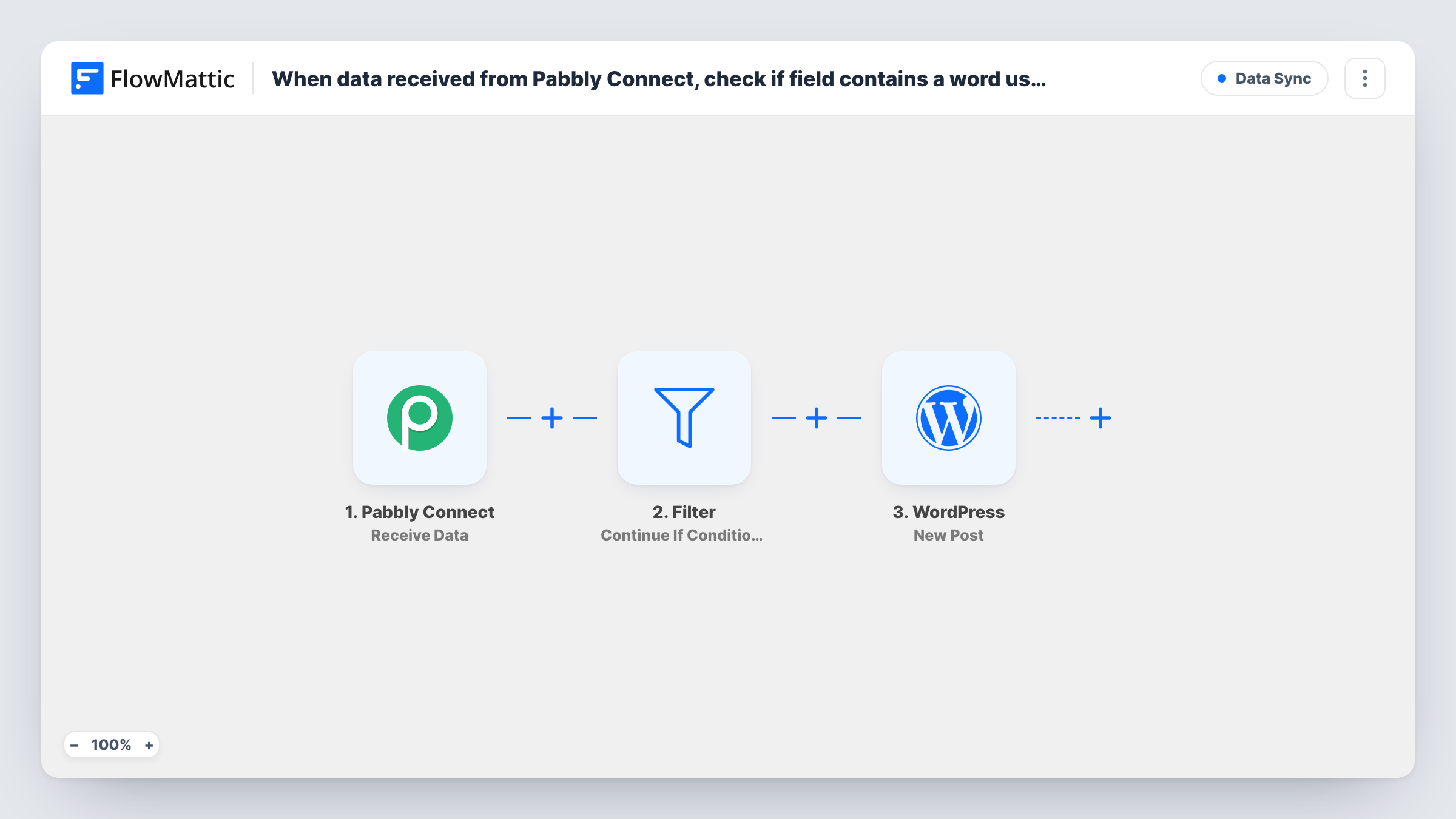
Data that Pabbly Connect sends to FlowMattic passes through a Filter you set to look for a word in a field, and matching entries become new WordPress posts. You set the Filter’s condition after import.
 Pabbly Connect
 Filter
 WordPress
3 steps Setup ~5 min Used on 2.4k sites Free to import
What this workflow does
Pabbly Connect can pull content from many apps, but you may only want some of it published on your WordPress site. Sending everything would fill your blog with entries you never meant to post. This workflow puts a word check between the two, so only data that contains your chosen word turns into a post.
The Pabbly Connect trigger, Receive Data, gives you a URL that a Pabbly Connect workflow posts data to. Each delivery starts a run. Next comes a Filter step, Continue If Condition Meet. When its condition matches, the last step creates a new post through WordPress with the title and content you map from the Pabbly data.
The template's Filter has no condition set. As imported, an empty Filter stops every run, so no post is created until you add the rule yourself: pick the field to check, choose contains, and type the word. After that, data with the word goes on to WordPress and data without it stops at the Filter.
Publishing selected RSS items
A Pabbly Connect workflow forwards feed items to FlowMattic. Only items whose title contains a keyword you cover, such as a product name, become WordPress posts.
Announcements from a team tool
Your team marks messages for the website with a word like PUBLISH. Pabbly Connect sends them over, and the Filter lets only those through to a new post.
Drafting posts from form answers
Pabbly Connect relays answers from an external form. Entries whose topic field contains a chosen word become posts you can review before publishing.
How this workflow runs
What happens at each step once the workflow is on, and what you need before you import it.
 Pabbly Connect Receive Data
Receives data that a Pabbly Connect workflow posts to this trigger's URL. Send one test delivery from Pabbly Connect so FlowMattic captures the fields for the next steps.
- Filter Continue If
Checks the received data against your condition. The template ships with none, and an empty Filter stops every run, so add a contains rule for the field and word you want before turning the workflow on.
- WordPress New Post
Creates a new WordPress post from data that passed the Filter. Map the post title and content from the Pabbly Connect fields, and run a test to see what else the step lets you set.
What you need
- FlowMatticCore
- Pabbly Connect AccountAccount
After importing, map your own data. To keep the template universal, not every step is pre-filled. Open each step in the builder and connect your accounts and fields (channels, lists, sheets, recipients) before you switch the workflow on.
Make it yours
Changes worth making after you import it.
- Contains checks for the word anywhere in the field, so a short word can match inside longer ones. Use a longer phrase or a distinctive tag word if you get unwanted posts.
- Swap the Filter for a Router if data without the word should go elsewhere, for example to a Google Sheets row you review, instead of being dropped.
- Add a second condition to the Filter, such as the content field not being empty, so entries without body text don't become empty posts.
Questions about this workflow
Why doesn't any WordPress post appear right after I import this Pabbly Connect workflow?
No condition is set in the template's Filter, and with none set it halts each run before the WordPress step. Add the contains rule with your word, then send another test from Pabbly Connect.
Can I check more than one field for the word?
Yes. Add more conditions to the Filter, for example the word in the title or in the body. Test with data that should pass and data that should not, then check Task History.
What does the Pabbly Connect side need?
A Pabbly Connect workflow with an action that sends data to the URL shown in this workflow's Receive Data trigger. The fields it sends are what you can check and map here.
Does the same Pabbly data sent twice create two posts?
Yes. New Post creates a post on every run that passes the Filter, and nothing checks for an existing post with the same title.
More Data Sync workflows
Other ready-to-import templates from the same category.






Import this workflow into your WordPress site
Download the JSON, import it from the Workflows screen and connect your accounts. Every run stays on your server, with no per-task fees.
30-day money-back guarantee Unlimited workflows and runs Self-hosted