

Log every Exly booking received in a Google Sheets spreadsheet
Every booking Exly receives for your offerings is added to a Google Sheets spreadsheet as a new row, giving you a running record of sessions and buyers you can sort, count and share outside Exly.
 Exly
 Google Sheets
2 steps Setup ~5 min Used on 838 sites Free to import
What this workflow does
Exly takes bookings for your classes, sessions and courses, but sometimes you need the list somewhere else: a sheet your co-host can read, a place to total revenue by offering, or a record to keep after a programme ends. Exporting from Exly every week is easy to forget. This workflow adds each booking to Google Sheets as it comes in.
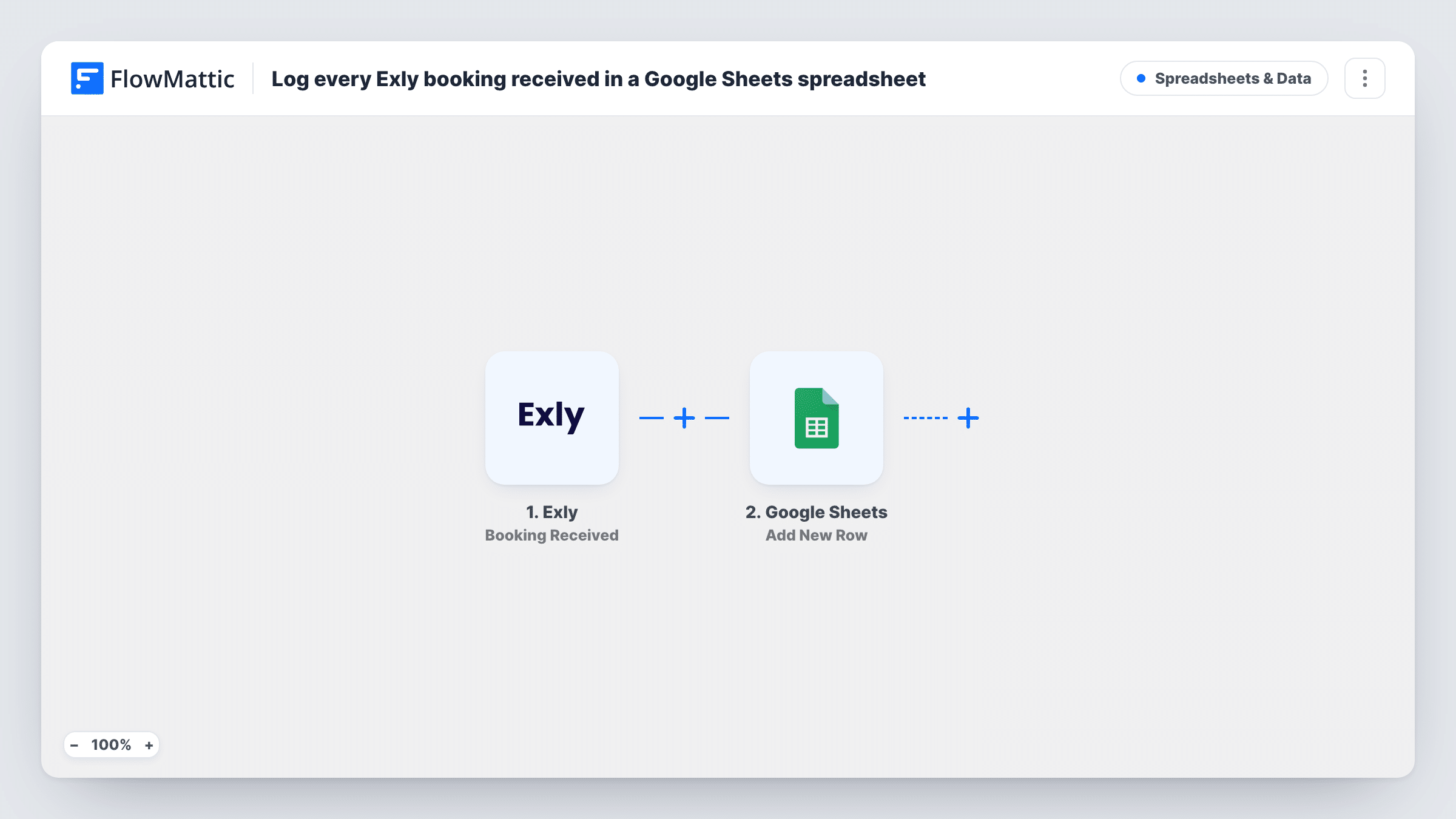
The Exly trigger, Booking Received, fires when a new booking is received. FlowMattic captures the booking's details, such as the buyer and the offering they booked. The Google Sheets step then runs Add New Row and writes those values into the columns of the spreadsheet you select.
One booking gives one new row. The step never edits rows, so a later change or cancellation in Exly isn't reflected in the sheet. If a person books two offerings, each booking adds its own row. Each Exly booking's run, with the reply from Google Sheets, is listed in Task History.
Yoga teacher tracking class sign-ups
Each Exly booking for a weekly class adds a row. The teacher filters the sheet by class date to see who's coming before each session.
Coach totalling monthly bookings
A career coach sells one-to-one sessions on Exly. A pivot table on the sheet shows how many sessions were booked each month and for which package.
Workshop with a co-host
Two creators run a paid workshop through one Exly account. The co-host without Exly access follows registrations in a shared Google Sheet.
How this workflow runs
What happens at each step once the workflow is on, and what you need before you import it.
 Exly Booking Received
Fires when your Exly account receives a new booking. Make a test booking after connecting so FlowMattic captures the booking fields to map.
- Google Sheets Add New Row
Writes the booking to a new row in your chosen Google Sheets spreadsheet. Map Exly values such as buyer name, email and offering to the columns, and connect your Google account.
What you need
- FlowMatticCore
- Exly AccountAccount
- Google Sheets AccountAccount
After importing, map your own data. To keep the template universal, not every step is pre-filled. Open each step in the builder and connect your accounts and fields (channels, lists, sheets, recipients) before you switch the workflow on.
Make it yours
Changes worth making after you import it.
- Add a header row to the sheet before mapping, with columns such as date, buyer, email and offering, so each value has an obvious home.
- Put a Filter after the trigger if one sheet should only hold bookings for a single offering, based on the offering name you see in a test run.
- Use a second workflow on Exly's Lead Captured trigger to log leads in another tab, keeping bookings and enquiries apart.
Questions about this workflow
Are Exly bookings made before import added to the sheet?
No. Only bookings received after the workflow is switched on start a run. Export earlier ones from Exly if you want them in the sheet.
Does a cancelled Exly booking update its Google Sheets row?
No. This workflow only reacts to new bookings and only adds rows, so changes after booking need to be made in the sheet by hand.
Which Exly booking details can I log in Google Sheets?
Whatever the Booking Received trigger returns. Make a test booking, then map the captured values to your sheet's columns.
Can bookings for each Exly offering go to separate tabs?
Yes. Replace the single Google Sheets step with a Router, give each route a condition on the offering name, and add an Add New Row step per route.
More Spreadsheets & Data workflows
Other ready-to-import templates from the same category.




Import this workflow into your WordPress site
Download the JSON, import it from the Workflows screen and connect your accounts. Every run stays on your server, with no per-task fees.
30-day money-back guarantee Unlimited workflows and runs Self-hosted