

Log new IndiaMART leads in a Google Sheets spreadsheet
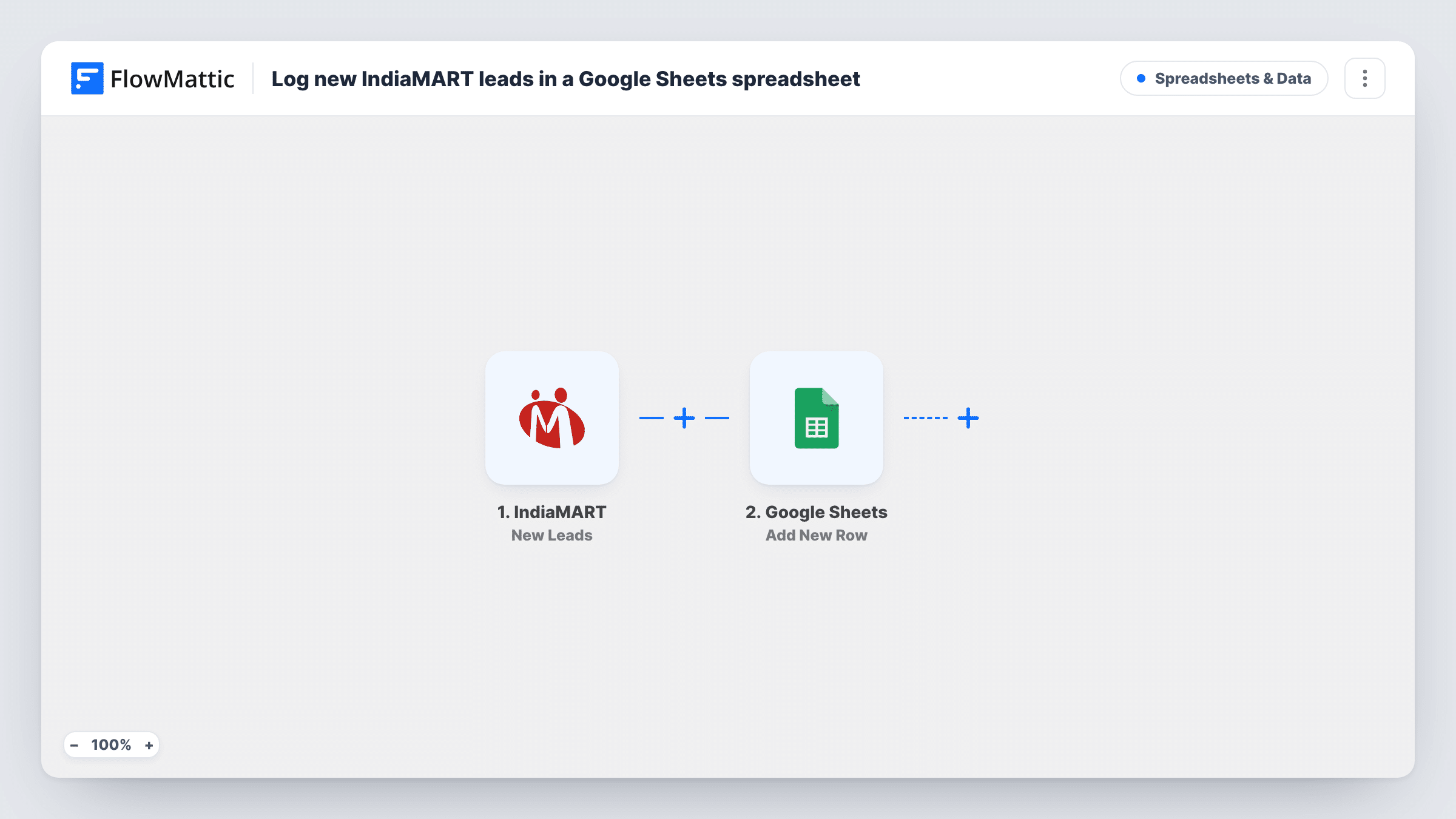
Each new lead IndiaMART captures for you is written to a new row in a Google Sheets spreadsheet, so your sales team works from one list of buyer enquiries it can sort and share.
 IndiaMART
 Google Sheets
2 steps Setup ~5 min Used on 636 sites Free to import
What this workflow does
Buyer enquiries on IndiaMART arrive in its seller panel, which only the account holder tends to watch. Sales staff then wait for someone to forward each one. This workflow puts every new IndiaMART lead into a Google Sheets spreadsheet the whole team can open.
The IndiaMART trigger, New Leads, fires when a new lead is captured for your account. The lead's details, such as the buyer's name, contact information and the product they asked about, become values you can map, depending on what IndiaMART includes. A test run shows exactly which ones arrive.
The Google Sheets step appends one row per lead to the spreadsheet and sheet you choose, with each value in the column you assign. There is no Filter as imported, so every lead lands in the sheet, and Task History keeps a record of each run.
Shared lead list for a sales desk
A manufacturer's sales staff each take leads from one shared Google Sheet, adding a column for who called the buyer and when.
Weekly review of enquiry volume
An owner sorts the sheet by product or city to see which listings on IndiaMART draw the most buyer interest.
Hand-off to a CRM later
A small trader keeps leads in Google Sheets now and imports the sheet into a CRM when the business is ready for one.
How this workflow runs
What happens at each step once the workflow is on, and what you need before you import it.
 IndiaMART New Leads
Fires whenever IndiaMART captures a new lead for your seller account. Connect IndiaMART on import, then wait for or create a lead so FlowMattic shows the fields it sends.
- Google Sheets Add New Row
Places each IndiaMART lead on its own new row in the spreadsheet you select. Connect your Google account, pick the sheet, and map the lead details to the columns you want filled.
What you need
- FlowMatticCore
- IndiaMART AccountAccount
- Google Sheets AccountAccount
After importing, map your own data. To keep the template universal, not every step is pre-filled. Open each step in the builder and connect your accounts and fields (channels, lists, sheets, recipients) before you switch the workflow on.
Make it yours
Changes worth making after you import it.
- Add a Filter after the trigger that continues only for leads about the products your team handles, using the product field a test run shows.
- Leave a few columns at the right of the sheet unmapped, such as Status and Called by, so your team can track follow-up next to each lead.
- Add a Slack or email step after Google Sheets if you want someone told the moment a lead is logged, mapping the buyer's name and enquiry into the message.
Questions about this workflow
Which IndiaMART leads reach the spreadsheet?
Every new lead the New Leads trigger receives after the workflow is on. Nothing is filtered as imported, so add a Filter after the trigger if you want only some products or regions.
What IndiaMART lead details can I put in Google Sheets?
Whatever IndiaMART includes with the lead. After import, run the trigger with a real or test lead and check the captured data in the Google Sheets step before you map the columns.
Are leads I received before setup copied over?
No. The workflow logs leads captured after you turn it on. Older enquiries stay in your IndiaMART account.
Can two people work the IndiaMART lead sheet at once?
Yes. It is an ordinary Google Sheets file, so anyone you share it with can edit it while FlowMattic keeps adding new leads at the bottom.
More Spreadsheets & Data workflows
Other ready-to-import templates from the same category.




Import this workflow into your WordPress site
Download the JSON, import it from the Workflows screen and connect your accounts. Every run stays on your server, with no per-task fees.
30-day money-back guarantee Unlimited workflows and runs Self-hosted