

Log new Orufy Bookings appointments in a Google Sheets spreadsheet
Every new appointment scheduled in Orufy Bookings is written to a Google Sheets row with the client, service and time you map, building an appointment log you can filter, total and share.
 Orufy Bookings
 Google Sheets
2 steps Setup ~5 min Used on 1.5k sites Free to import
What this workflow does
Orufy Bookings keeps your calendar, but a spreadsheet answers other questions: how many appointments each service gets, which weeks are busiest, or who booked during a promotion. This workflow adds each new appointment to a sheet so those answers are always one filter away.
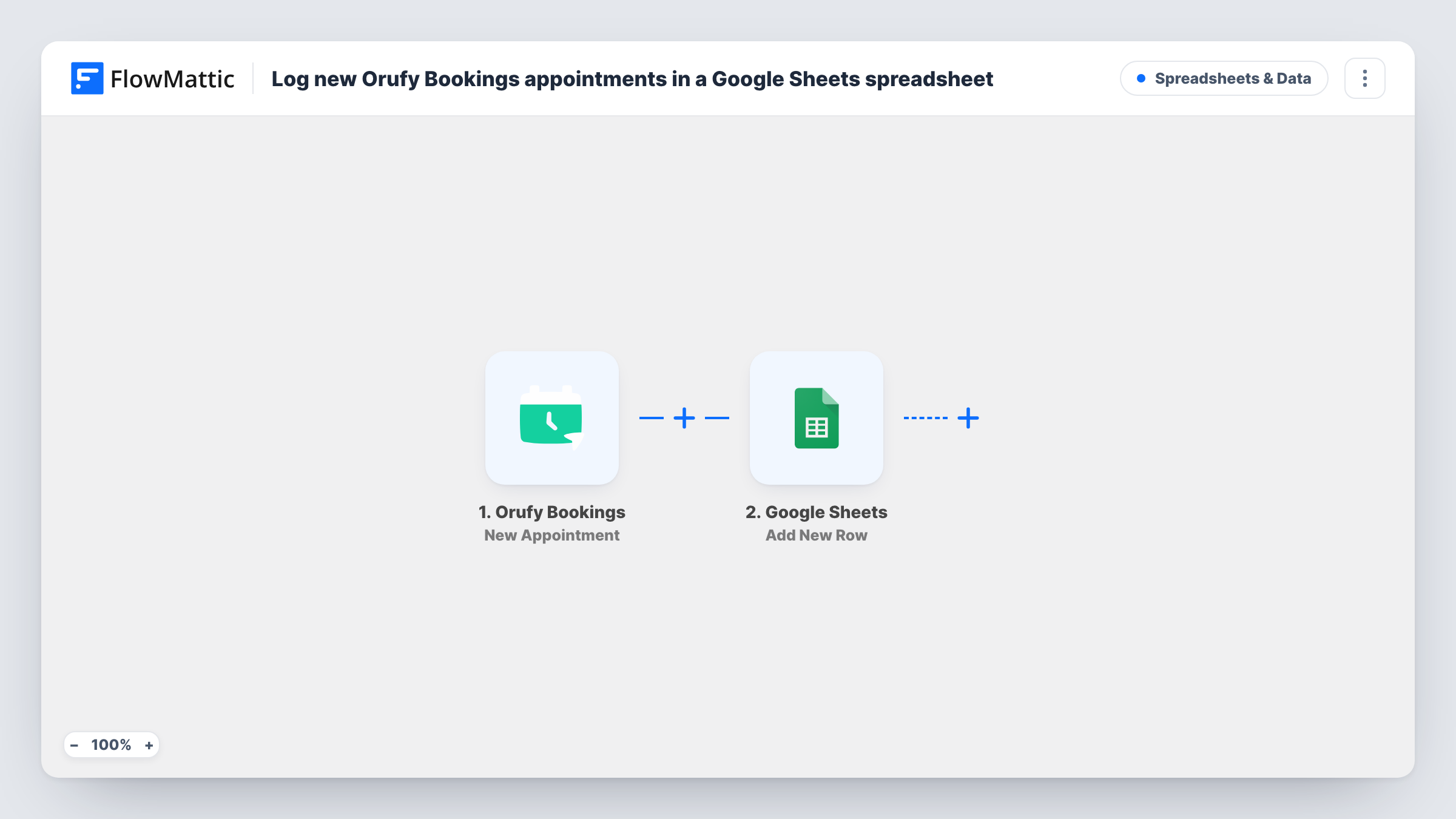
The Orufy Bookings trigger, New Appointment, fires when an appointment is scheduled. FlowMattic sends the appointment data to Google Sheets and Add New Row writes it to the sheet you choose. The columns are whatever you map, such as client name, email, service and start time.
The row is written once, at booking. Rescheduled and cancelled appointments have their own Orufy Bookings triggers, which this template doesn't use, so the original row isn't changed when plans move. Each appointment's run, with the data Orufy sent, is listed in Task History.
Weekly booking review
A physiotherapist checks the sheet each Friday to see how many new appointments came in and for which treatments.
Commission tracking for staff
A salon maps the staff member into a column, then totals each person's new bookings in the sheet at the end of the month.
Measuring a promotion
A tutoring business runs an offer for two weeks and compares the number of rows created during the offer with the weeks before it.
How this workflow runs
What happens at each step once the workflow is on, and what you need before you import it.
 Orufy Bookings New Appointment
Fires when a new appointment is scheduled in Orufy Bookings. Client, service and timing details from the appointment become available for mapping.
- Google Sheets Add New Row
Writes the appointment to a new row in the spreadsheet you choose. Map Orufy Bookings fields to your columns and link your Google account when you import the workflow.
What you need
- FlowMatticCore
- Orufy Bookings AccountAccount
- Google Sheets AccountAccount
After importing, map your own data. To keep the template universal, not every step is pre-filled. Open each step in the builder and connect your accounts and fields (channels, lists, sheets, recipients) before you switch the workflow on.
Make it yours
Changes worth making after you import it.
- Book a test appointment after import to capture the trigger's fields, then name your sheet's header row to match what you plan to map.
- Build a second workflow on Orufy Bookings' Appointment Cancelled trigger that adds rows to a cancellations tab, so the log shows both.
- Map the appointment's own ID into a column if the trigger provides one. It makes it easier to match rows with later reschedules or cancellations.
Questions about this workflow
Does the sheet change when an Orufy Bookings appointment is rescheduled?
No. Only New Appointment starts this workflow. Use the Appointment Rescheduled trigger in another workflow if you want reschedules recorded.
Are my existing Orufy Bookings appointments imported?
No. Only appointments scheduled after the workflow is turned on become rows.
Can several staff calendars feed one Google Sheet?
Every new appointment the trigger receives is logged. Map the staff member into a column if the event carries it, so you can tell calendars apart.
Which Google account does the Orufy Bookings log use?
The one you connect to the Google Sheets step. It needs edit access to the spreadsheet you pick.
More Spreadsheets & Data workflows
Other ready-to-import templates from the same category.




Import this workflow into your WordPress site
Download the JSON, import it from the Workflows screen and connect your accounts. Every run stays on your server, with no per-task fees.
30-day money-back guarantee Unlimited workflows and runs Self-hosted