

When a new form submission is received in Typeform, check field values with filters, and add the submission data to Google Spreadsheet
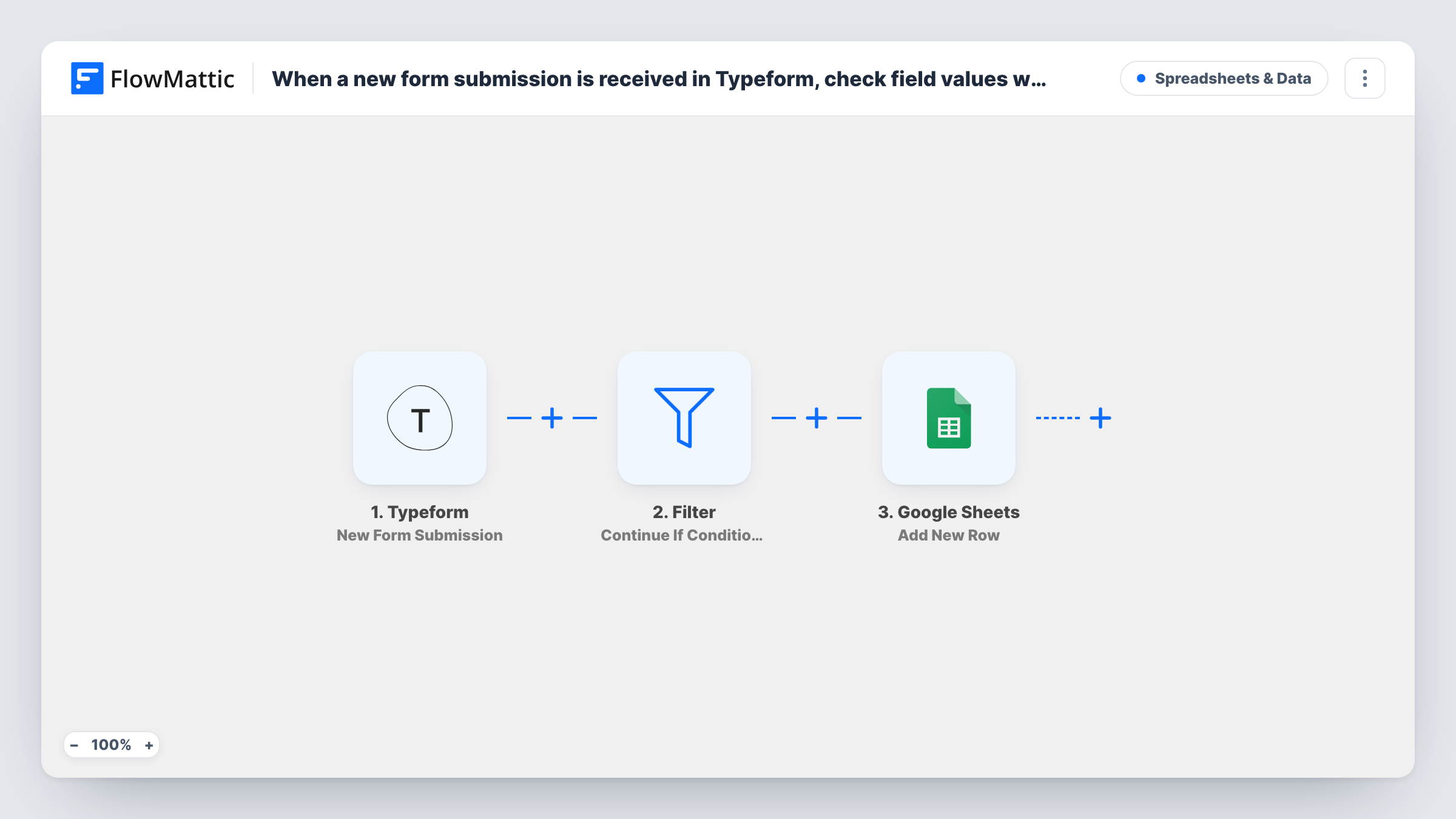
Typeform responses pass through a Filter that compares field values with rules you set, and only responses that meet them become new rows in Google Sheets. The rules are added after import.
 Typeform
 Filter
 Google Sheets
3 steps Setup ~5 min Used on 3.2k sites Free to import
What this workflow does
A Typeform can collect a mix of answers, and the spreadsheet your team works from usually needs only some of them: qualified leads, a particular plan choice, or people who said yes to a follow-up call. This workflow lets you screen each response before it reaches the sheet.
When someone submits your form, the Typeform trigger passes their answers to a Filter set to Continue If Condition Meet. If the response meets your rules, Google Sheets writes the answers you mapped into a new row. If it does not, the run ends at the Filter and the sheet is left as it was.
You have to add the rules yourself. The template's Filter has no conditions, and as imported it stops every run, so no Typeform response reaches the sheet until you set at least one. Choose the answer to check, the comparison, such as equals, contains or greater than, and the value. Numeric comparisons treat a blank answer as 0 and ignore decimals, so 7.5 compares as 7. Test with a couple of responses and check Task History.
Qualifying leads by budget
A Typeform asks for a monthly budget. Only responses with a budget greater than your minimum are added to the sales team's sheet.
Collecting one plan's sign-ups
Respondents pick a plan from a multiple-choice question. The Filter passes only those who chose the plan your onboarding team handles.
Follow-up list from a feedback survey
A survey asks whether the person wants to be contacted. Responses that answer yes go to the sheet your support team calls from.
How this workflow runs
What happens at each step once the workflow is on, and what you need before you import it.
 Typeform New Form Submission
Fires when someone submits your Typeform. Each answer becomes available to the Filter for checking and to the Google Sheets step for mapping.
- Filter Continue If Condition Meet
Compares the response with the conditions you add after import. Ships with none, and as imported it stops every run, so add at least one condition before you turn the workflow on.
- Google Sheets Add New Row
Adds a row to the Google Sheets spreadsheet you choose for each Typeform response that passed the Filter. Map answers to columns and connect your Google account.
What you need
- FlowMatticCore
- Typeform AccountAccount
- Google Sheets AccountAccount
After importing, map your own data. To keep the template universal, not every step is pre-filled. Open each step in the builder and connect your accounts and fields (channels, lists, sheets, recipients) before you switch the workflow on.
Make it yours
Changes worth making after you import it.
- Use more than one condition when one answer is not enough, for example a budget above your minimum and a company name that is not empty.
- Keep the responses that fail too by swapping the Filter for a Router with two routes and two Google Sheets steps. Give the routes conditions that cannot both match.
- After adding conditions, submit one response that should pass and one that should not, then check Task History to confirm each run went where you expected.
Questions about this workflow
Why does no Typeform response reach Google Sheets after import?
The Filter arrives with no conditions, and in that state it ends every run. Open the Filter step, add the rule your responses must meet, and test again.
What happens to a blank Typeform answer in a number condition?
It counts as 0. A blank answer fails a greater-than condition such as greater than 50, but passes a less-than condition such as less than 7.
Does Typeform still keep responses the Filter stops?
Yes. The workflow only decides what goes to the sheet. Every response stays in your Typeform account as usual.
Can the Filter check several Typeform answers at once?
Yes. Add a condition for each answer you want to check, then test a response against the full set before you rely on it.
More Spreadsheets & Data workflows
Other ready-to-import templates from the same category.




Import this workflow into your WordPress site
Download the JSON, import it from the Workflows screen and connect your accounts. Every run stays on your server, with no per-task fees.
30-day money-back guarantee Unlimited workflows and runs Self-hosted