

Send a Slack alert to the team when an Orufy Bookings appointment is cancelled
When an appointment in Orufy Bookings is cancelled, this workflow posts an alert to a Slack channel with the booking details, so your team knows a slot has opened up without checking the booking app.
 Orufy Bookings
 Slack
2 steps Setup ~5 min Used on 1.0k sites Free to import
What this workflow does
A cancelled appointment frees a slot that someone else could take, but only if your team hears about it. This workflow tells everyone in a Slack channel each time an Orufy Bookings appointment is cancelled.
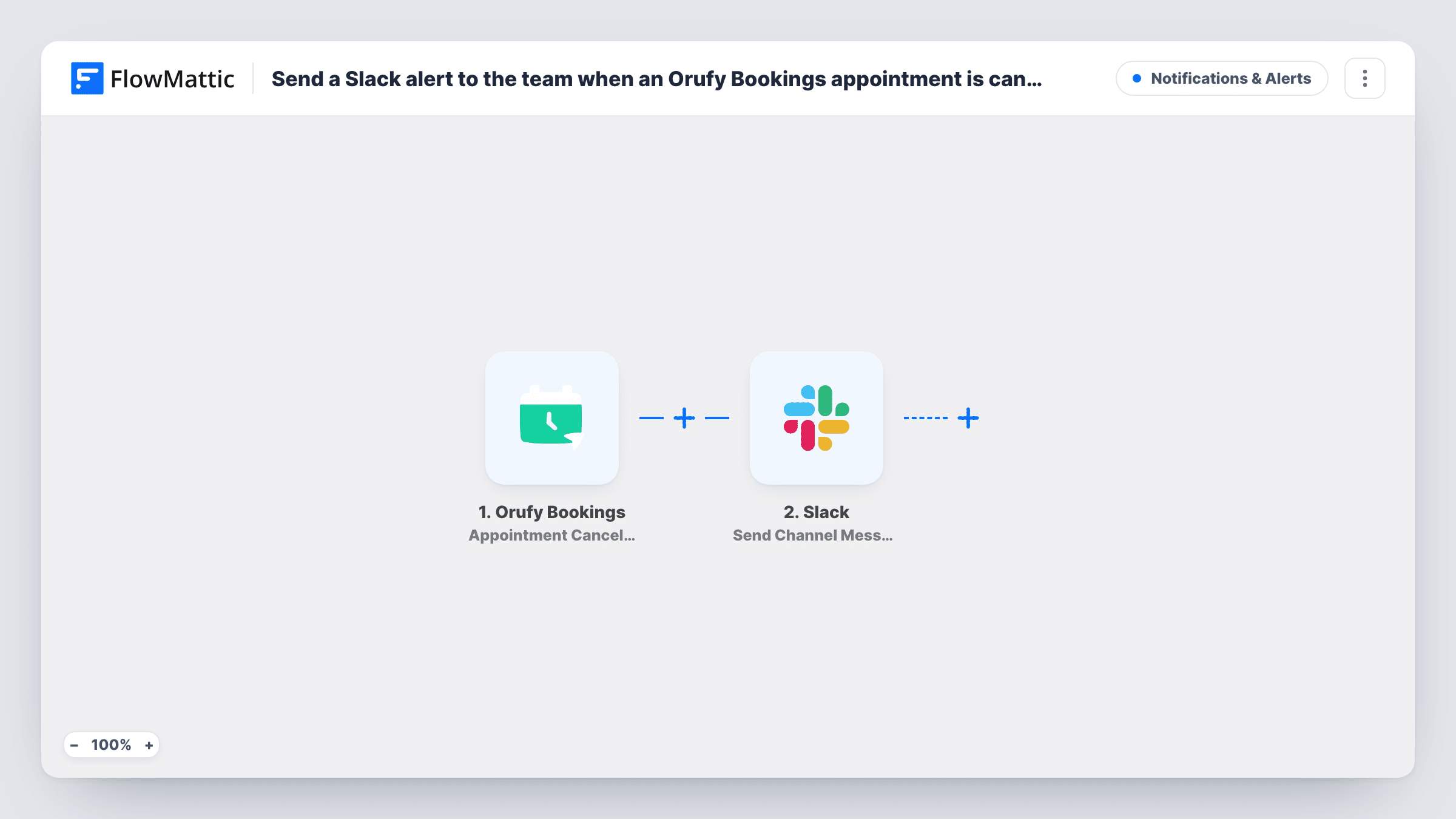
The Orufy Bookings trigger fires when an appointment is cancelled, and FlowMattic receives the appointment data Orufy sends. The Slack step then runs Send Channel Message and posts to the channel you choose. You write the alert and place the customer's name, the service and the original time in it, when those fields are in the trigger data.
Only cancellations run the workflow. Reschedules and new appointments are separate Orufy triggers and post nothing here. The alert is a message only; the workflow doesn't change the booking or fill the slot.
Salon front desk
When a client cancels a haircut, the front desk sees it in Slack and can offer the slot to someone on the waiting list.
Clinic schedule changes
A clinic posts cancellations to a staff channel, so practitioners know their day has a gap before they arrive.
Consultant availability
A consulting team posts cancelled client calls to Slack, letting colleagues pick up the free time for internal work.
How this workflow runs
What happens at each step once the workflow is on, and what you need before you import it.
 Orufy Bookings Appointment Cancelled
Fires when an appointment is cancelled in Orufy Bookings. The appointment data Orufy sends, such as customer and time, becomes available for the alert.
- Slack Send Channel Message
Posts the cancellation to the Slack channel you pick. Write the message and add the customer, service and original time from the Orufy data so the team knows which slot opened.
What you need
- FlowMatticCore
- Orufy Bookings AccountAccount
- Slack AccountAccount
After importing, map your own data. To keep the template universal, not every step is pre-filled. Open each step in the builder and connect your accounts and fields (channels, lists, sheets, recipients) before you switch the workflow on.
Make it yours
Changes worth making after you import it.
- Cancel a test appointment in Orufy Bookings after import so FlowMattic captures the trigger fields you need for the Slack message.
- Make a copy of this workflow on Orufy's Appointment Rescheduled trigger if you also want the team told when a booking moves to a new time.
- If the alert should reach one person instead of a channel, switch to Slack's Send Direct Message action and pick that person as the recipient.
Questions about this workflow
Does a rescheduled Orufy appointment post to Slack?
No. Rescheduling is a separate Orufy Bookings trigger. Only cancellations run this workflow.
Will the customer be told anything by this workflow?
No. It only posts in Slack. Any cancellation email to the customer comes from your Orufy Bookings settings.
Can the Slack alert mention who had the Orufy appointment?
Yes, if Orufy includes the staff member in the cancellation data. Check a test run to see the fields that arrive.
Can Orufy cancellation alerts go to a private Slack channel?
Swap the Slack step to Send Private Channel Message. The imported Send Channel Message action is meant for regular channels.
More Notifications & Alerts workflows
Other ready-to-import templates from the same category.




Import this workflow into your WordPress site
Download the JSON, import it from the Workflows screen and connect your accounts. Every run stays on your server, with no per-task fees.
30-day money-back guarantee Unlimited workflows and runs Self-hosted