

Send channel messages in Slack for new events in Hexomatic
When a Hexomatic automation or scraping recipe finishes, this workflow posts a message to the Slack channel you pick, so your team knows a run is done without checking Hexomatic.
 Hexomatic
 Slack
2 steps Setup ~5 min Used on 2.1k sites Free to import
What this workflow does
Hexomatic runs scraping recipes and automations in the background, sometimes for a long time. The people waiting on the results usually find out by checking the dashboard. This workflow tells them in Slack instead, as soon as a run completes.
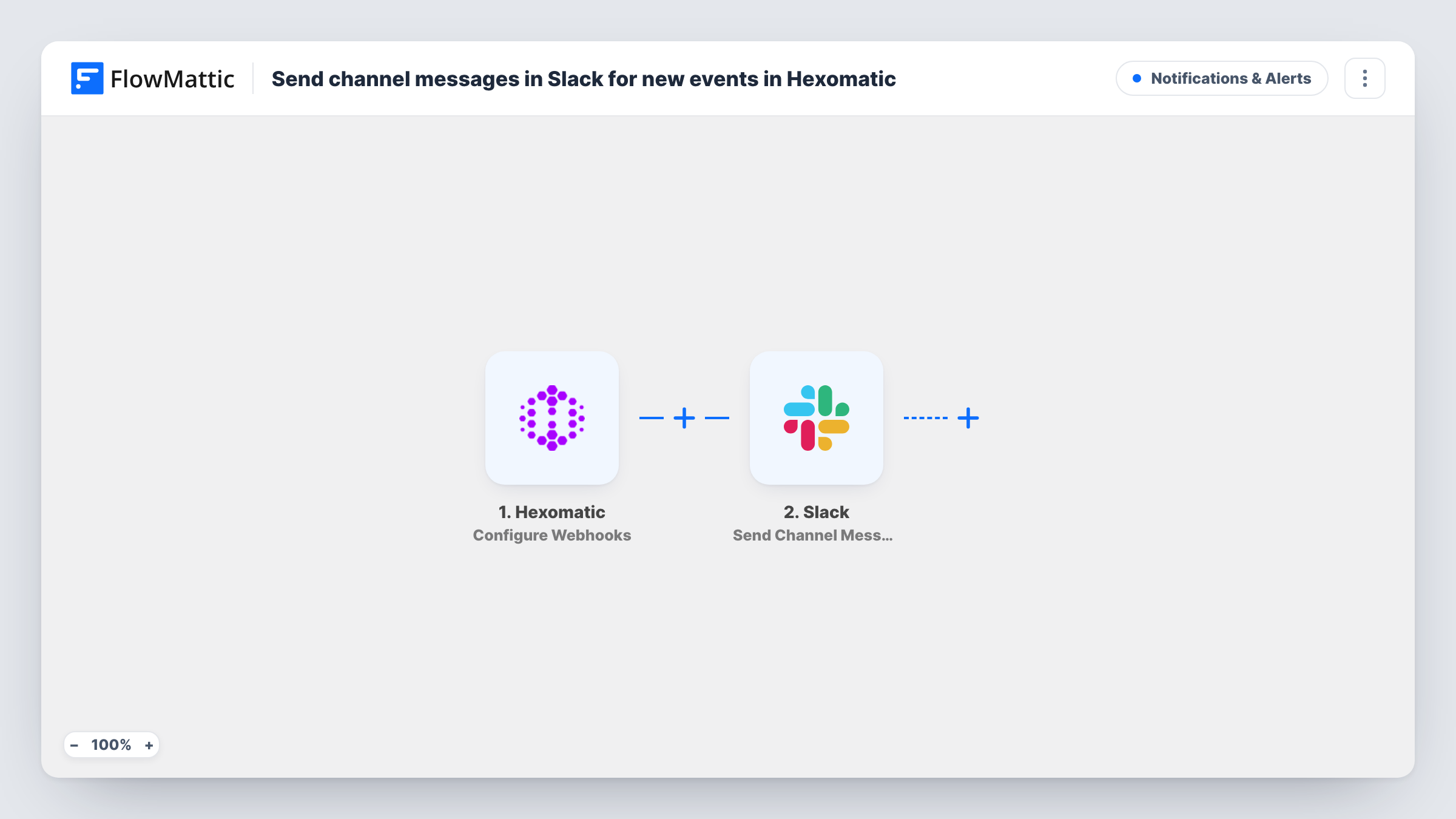
A run begins the moment Hexomatic reports that one of your recipes or automations has finished, through its Configure Webhooks trigger. FlowMattic passes whatever Hexomatic reports about that run to the Send Channel Message action in Slack. You choose the channel and write the message, inserting details from Hexomatic such as the workflow's name, if the webhook includes it.
Every completed run posts a message, so a recipe scheduled to run often will post often. The message is a notice that work is done. To bring the scraped results themselves into Slack or a sheet, you would add one of Hexomatic's data actions after the trigger. Each post, and any error Slack returns, is logged in Task History.
Price monitoring scrapes
A recipe that collects competitor prices finishes overnight, and the pricing channel sees a message so someone opens the results in the morning.
Lead list building
A sales ops person runs a Hexomatic automation to gather prospect data. The sales channel hears when the list is ready to use.
Content research runs
Marketing scrapes article lists for research, and the content channel gets a note each time a run is done.
How this workflow runs
What happens at each step once the workflow is on, and what you need before you import it.
 Hexomatic Configure Webhooks
Listens for Hexomatic to report a finished scraping recipe or automation. The data Hexomatic sends about the run becomes available for the Slack message.
- Slack Send Channel Message
Drops a completion notice into your chosen Slack channel. Write the text and add Hexomatic details so readers know which run finished.
What you need
- FlowMatticCore
- Hexomatic AccountAccount
- Slack AccountAccount
After importing, map your own data. To keep the template universal, not every step is pre-filled. Open each step in the builder and connect your accounts and fields (channels, lists, sheets, recipients) before you switch the workflow on.
Make it yours
Changes worth making after you import it.
- Complete a short test recipe in Hexomatic after import so FlowMattic captures what the webhook sends, then build the Slack message from those values.
- Add Hexomatic's Get Completed Workflow Data action between the trigger and Slack if you want the results of the run, not just the notice that it finished.
- Add a Filter after the trigger on the workflow name, if the webhook carries it, so only the recipes your team cares about post to the channel.
Questions about this workflow
Does the Slack message include the Hexomatic scraped data?
Not as imported. The message holds what the completion webhook sends. Add Hexomatic's Get Completed Workflow Data step to pull results into the flow.
Which Hexomatic runs post to Slack?
Any completed automation or scraping recipe that reports to this webhook. To hear about only certain recipes, put a Filter between the two steps.
Can the Hexomatic alerts go to a channel only a few people see?
Yes. For a private channel, replace the Slack step with Slack's Send Private Channel Message action, which posts to private channels you choose. Then run a test recipe to confirm the notice arrives.
More Notifications & Alerts workflows
Other ready-to-import templates from the same category.





Import this workflow into your WordPress site
Download the JSON, import it from the Workflows screen and connect your accounts. Every run stays on your server, with no per-task fees.
30-day money-back guarantee Unlimited workflows and runs Self-hosted