

Add new Benchmark Email subscribers to a Google Sheets spreadsheet
Each time a subscriber is added in Benchmark Email, their details are written to a new row in Google Sheets, so you keep a copy of new sign-ups outside your email platform.
 Benchmark Email
 Google Sheets
2 steps Setup ~5 min Used on 489 sites Free to import
What this workflow does
Your Benchmark Email lists hold your subscribers, but a spreadsheet is often easier to share, sort or combine with other data. Exporting the list now and then leaves gaps between exports. This workflow writes each new subscriber to a sheet as Benchmark Email adds them.
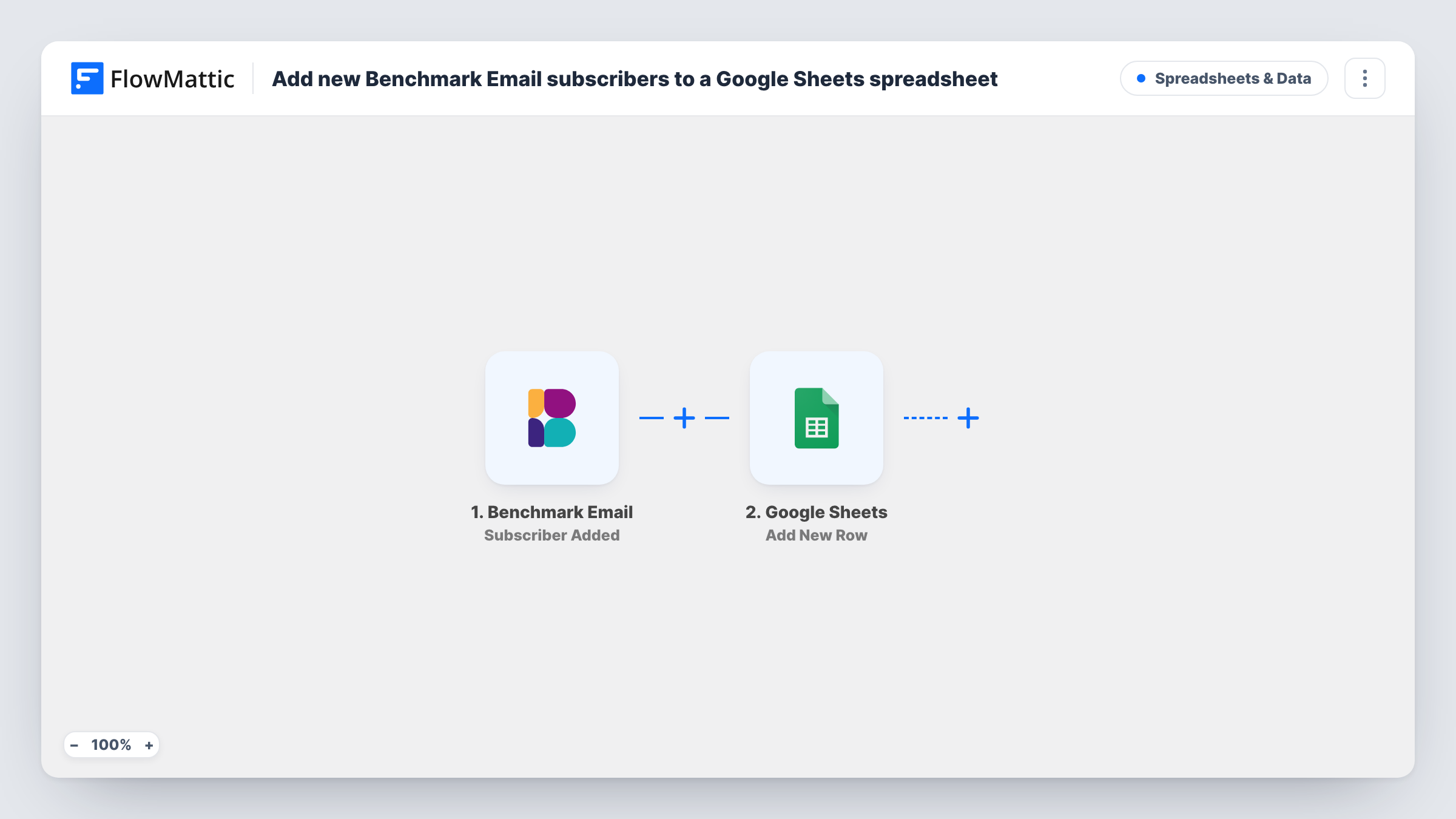
The Benchmark Email trigger is Subscriber Added, which fires when a new subscriber is added. The subscriber data it sends, such as the email address and any name or list details, becomes available to map.
The Google Sheets step writes each subscriber with Add New Row. You choose the spreadsheet and map the subscriber fields into its columns. Each new subscriber gets one row, and the sheet only covers people added after you turn the workflow on. Task History keeps a record of every run, in case a subscriber doesn't show up in the sheet.
A list copy for your sales team
Sales reps who don't use Benchmark Email can open the shared sheet and see who has joined your newsletter recently.
Tracking sign-up growth by week
Add a date column to the sheet, then chart how many Benchmark Email subscribers join each week.
Matching subscribers with customers
Keep new subscribers in a sheet next to your customer list and use a lookup formula to see which subscribers have already bought from you.
How this workflow runs
What happens at each step once the workflow is on, and what you need before you import it.
 Benchmark Email Subscriber Added
Fires when a new subscriber is added in Benchmark Email. The subscriber data is passed to the next step. Add a test subscriber after import so the fields appear for mapping.
- Google Sheets Add New Row
Writes a row to the Google Sheets spreadsheet you select for each new subscriber. Map the email and any other Benchmark Email fields you want into the sheet's columns.
What you need
- FlowMatticCore
- Benchmark Email AccountAccount
- Google Sheets AccountAccount
After importing, map your own data. To keep the template universal, not every step is pre-filled. Open each step in the builder and connect your accounts and fields (channels, lists, sheets, recipients) before you switch the workflow on.
Make it yours
Changes worth making after you import it.
- Set up the sheet's header row before your test run, with one column per subscriber field you care about, so mapping each field is quick.
- Benchmark Email also has an Unsubscribe trigger. Build a second workflow from it that logs unsubscribes to another tab, so you can see both sides of list growth.
- If you only want subscribers from one list, add a Filter after the trigger on the list field, if Benchmark Email sends one in a test run.
Questions about this workflow
Are existing Benchmark Email subscribers copied to the sheet?
No. The trigger fires when a subscriber is added, so only people who join after the workflow is on get a row. Export your current list once if you want it in the same sheet.
Does the sheet update when a Benchmark Email subscriber changes their profile?
No. Only the Subscriber Added event is wired up here. Benchmark Email has a separate Profile Changed trigger you could use in another workflow.
What subscriber details can I put in the Google Sheet?
Whatever Benchmark Email sends with the Subscriber Added event. Run a test with a new subscriber and look at the captured data to see which fields you can map.
More Spreadsheets & Data workflows
Other ready-to-import templates from the same category.




Import this workflow into your WordPress site
Download the JSON, import it from the Workflows screen and connect your accounts. Every run stays on your server, with no per-task fees.
30-day money-back guarantee Unlimited workflows and runs Self-hosted