

Send a Slack alert when a MaintainX work order status changes
Each time a MaintainX work order changes status, this workflow posts a message in the Slack channel you choose, so your team can follow jobs as they move along.
 MaintainX
 Slack
2 steps Setup ~5 min Used on 2.7k sites Free to import
What this workflow does
Maintenance teams update work orders in MaintainX, while managers and other departments often talk in Slack. Asking for updates by message wastes time on both sides. This workflow posts in Slack whenever a work order's status changes.
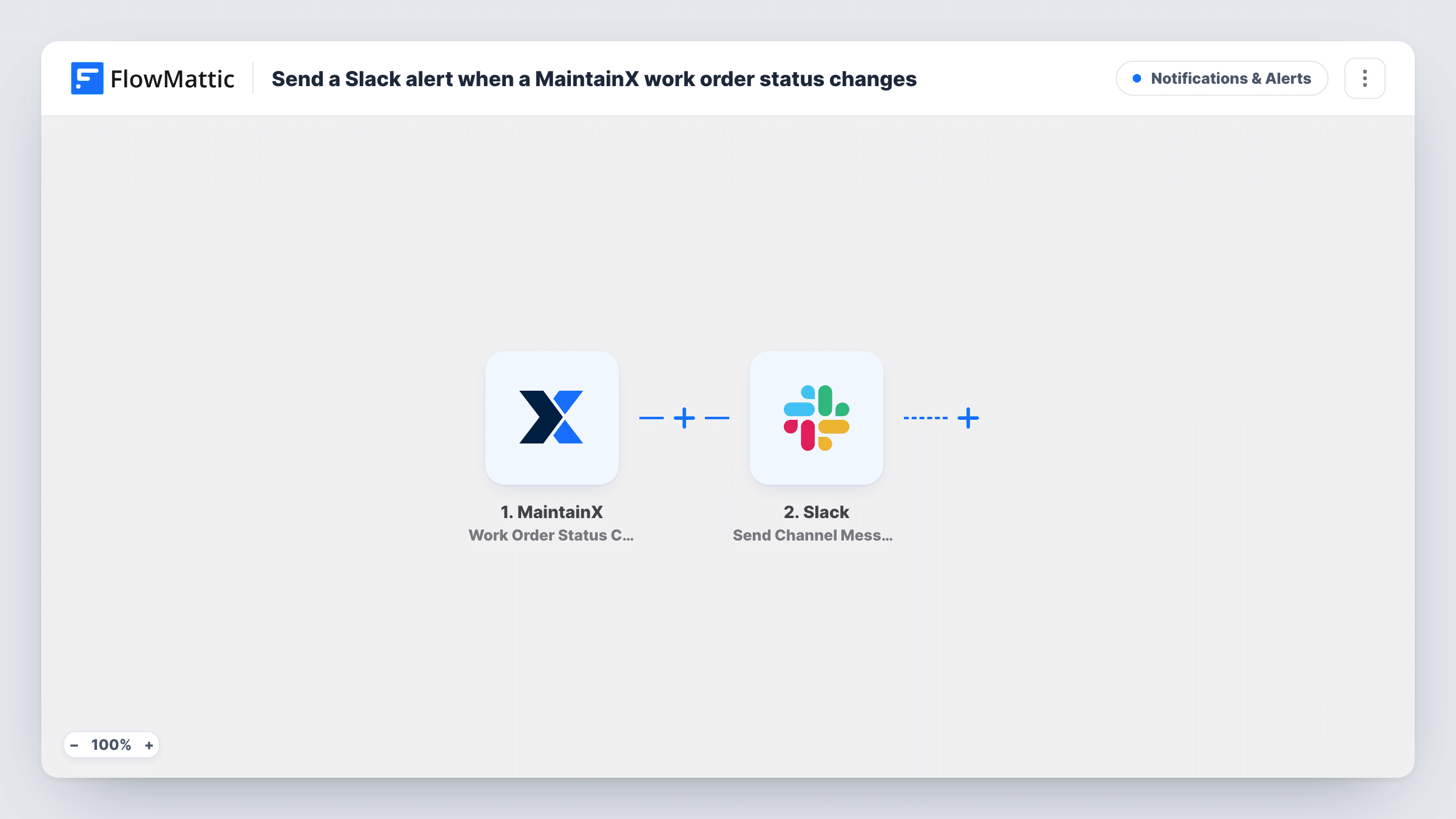
The MaintainX trigger is Work Order Status Change, which fires when a work order's status is changed. Every status change starts a run, whichever status the order moves to. The work order data MaintainX sends becomes available to map.
The Slack step then announces the change with Send Channel Message in your chosen channel. Write the text and add values such as the work order title and its new status, if MaintainX includes them. Each run is listed in Task History, where you can see what MaintainX sent.
Facilities manager following repairs
A facilities manager watches one Slack channel to see when repairs start, go on hold or are done, without opening MaintainX.
Production team waiting on a machine
Operators see in Slack when the work order for their machine changes status, so they know when to expect it back.
Property management updates
Property managers see work order status changes for their buildings in Slack and can update tenants.
How this workflow runs
What happens at each step once the workflow is on, and what you need before you import it.
 MaintainX Work Order Status Change
Fires when a work order's status changes in MaintainX. The work order data is passed on for mapping. Change a test work order's status after import so the fields appear.
- Slack Send Channel Message
Announces the work order's new status in a Slack channel of your choice. Write the text and map in the work order title and new status. For a private channel, use Slack's Send Private Channel Message action.
What you need
- FlowMatticCore
- MaintainX AccountAccount
- Slack AccountAccount
After importing, map your own data. To keep the template universal, not every step is pre-filled. Open each step in the builder and connect your accounts and fields (channels, lists, sheets, recipients) before you switch the workflow on.
Make it yours
Changes worth making after you import it.
- If only some statuses matter, such as completed, add a Filter after the trigger that continues only when the new status matches.
- Use a Router to send status changes for different locations or teams to different Slack channels, one route per channel with distinct conditions.
- Put the work order title and new status at the start of the message so people can scan the channel quickly.
Questions about this workflow
Which MaintainX status changes post to Slack?
All of them. The trigger fires on any work order status change. Add a Filter on the new status if you want only some changes posted.
Does a new MaintainX work order post to Slack?
Not through this trigger, which listens for status changes. MaintainX has a separate New Work Order trigger you can use in another workflow.
Can the MaintainX alert go to a private Slack channel?
This template's Slack action targets public channels. Replace it with Slack's Send Private Channel Message action and pick the private channel.
More Notifications & Alerts workflows
Other ready-to-import templates from the same category.




Import this workflow into your WordPress site
Download the JSON, import it from the Workflows screen and connect your accounts. Every run stays on your server, with no per-task fees.
30-day money-back guarantee Unlimited workflows and runs Self-hosted