

Add new Kickpages form submissions to a Google Sheets spreadsheet
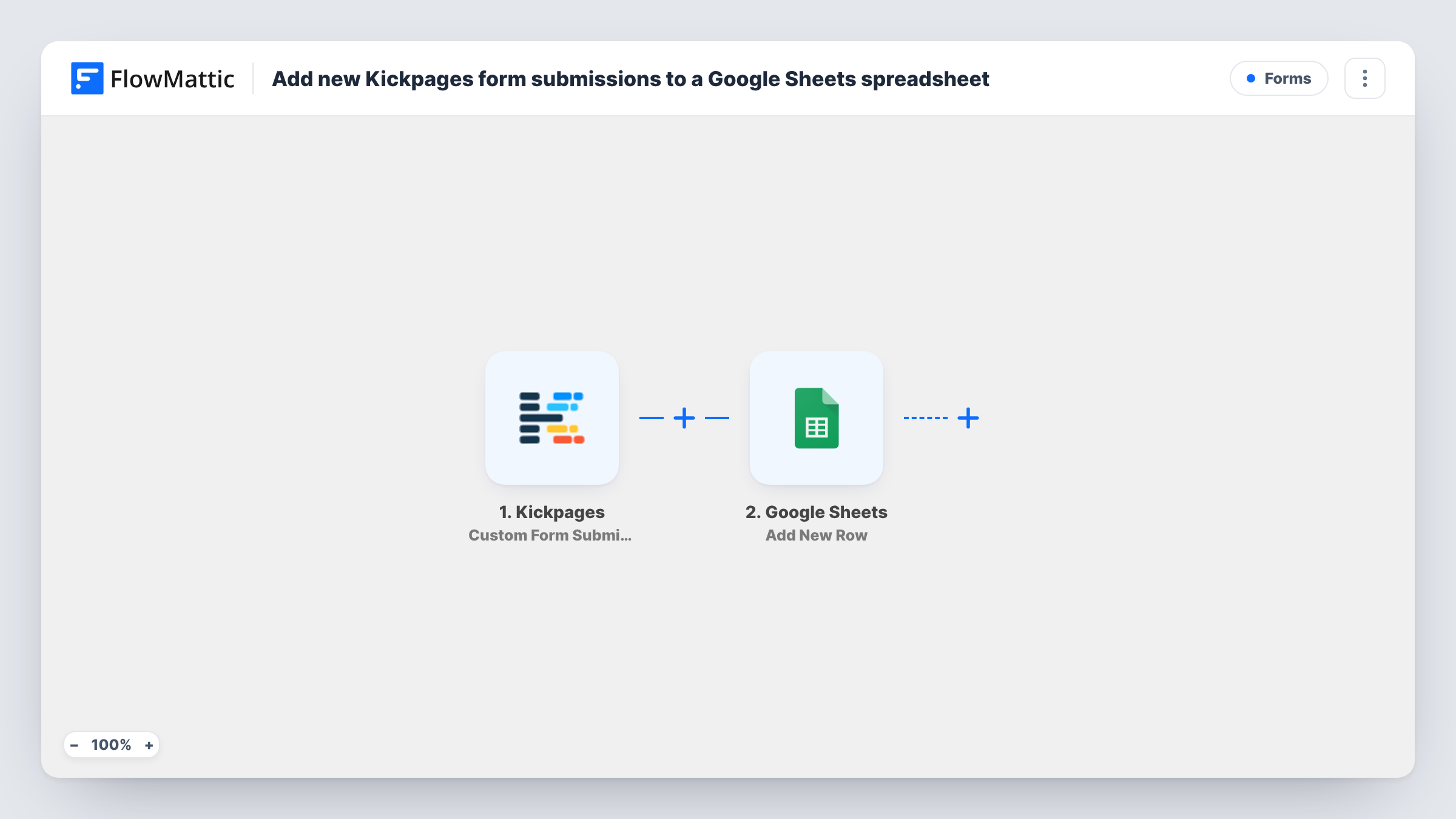
Every time someone submits a custom form on your Kickpages pages, this workflow adds the answers to a new row in Google Sheets, giving you one sheet of entries you can sort, share and work from.
 Kickpages
 Google Sheets
2 steps Setup ~5 min Used on 786 sites Free to import
What this workflow does
Kickpages collects leads on your funnel pages, but the entries are only useful once someone acts on them. A spreadsheet is often where that happens: a team member works down the list, a partner checks it, or you sort it before a campaign. Here, each Kickpages entry reaches that spreadsheet on its own.
The Kickpages trigger fires when a custom form is submitted. FlowMattic receives the answers and passes them to Google Sheets, which adds a new row to the spreadsheet you pick. You decide which answer lands in which column.
Each submission becomes its own row, so the sheet keeps a full history in the order entries arrive. If a run doesn't add a row, Task History shows what Kickpages sent and the response from Google Sheets.
Webinar sign-up funnel
Visitors register through a Kickpages opt-in form. Each registration lands in a sheet you can hand to the host as the attendee list.
Free consultation requests
A coach takes booking requests on a Kickpages page. The sheet becomes a call list with a column for notes on each lead.
Survey answers on a landing page
Answers from a short Kickpages survey form go into a spreadsheet where you can sort and count them without exporting anything.
How this workflow runs
What happens at each step once the workflow is on, and what you need before you import it.
 Kickpages Custom Form Submission
Fires when a custom form on your Kickpages account is submitted. The answers become available to map in the Google Sheets step.
- Google Sheets Add New Row
Puts each Kickpages submission on a fresh row of the spreadsheet and tab you pick. Connect your Google account, then map each column to an answer from the Kickpages form.
What you need
- FlowMatticCore
- Kickpages AccountAccount
- Google Sheets AccountAccount
After importing, map your own data. To keep the template universal, not every step is pre-filled. Open each step in the builder and connect your accounts and fields (channels, lists, sheets, recipients) before you switch the workflow on.
Make it yours
Changes worth making after you import it.
- Set up the column headers in your sheet before you map the step, then submit one test entry so FlowMattic can show the Kickpages answers next to each column.
- Want your product sales in the same place? Kickpages also has a Product Sale Notification trigger in FlowMattic; import a second copy and swap in that trigger with its own sheet.
- Add a column that holds the submission date from the run, if the Kickpages data includes one, so you can sort entries by when they arrived.
Questions about this workflow
Will Kickpages submissions from before I import this show up in the sheet?
No. The trigger only picks up custom form submissions made after you turn the workflow on, so earlier entries stay where they are in Kickpages.
What happens if the same person submits a Kickpages form twice?
You get two rows. The Add New Row action doesn't check for duplicates, so each submission is written as its own entry.
Can I send different Kickpages forms to different sheets?
Yes. Add a Router after the trigger with a route per form, each with its own Google Sheets step, if the submission data tells the forms apart. A test run shows what each form sends.
More Forms workflows
Other ready-to-import templates from the same category.






Import this workflow into your WordPress site
Download the JSON, import it from the Workflows screen and connect your accounts. Every run stays on your server, with no per-task fees.
30-day money-back guarantee Unlimited workflows and runs Self-hosted