

When New Order in SpreadSimple, Add a tag to the user in Groundhogg
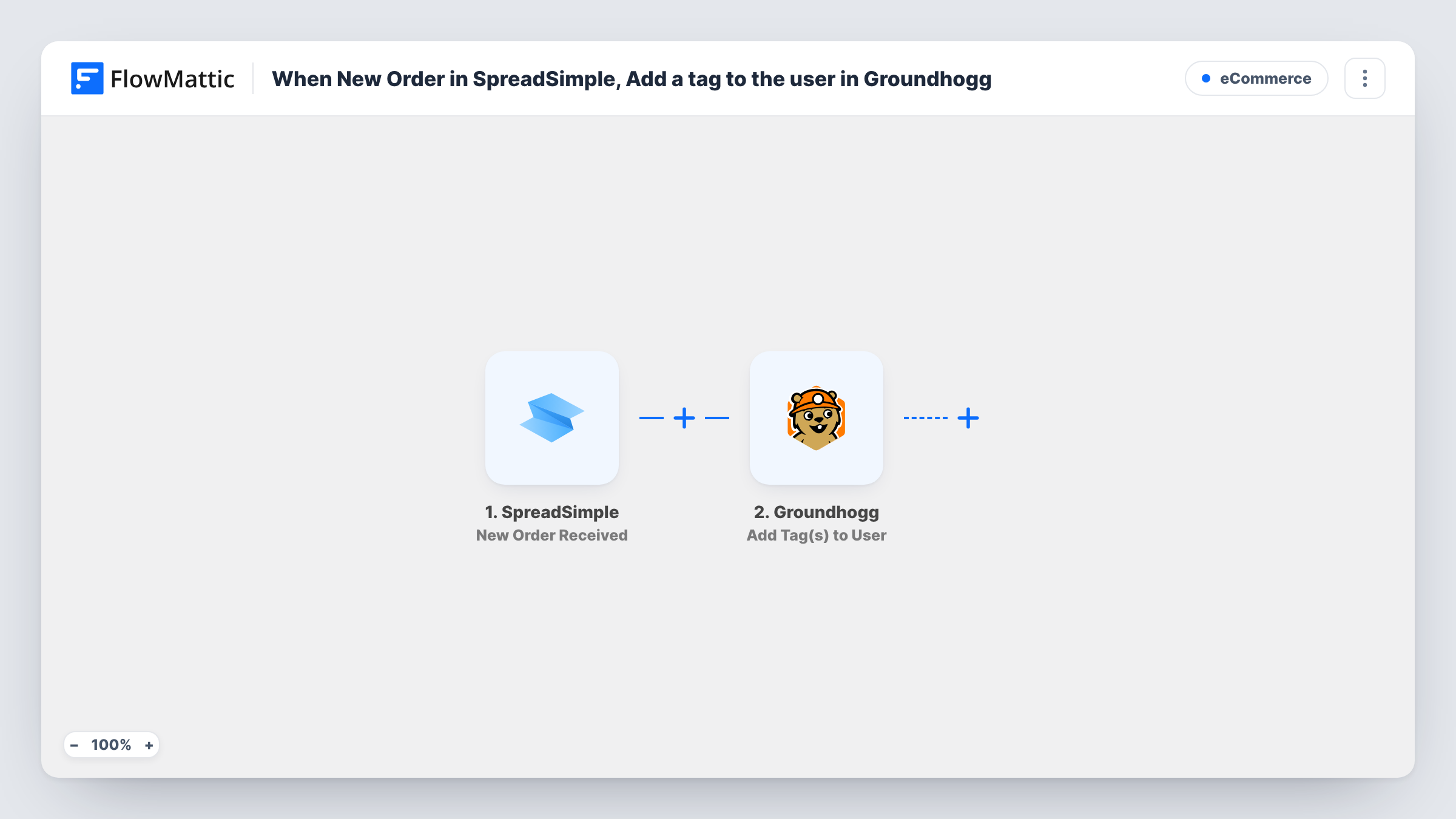
When a buyer places an order on your SpreadSimple site, FlowMattic adds them as a contact in Groundhogg and applies the tags you choose, so customers are ready for your follow-up emails.
 SpreadSimple
 Groundhogg
3 steps Setup ~5 min Used on 1.7k sites Free to import
What this workflow does
A SpreadSimple store keeps orders close to your spreadsheet, but your email marketing runs in Groundhogg on WordPress. With this workflow, each new order puts the buyer into Groundhogg and tags them, so a funnel or broadcast can pick them up.
The SpreadSimple trigger starts a run for every order your SpreadSimple shop takes. The order data, such as the buyer's name, email and what they ordered, is passed to FlowMattic. Check a test order to see the exact fields your checkout sends.
After that come two Groundhogg actions. Create New Contact adds the buyer to your Groundhogg contacts, and Add Tag(s) to User then applies one or more tags to that person. Both ship unmapped: after import, map the buyer's email and name into the contact step, then pick the tags and point the tag step at the contact from step 2.
Every order runs both steps, so a repeat buyer is sent to Create New Contact again. Groundhogg decides what to do with an email it already holds; a test order with a known customer shows the result in Task History. Tags such as Customer or a product name are then available for Groundhogg funnels and segments.
Thank-you funnel for first orders
A maker selling prints through SpreadSimple tags each buyer as Customer in Groundhogg, and a Groundhogg funnel that starts on that tag sends a thank-you and care instructions.
Segment buyers by product
A small bakery tags buyers with the item they ordered, so the Groundhogg broadcast about a new cake only goes to people who bought cakes before.
Keep one contact list for a side shop
A consultant who sells templates on a SpreadSimple site keeps those buyers in the same Groundhogg CRM as their consulting clients, clearly tagged.
How this workflow runs
What happens at each step once the workflow is on, and what you need before you import it.
 SpreadSimple New Order Received
Starts the workflow as soon as a customer checks out on your SpreadSimple shop. The order's buyer and item details are passed on for mapping into Groundhogg.
- Groundhogg Create New Contact
Adds the buyer to your Groundhogg contacts. The step ships unmapped: map the email and name from the SpreadSimple order, plus any other order detail you keep on contacts.
- Groundhogg Add Tag(s) to User
Adds one or more tags to the buyer in Groundhogg. Choose the tags after import and map the contact created in step 2, then confirm with a test order that the tag landed.
What you need
- FlowMatticCore
- SpreadSimple AccountAccount
- Groundhogg PluginPlugin
After importing, map your own data. To keep the template universal, not every step is pre-filled. Open each step in the builder and connect your accounts and fields (channels, lists, sheets, recipients) before you switch the workflow on.
Make it yours
Changes worth making after you import it.
- Build a Groundhogg funnel that starts when your Customer tag is applied, so the tag does more than label the contact.
- Before going live, place a test order with an email Groundhogg doesn't know yet, then open the contact in Groundhogg to confirm both the record and the tags are there.
- Make the email field required at your SpreadSimple checkout, since Groundhogg needs an address to create and find the contact.
Questions about this workflow
Do I need Groundhogg installed on the same WordPress site?
Yes. Groundhogg is a WordPress plugin, and FlowMattic adds the contact and tags in the Groundhogg copy on the site where FlowMattic runs.
What happens when a returning SpreadSimple customer orders again?
The workflow runs again and sends Create New Contact with the same email. Groundhogg handles an existing address in its own way, so try it with a known customer and look at the response in Task History before going live.
Can the tag depend on what was ordered?
As imported, every buyer gets the same tags. For tags by product, put a Router between the Create New Contact step and the tag step, with one route per product value. Move the existing tag step into the first route and give each other route its own copy with that product's tag. Use product values no single order can match on two routes.
More E-Commerce workflows
Other ready-to-import templates from the same category.





Import this workflow into your WordPress site
Download the JSON, import it from the Workflows screen and connect your accounts. Every run stays on your server, with no per-task fees.
30-day money-back guarantee Unlimited workflows and runs Self-hosted