

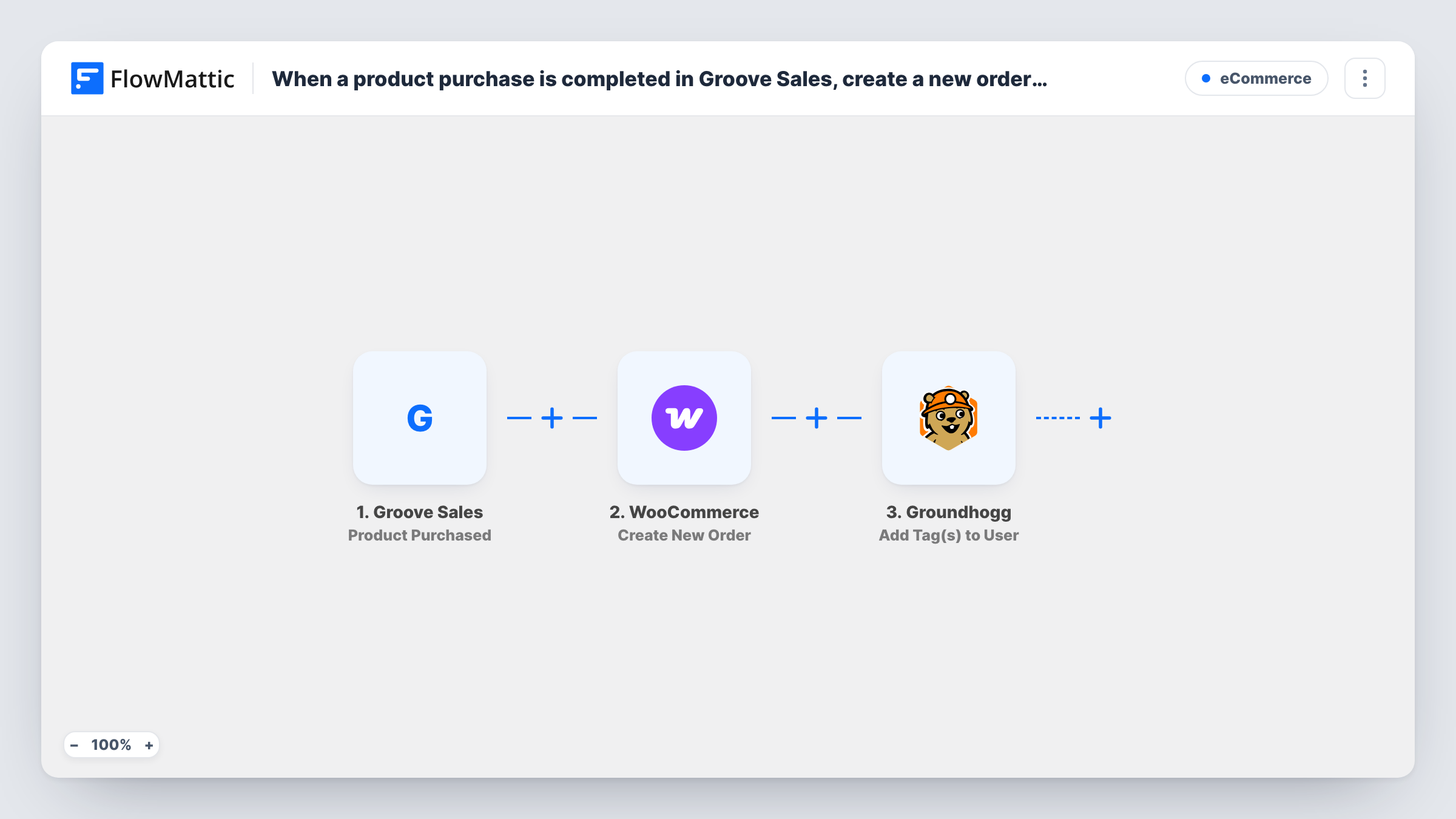
When a product purchase is completed in Groove Sales, create a new order in WooCommerce and Add a tag to user in Groundhogg
When a product is purchased in Groove Sales, FlowMattic creates a matching order in WooCommerce, adds the buyer as a contact in Groundhogg and tags them, so your store records and CRM both hold the sale.
 Groove Sales
 WooCommerce
 Groundhogg
4 steps Setup ~8 min Used on 2.0k sites Free to import
What this workflow does
If you sell through Groove Sales but keep your customer records in WordPress, each sale lives in two places that don't talk to each other. This workflow copies every Groove purchase into WooCommerce as an order and puts the buyer into Groundhogg with a tag, so reporting, fulfilment and follow-up emails can all happen on your site.
The Groove Sales trigger fires when a product is purchased and passes the buyer and product details on. Next, a WooCommerce order is created for the sale. You map the buyer's details and choose what goes on the order after import.
Next, the Groundhogg Create New Contact step adds the buyer to your contacts, and the Add Tag(s) to User step applies one or more tags to that contact. A tag per product lets you start a Groundhogg funnel for the right customers.
All three action steps ship unmapped, so plan a few minutes to map the email, name and purchase fields and pick your tags. Every purchase starts a run, including repeat purchases by the same buyer. Make a test purchase and check Task History to see what each step returned.
One sales report for every channel
A creator sells a course through Groove and merchandise through WooCommerce. Copying Groove sales into WooCommerce puts all revenue in one set of order reports.
Onboarding emails from Groundhogg
Buyers of a Groove product get a tag such as course-buyer, which starts a Groundhogg funnel with login details and a welcome series.
Fulfilment from the WooCommerce order screen
A shop that ships physical items sold on a Groove page handles them in WooCommerce like any other order, using the order created by the workflow.
How this workflow runs
What happens at each step once the workflow is on, and what you need before you import it.
 Groove Sales Product Purchased
Starts the workflow on each Groove Sales product purchase. The buyer's details and the purchased product are passed on to WooCommerce and Groundhogg.
- WooCommerce Create New Order
Records the Groove sale as a new WooCommerce order. Nothing is mapped yet: after import, map the buyer's name and email and set the products and totals the order should show.
- Groundhogg Create New Contact
Creates a Groundhogg contact for the buyer. This step arrives without mapping, so map the email address and name from the Groove purchase.
- Groundhogg Add Tag(s) to User
Applies one or more tags to the contact from the previous step. Pick the tags after import, such as the product name, and map the contact so Groundhogg knows who to tag.
What you need
- FlowMatticCore
- Groove Sales AccountAccount
- WooCommerce PluginPlugin
- Groundhogg PluginPlugin
After importing, map your own data. To keep the template universal, not every step is pre-filled. Open each step in the builder and connect your accounts and fields (channels, lists, sheets, recipients) before you switch the workflow on.
Make it yours
Changes worth making after you import it.
- Create a Groundhogg tag for each Groove product and choose it in the tag step, so each product's buyers can enter their own funnel.
- Make a test purchase in Groove first and look at the trigger data in Task History, so you know which buyer and product values you can map.
- If you only want some products copied, put a Filter on the product name or ID between the Groove Sales trigger and the WooCommerce step. Purchases it stops skip all three steps.
Questions about this workflow
Will a repeat Groove Sales buyer get a second WooCommerce order?
Yes. Every purchase starts a run, so each one creates its own WooCommerce order, even when the buyer has bought before.
What if the buyer is already a contact in Groundhogg?
Groundhogg decides how Create New Contact handles an email it already holds. Test with an existing contact's address and check Task History before relying on the tag step.
Does the WooCommerce order take a payment from the buyer?
No. The buyer already paid in Groove Sales. The workflow only creates an order record in WooCommerce with the details you map.
Which Groundhogg tags are added?
The ones you choose in the Add Tag(s) to User step. The template doesn't set any, so pick them after import.
More E-Commerce workflows
Other ready-to-import templates from the same category.





Import this workflow into your WordPress site
Download the JSON, import it from the Workflows screen and connect your accounts. Every run stays on your server, with no per-task fees.
30-day money-back guarantee Unlimited workflows and runs Self-hosted