

Create a ClickUp task when a new Kustomer message is created
Every message created in Kustomer becomes a new task in ClickUp, so customer messages your team needs to act on sit on the same board as the rest of its work.
 Kustomer
 ClickUp
2 steps Setup ~5 min Used on 813 sites Free to import
What this workflow does
Some customer messages turn into work that lives outside the help desk: a bug to fix, a refund to process, a feature request to weigh. If your team plans in ClickUp, those messages need to get there. This workflow creates a ClickUp task for each new Kustomer message.
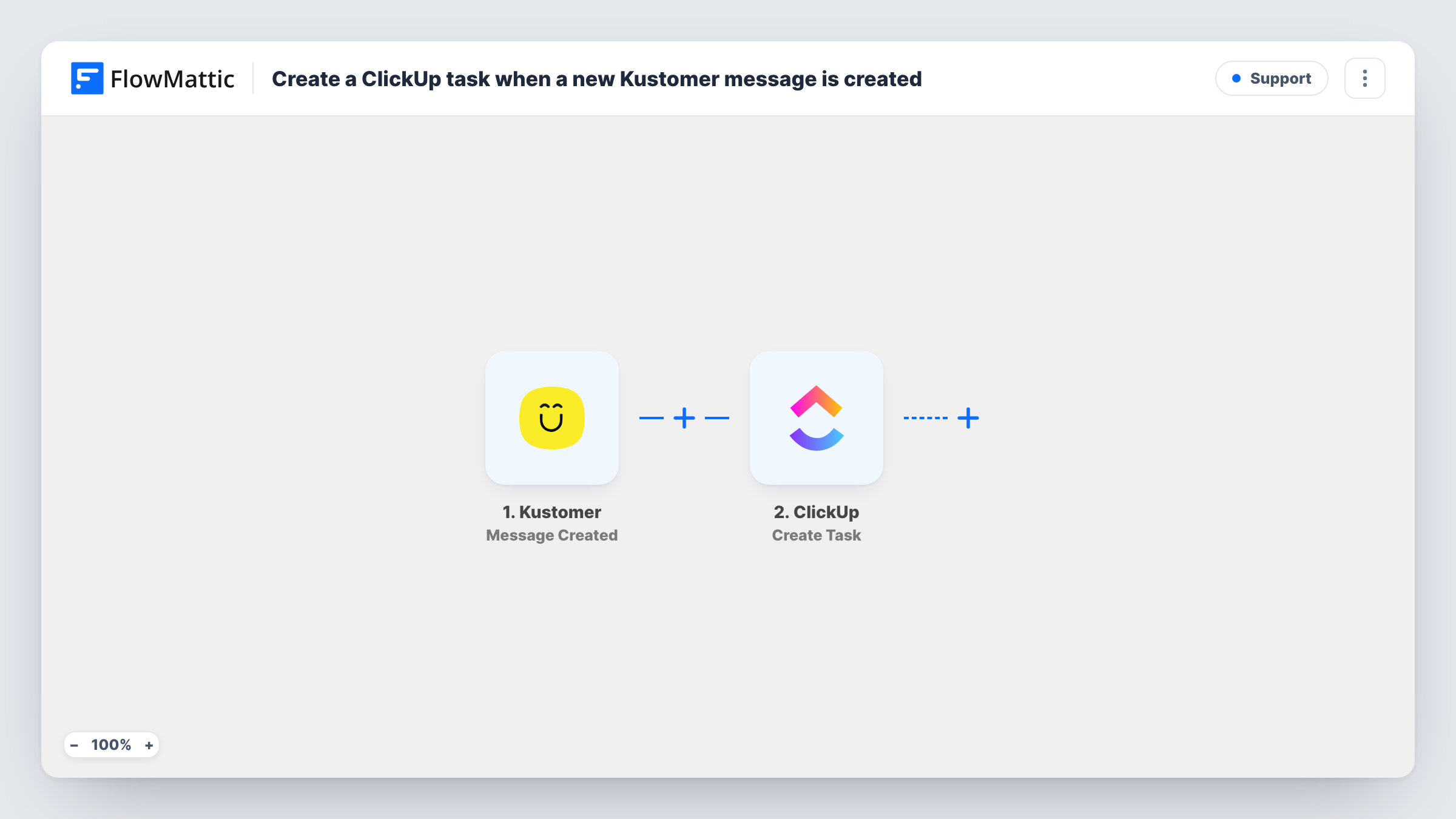
The Kustomer trigger fires when a new message is created. FlowMattic passes the message data to ClickUp, where Create Task adds a task in the list you choose, with the name and description built from the values you map.
Be aware of volume. The trigger fires for each new message, not each conversation, and that can include replies your own agents write. A busy inbox can produce many tasks, so add a Filter after import to keep only the messages that need one. Each run, and the task it made, is listed in Task History.
Bug reports from a dedicated channel
A software company routes bug reports to one Kustomer channel. With a Filter on that channel, each report becomes a ClickUp task for the developers.
Small shop with a light inbox
A store that gets a handful of customer messages a day turns each one into a ClickUp task, so every request is visible on the team's board.
Escalations to another team
Messages tagged for billing in Kustomer are filtered into a ClickUp list the finance team works from.
How this workflow runs
What happens at each step once the workflow is on, and what you need before you import it.
 Kustomer Message Created
Fires when a new message is created in Kustomer. Each message starts its own run, and its data is passed to the ClickUp step for mapping.
- ClickUp Create Task
Creates a task in the ClickUp list you choose from the Kustomer message. Connect ClickUp, then map the message values into the task with a test run to guide you.
What you need
- FlowMatticCore
- Kustomer AccountAccount
- ClickUp AccountAccount
After importing, map your own data. To keep the template universal, not every step is pre-filled. Open each step in the builder and connect your accounts and fields (channels, lists, sheets, recipients) before you switch the workflow on.
Make it yours
Changes worth making after you import it.
- Add a Filter after the trigger so only customer-sent messages, or messages from one channel, become tasks. A test run shows which values Kustomer sends to tell them apart.
- If one task per thread is enough, switch the trigger to Kustomer's Conversation Created so follow-up messages don't each make a new task.
- Put a link or ID for the Kustomer conversation in the task description, if the message data includes one, so the person on the task can find the thread.
Questions about this workflow
Does every Kustomer message create a ClickUp task?
Yes, as imported. The trigger fires for each new message, which can include your agents' replies. Add a Filter to keep only the messages you want as tasks.
Will a long Kustomer conversation create many ClickUp tasks?
It can, because each new message is its own event. Use the Conversation Created trigger instead if you want one task per conversation.
Does closing the ClickUp task reply to the customer in Kustomer?
No. The workflow only runs one way, from Kustomer to ClickUp. Reply to the customer in Kustomer as usual.
More Support workflows
Other ready-to-import templates from the same category.






Import this workflow into your WordPress site
Download the JSON, import it from the Workflows screen and connect your accounts. Every run stays on your server, with no per-task fees.
30-day money-back guarantee Unlimited workflows and runs Self-hosted