

When a new conversation is created in ThriveDesk, check if the email is valid with Tomba, and add new member to list in Mailchimp
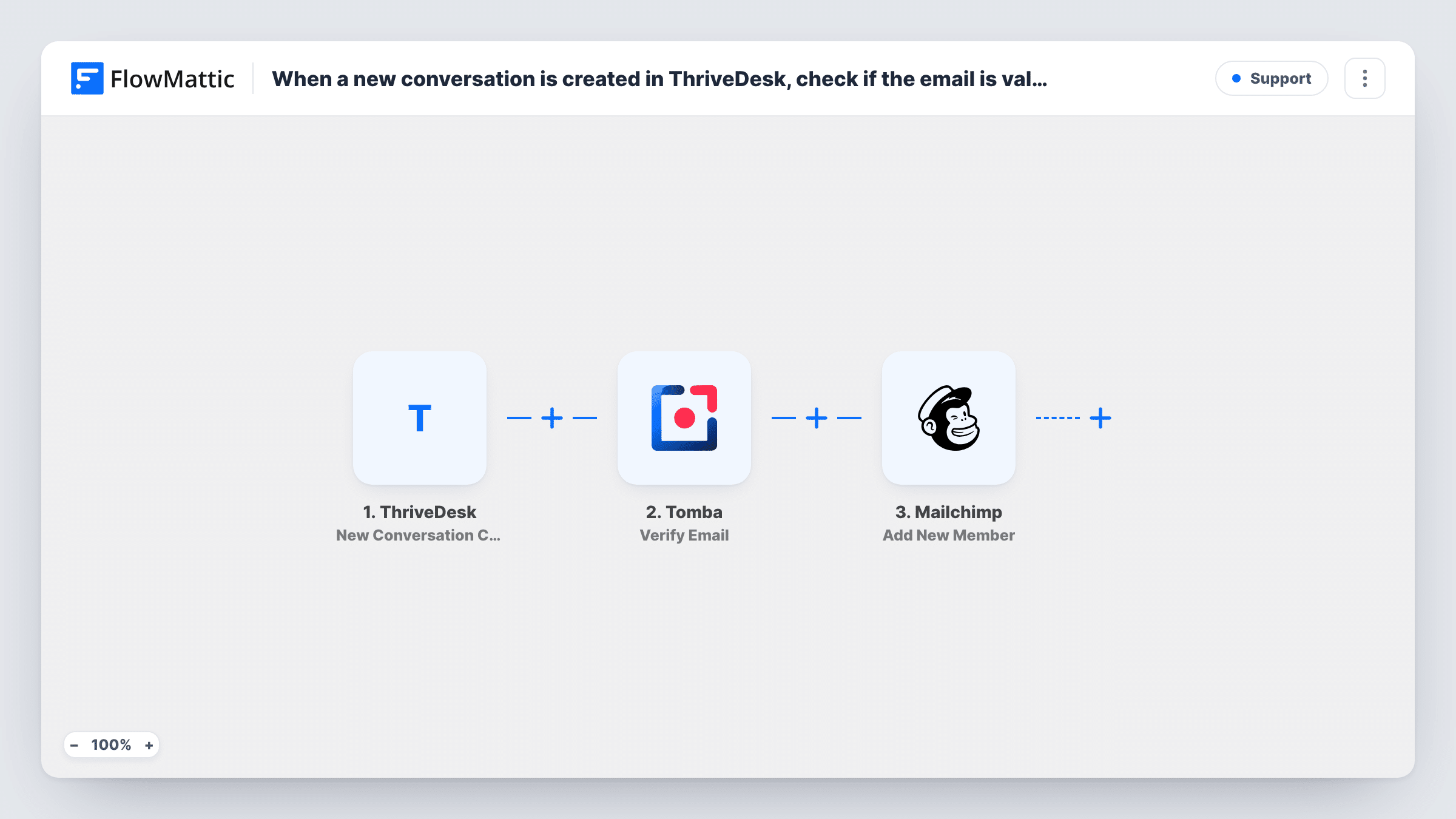
When a customer starts a new ThriveDesk conversation, this workflow checks their email address with Tomba, then adds them to your Mailchimp list with the check result available to map, whatever the outcome.
 ThriveDesk
 Tomba
 Mailchimp
3 steps Setup ~5 min Used on 2.4k sites Free to import
What this workflow does
People who write to your help desk are often customers you would like to keep in touch with. Copying them from ThriveDesk into Mailchimp by hand is slow, and some addresses in a support inbox are mistyped or fake. This workflow checks each new contact's address and adds them to your list in one pass.
The ThriveDesk trigger, New Conversation Created, fires when a new conversation is created and passes on the conversation and contact data. FlowMattic sends the contact's email to Tomba, whose Verify Email action validates the address. Last, Mailchimp runs Add New Member, which adds the person to your list or updates them if they're already on it.
There is no Filter between the check and Mailchimp, so every contact is added whatever Tomba reports. The result is there to map, or to use in a Filter you add. Only add support contacts to a marketing list if they agreed to hear from you.
Pre-sales questions become subscribers
Visitors ask about pricing through ThriveDesk before buying. With consent captured in your chat or form, each one joins your Mailchimp list for launch news.
Tagging the list by email quality
Map the Tomba result into a Mailchimp merge field, then build a segment that leaves out addresses that didn't pass the check.
Customer list for product updates
Existing customers who contact support are updated on your Mailchimp list, so release notes reach the people who use your product.
How this workflow runs
What happens at each step once the workflow is on, and what you need before you import it.
 ThriveDesk New Conversation Created
Starts when a customer opens a new conversation in ThriveDesk. The conversation details and the contact's name and email become data the next steps can use.
- Tomba Verify Email
Sends the contact's email to Tomba's Verify Email action to validate the address. Map the email from the ThriveDesk event; the result is passed on to the Mailchimp step.
- Mailchimp Add New Member
Adds the contact to your Mailchimp list, or updates them if the address is already there. Map the email and name, plus the Tomba result into a field if you want it.
What you need
- FlowMatticCore
- ThriveDesk AccountAccount
- Tomba AccountAccount
- Mailchimp AccountAccount
After importing, map your own data. To keep the template universal, not every step is pre-filled. Open each step in the builder and connect your accounts and fields (channels, lists, sheets, recipients) before you switch the workflow on.
Make it yours
Changes worth making after you import it.
- Add a Filter between Tomba and Mailchimp that continues only when the verification result is the value Tomba returns for a valid address, so failed addresses stay off your list.
- Add a Filter after the trigger on a consent field or tag if your ThriveDesk setup records one, so only contacts who opted in reach Mailchimp.
- Start a test conversation with your own address after import, so FlowMattic captures the ThriveDesk and Tomba fields before you map them.
Questions about this workflow
Are invalid emails kept out of Mailchimp?
Not as imported. Every new ThriveDesk contact continues to Mailchimp whatever Tomba reports. Add a Filter on the Tomba result to keep failed addresses out.
What if the ThriveDesk contact is already on my Mailchimp list?
Add New Member updates an existing member instead of adding a second copy, so the person stays on the list once. Blank values from a later conversation can overwrite fields you mapped, so map only fields you trust.
Does every ThriveDesk conversation start a run?
Yes, each new conversation does, including repeat contacts from the same customer. Replies within an existing conversation don't start a new one.
Do I need a Tomba account for the email check?
Yes. The address check uses your own Tomba account, linked in the Verify Email step once you import.
More Support workflows
Other ready-to-import templates from the same category.





Import this workflow into your WordPress site
Download the JSON, import it from the Workflows screen and connect your accounts. Every run stays on your server, with no per-task fees.
30-day money-back guarantee Unlimited workflows and runs Self-hosted