

When a chat is finished in LiveChat, email the customer a Typeform satisfaction survey link
When a LiveChat conversation ends, FlowMattic emails the customer a short thank-you that asks how the chat went and links to your Typeform satisfaction survey.
 LiveChat
 Email
2 steps Setup ~5 min Used on 1.4k sites Free to import
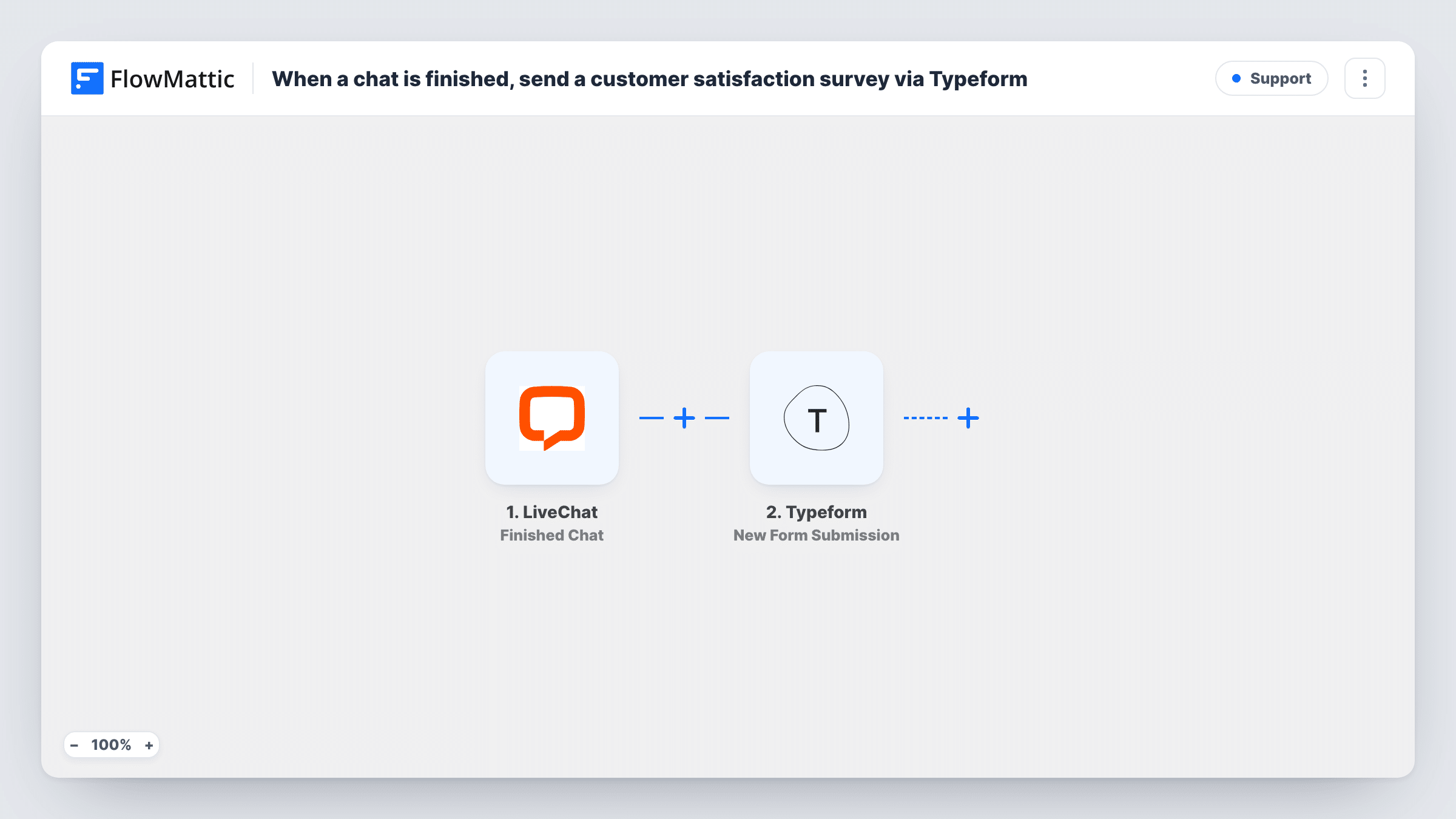
What this workflow does
The best time to ask about a support chat is right after it ends, while the customer still remembers it. Sending survey links by hand is easy to forget on a busy day. This workflow emails every customer whose chat has just finished, with a link to a satisfaction survey you built in Typeform.
The LiveChat Finished Chat trigger fires when a chat is ended. FlowMattic then sends the message through its Email module, using WordPress mail or the SMTP account you connect. The subject is "How did we do?" and the body thanks the customer and asks them to say how it went.
Two things need your attention after import. The body ends with the placeholder PASTE-YOUR-TYPEFORM-LINK, so replace it with your survey's share link. The recipient is not mapped either: map the customer's email from the LiveChat trigger data. Typeform itself is not a step here, so you don't connect a Typeform account; the email just carries the link.
Every finished chat sends one email. Chats where LiveChat has no email for the visitor have no address to send to, and Task History shows what happened on each run.
Post-chat CSAT for a support team
A help desk sends its two-question Typeform to every customer after a chat, then reviews the scores with agents at the end of the week.
Feedback on pre-sales chats
A store asks shoppers who chatted before buying whether they got the answers they needed, using a Typeform survey linked in the email.
Checking service after a policy change
A subscription business changes its refund process and uses the post-chat Typeform for a month to hear what customers think of how their chats were handled.
How this workflow runs
What happens at each step once the workflow is on, and what you need before you import it.
 LiveChat Finished Chat
Fires when a chat ends in LiveChat. The chat and visitor details LiveChat sends are passed on; run a test chat with an email address to see which fields arrive.
 Email Send Email
Emails the customer through FlowMattic's Email module. The subject and text are written in, but you must replace PASTE-YOUR-TYPEFORM-LINK with your survey link and map the customer's email as the recipient.
What you need
- FlowMatticCore
- LiveChat AccountAccount
After importing, map your own data. To keep the template universal, not every step is pre-filled. Open each step in the builder and connect your accounts and fields (channels, lists, sheets, recipients) before you switch the workflow on.
Make it yours
Changes worth making after you import it.
- Ask for the visitor's email in LiveChat's pre-chat form, so finished chats have an address for the survey email.
- Put a Filter between the LiveChat trigger and the Email step that continues only when the visitor's email is not empty, so chats without an address stop before the send.
- Add a Delay between the LiveChat trigger and the Email step, such as 30 minutes, if you'd rather the survey arrive a little after the chat instead of at once.
- Send through your own SMTP account in the Email step rather than default WordPress mail, so the survey comes from a mailbox your customers recognise.
Questions about this workflow
Do I need a Typeform account connected to FlowMattic?
No. Typeform isn't a step in this workflow. You paste the share link of your Typeform survey into the email body, and responses are collected in Typeform as usual.
What if a LiveChat visitor never gave an email address?
Then the Email step has no recipient for that chat, and Task History shows the result. Collect emails in the pre-chat form, or stop those runs with a Filter between the LiveChat trigger and the Email step.
Can I change the wording of the survey email?
Yes. The subject and body are plain text in the Email step. Edit them, and map details like the visitor's name from the LiveChat trigger to make the message personal.
More Support workflows
Other ready-to-import templates from the same category.





Import this workflow into your WordPress site
Download the JSON, import it from the Workflows screen and connect your accounts. Every run stays on your server, with no per-task fees.
30-day money-back guarantee Unlimited workflows and runs Self-hosted