

When data received from Zapier, create a customer in Pabbly Subscriptions
Data that a Zapier Zap sends to FlowMattic becomes a new customer in Pabbly Subscriptions, so sign-ups from apps you already connect through Zapier land in your billing tool.
 Zapier
 Pabbly Subscriptions
2 steps Setup ~5 min Used on 2.2k sites Free to import
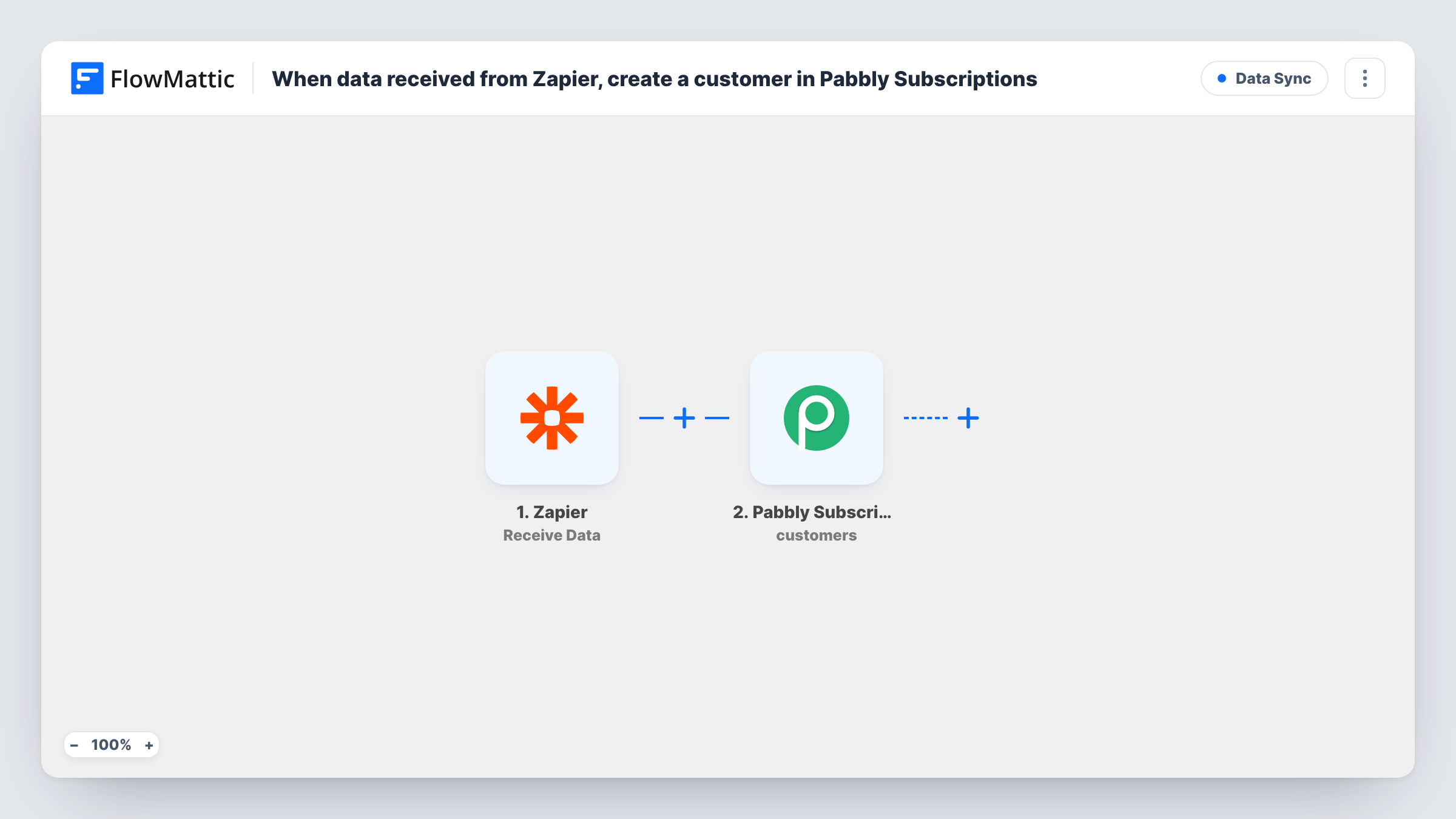
What this workflow does
You may already have Zaps that collect people from tools FlowMattic doesn't watch directly: a CRM, a scheduling app, a form builder. Rather than rebuild those, this workflow lets a Zap hand the person's details to your WordPress site, where FlowMattic creates them as a customer in Pabbly Subscriptions.
The Zapier Receive Data trigger gives the workflow an address that a Zap can send data to. In Zapier, you add a step to your Zap that sends the record, with fields such as name and email, to that address. Whatever fields the Zap includes arrive in FlowMattic, ready to map.
The Pabbly Subscriptions step then creates a new customer from that data. It ships without mapping, so after the first test from Zapier you connect your Pabbly account and map the incoming fields into the customer.
Each time the Zap sends data, a run starts and a customer is created. If the Zap can fire more than once for the same person, decide how you want repeats handled, and check Pabbly's response for a known email in Task History.
CRM deals won into billing
A sales team whose Zap watches for won deals in their CRM sends each new client to FlowMattic, so the client exists in Pabbly Subscriptions before the first invoice.
Bookings from a scheduling app
A consultant's Zap passes new paid bookings from a scheduling tool to FlowMattic, and each client gets a Pabbly customer record.
Moving work off Zapier gradually
A team keeps the Zap that catches new sign-ups but lets FlowMattic handle the Pabbly side, so later steps can be added in WordPress.
How this workflow runs
What happens at each step once the workflow is on, and what you need before you import it.
 Zapier Receive Data
Starts the workflow when a Zap sends data to the address this trigger provides. Set up the sending step in your Zap, include the person's name and email, and run it once so the fields appear here.
- Pabbly Subscriptions Create Customer
Creates a new customer in Pabbly Subscriptions from the data the Zap sent. Connect your Pabbly account after import and map the incoming name and email into the customer.
What you need
- FlowMatticCore
- Zapier AccountAccount
- Pabbly Subscriptions AccountAccount
After importing, map your own data. To keep the template universal, not every step is pre-filled. Open each step in the builder and connect your accounts and fields (channels, lists, sheets, recipients) before you switch the workflow on.
Make it yours
Changes worth making after you import it.
- Send clear field names from the Zap, such as first_name and email, so the mapping in FlowMattic is easy to read.
- If the Zap sends records that shouldn't become customers, put a Filter between the Zapier trigger and the Pabbly step on a field the Zap includes, such as a status or plan name you add for that purpose.
- Add Pabbly's Create Subscription action after the Create Customer step if each customer should also start on a subscription; map the customer created here into it.
Questions about this workflow
How does my Zap reach this FlowMattic workflow?
The Receive Data trigger shows the details a Zap needs to send to it. Add a sending step at the end of your Zap, paste those details in, map the person's fields and run a test so FlowMattic can see the data.
Which fields reach Pabbly Subscriptions from the Zap?
Only those the Zap sends and you then map. Nothing is mapped in the template, so send a test from Zapier first, then match its fields to the Pabbly customer.
What if Zapier sends the same person twice?
Each delivery creates a run and calls Create Customer again. Pabbly decides how to handle an email it already holds, so test with a known customer and read the reply in Task History.
Can FlowMattic send the new Pabbly customer back to Zapier?
Yes. FlowMattic's Zapier integration has a Submit Data action. Add it after the Create Customer step and map the details Pabbly returned, then catch it in a Zap of its own.
More Data Sync workflows
Other ready-to-import templates from the same category.






Import this workflow into your WordPress site
Download the JSON, import it from the Workflows screen and connect your accounts. Every run stays on your server, with no per-task fees.
30-day money-back guarantee Unlimited workflows and runs Self-hosted