

When a subscription schedule is cancelled in Stripe, update user meta in WordPress
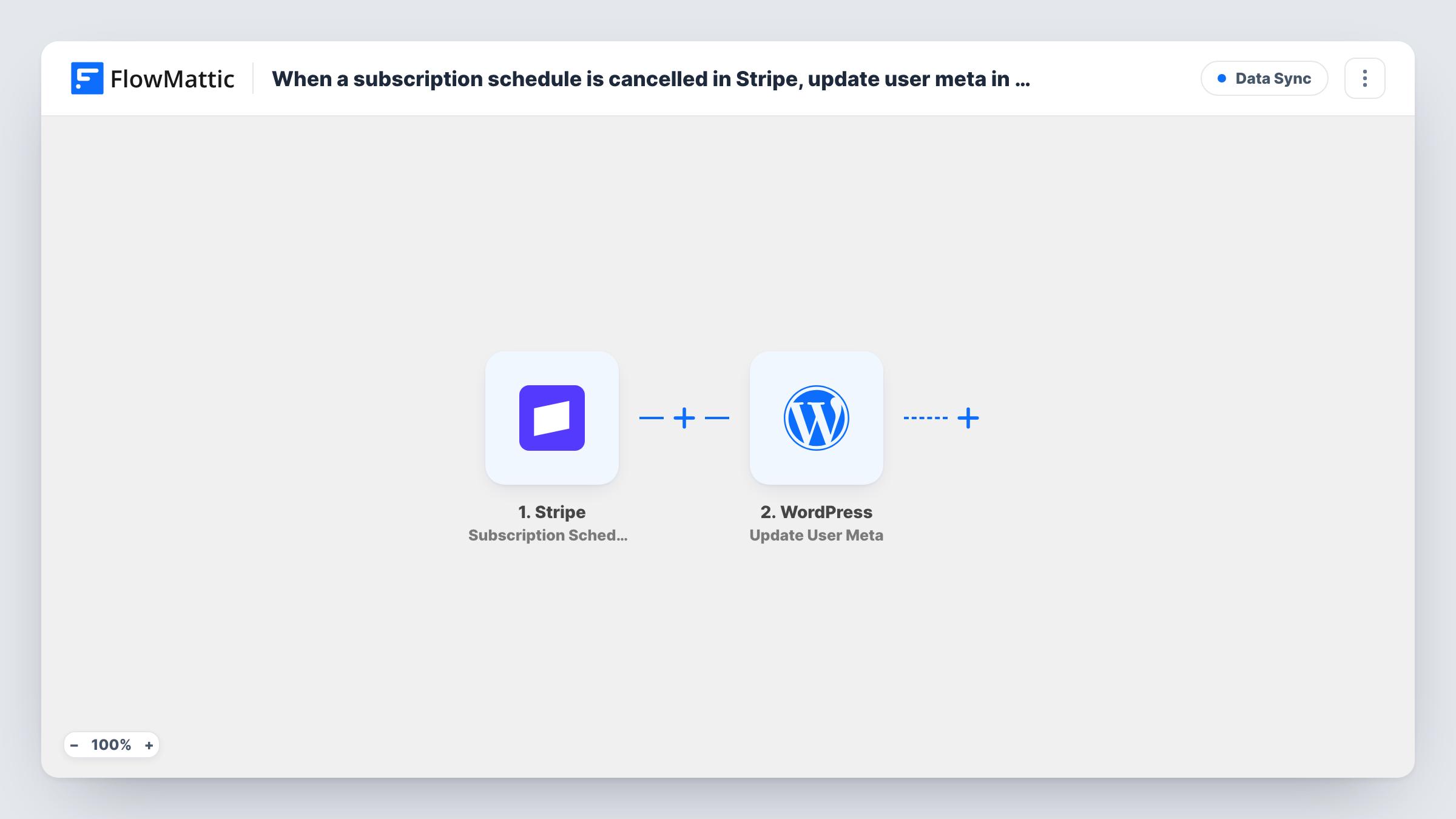
When a Stripe subscription schedule is cancelled, FlowMattic looks up the Stripe customer, finds the WordPress user with the same email and updates a user meta value you choose.
 Stripe
 WordPress
4 steps Setup ~8 min Used on 2.4k sites Free to import
What this workflow does
Sites that sell plans through Stripe often store a member's plan or access level in WordPress user meta, where themes and plugins can read it. When a planned subscription is called off in Stripe, that value should change too. This workflow carries the cancellation from Stripe to the right WordPress account.
The Stripe trigger fires whenever a subscription schedule is cancelled. Subscription schedules are Stripe's tool for planned changes to a subscription over time, so this event is about the schedule, not every ended subscription. The event identifies the customer by a Stripe ID, which is why the next step, Find Customer by ID, fetches the full customer record. You map the customer ID from the trigger into it after import.
The first WordPress step, Get User by Email, already uses the email from that Stripe customer to find the account on your site. Update User Meta then receives that user's ID, which is mapped for you. You choose the meta key and value to write, such as a plan flag your membership setup reads.
Each cancelled schedule runs all four steps once. If no WordPress account uses the customer's Stripe email, there is no user ID to update. Test with a customer you know has an account, and check Task History for each step's result.
Membership flag that follows Stripe
A members-only site stores a plan_status value in user meta, and the workflow writes a new value when the member's Stripe schedule is cancelled.
Phased pricing that gets called off
A coaching business moves clients from an intro rate to a full rate with a Stripe schedule, and records in WordPress when that schedule is cancelled.
Support staff see the change in WordPress
A software seller saves the cancellation date to user meta, so support can see it on the user's profile without opening Stripe.
How this workflow runs
What happens at each step once the workflow is on, and what you need before you import it.
 Stripe Subscription Schedule Canceled
Fires whenever a subscription schedule is cancelled in your Stripe account. The event names the customer by Stripe ID rather than by email, which is why the next step looks the customer up.
- Stripe Find Customer by ID
Fetches the Stripe customer from their ID. The step ships unmapped: after import, map the customer ID from the cancelled schedule so Stripe returns the customer's email and other details.
- WordPress Get User by Email
Finds the WordPress account whose email matches the Stripe customer. The email from the Find Customer by ID step is already mapped, so the step returns that user's ID for the next step.
- WordPress Update User Meta
Writes user meta on the account that was found. The user ID from the previous step is mapped already; after import, set the meta key and the value you want stored for a cancelled schedule.
What you need
- FlowMatticCore
- Stripe AccountAccount
After importing, map your own data. To keep the template universal, not every step is pre-filled. Open each step in the builder and connect your accounts and fields (channels, lists, sheets, recipients) before you switch the workflow on.
Make it yours
Changes worth making after you import it.
- Put a Filter between the Get User by Email step and the Update User Meta step that continues only when the user ID is not empty, so customers with no WordPress account stop before the meta update.
- If you cancel plain subscriptions in Stripe rather than schedules, add a second workflow with FlowMattic's Stripe Subscription Deleted trigger, which fires when a customer's subscription ends.
- Use the same meta key your membership plugin or theme already reads, so the change shows up on the site without extra code.
- Store a date in a second meta key as well, by adding another Update User Meta step after the first, so you know when the schedule was cancelled.
Questions about this workflow
Is a Stripe subscription schedule the same as a subscription?
No. A subscription schedule plans changes to a subscription in phases. This trigger fires only when a schedule is cancelled, so subscriptions you cancel without a schedule won't start a run.
Why does the workflow look up the Stripe customer first?
The cancelled schedule refers to the customer by Stripe ID. Find Customer by ID turns that into the full customer record, including the email that Get User by Email needs.
What if the Stripe email doesn't match any WordPress user?
Then Get User by Email finds no account and there is no user ID for the meta update. Check Task History for that run, and make sure customers pay with the email they use on your site.
Which user meta does the template change?
None until you set it. Only the user ID is mapped in Update User Meta, so after import you enter the meta key and the value to write when a Stripe schedule is cancelled.
More Data Sync workflows
Other ready-to-import templates from the same category.






Import this workflow into your WordPress site
Download the JSON, import it from the Workflows screen and connect your accounts. Every run stays on your server, with no per-task fees.
30-day money-back guarantee Unlimited workflows and runs Self-hosted