

When a new order is created in Sellfy, add the order details to Google Sheets
Each time a customer buys from your Sellfy store, this workflow writes the order details to a new row in Google Sheets, building a sales log you can sort, total and share.
 Sellfy
 Google Sheets
2 steps Setup ~5 min Used on 1.8k sites Free to import
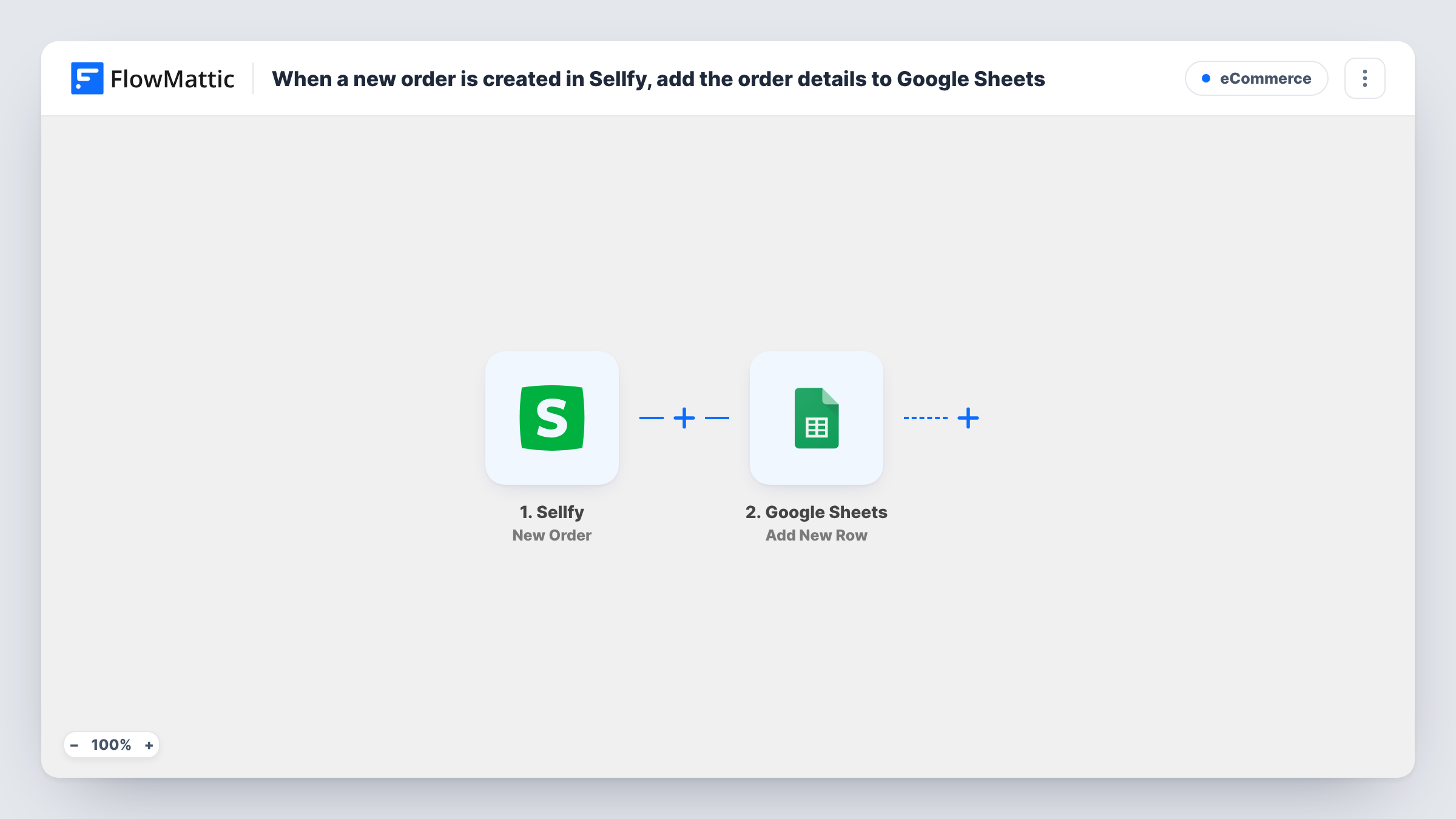
What this workflow does
Sellfy shows your sales in its own dashboard, but a spreadsheet is where you reconcile payouts, plan launches or hand numbers to an accountant. Exporting orders every week leaves the sheet behind between exports. This workflow adds each sale as it happens.
The Sellfy New Order trigger fires when an order is created in your store. FlowMattic passes the order data to Google Sheets, where the Add New Row action writes it to the spreadsheet and sheet you choose. You decide which columns hold which values, for example the order ID, the buyer's email, the product and the amount.
Each order gives one row, so the sheet grows in the order sales come in. Orders placed before you turn the workflow on aren't copied. Every run is logged in Task History, which helps you spot a row that didn't arrive.
Digital product sales ledger
A creator selling ebooks and presets on Sellfy keeps a running Google Sheet of every sale for monthly income totals and tax records.
Sharing launch numbers with a partner
Two creators co-selling a course on Sellfy share one Google Sheet, so both see each order during a launch without sharing the store login.
Customer list for later outreach
Map the buyer's email and product to columns and the sheet becomes a list of who bought what, ready to filter when you plan a follow-up offer.
How this workflow runs
What happens at each step once the workflow is on, and what you need before you import it.
 Sellfy New Order
Fires when an order is created in your Sellfy store. The order data, such as the buyer and the products bought, is passed on for mapping into the sheet.
- Google Sheets Add New Row
Adds a row to the Google Sheets spreadsheet you pick for each Sellfy order. Map each column to an order value and connect your Google account on import.
What you need
- FlowMatticCore
- Sellfy AccountAccount
- Google Sheets AccountAccount
After importing, map your own data. To keep the template universal, not every step is pre-filled. Open each step in the builder and connect your accounts and fields (channels, lists, sheets, recipients) before you switch the workflow on.
Make it yours
Changes worth making after you import it.
- Place a test order in Sellfy after import, or wait for the first sale, so FlowMattic captures the order fields. Then map them to your sheet columns.
- Add a header row to the sheet before you map columns, so each value lands under a clear heading such as Order ID, Email and Total.
- If this sheet should track one product's sales, add a Filter after the trigger that continues only when the Sellfy product name matches it. Other orders then end at the Filter.
Questions about this workflow
Does every Sellfy order get its own Google Sheets row?
Yes. The trigger fires once per order created in your store, and each run adds one row. Nothing filters orders out unless you add a Filter.
Which Sellfy order details can I put in the sheet?
Any value the New Order trigger passes on. Run a test order to see the full list, then map the ones you want to columns.
Will my past Sellfy sales be added?
No. The workflow starts with orders created after you turn it on. Add older Sellfy sales to the sheet yourself if you need the full history.
Can I log Sellfy orders to a sheet my team already uses?
Yes. Pick that spreadsheet and tab in the Google Sheets step, and map the order values to its existing columns.
More E-Commerce workflows
Other ready-to-import templates from the same category.




Import this workflow into your WordPress site
Download the JSON, import it from the Workflows screen and connect your accounts. Every run stays on your server, with no per-task fees.
30-day money-back guarantee Unlimited workflows and runs Self-hosted