

Log every Prodigi order status change in a Google Sheets tracker
Each time a Prodigi print order changes status, this workflow adds a row to a Google Sheets tracker, building a dated history of how every order moves through fulfilment.
 Prodigi
 Google Sheets
2 steps Setup ~5 min Used on 2.3k sites Free to import
What this workflow does
Prodigi prints and ships your products on demand, and each order passes through several statuses on the way to the customer. Checking them one by one in a dashboard is slow when orders pile up. This workflow writes every change to a spreadsheet you can sort and share.
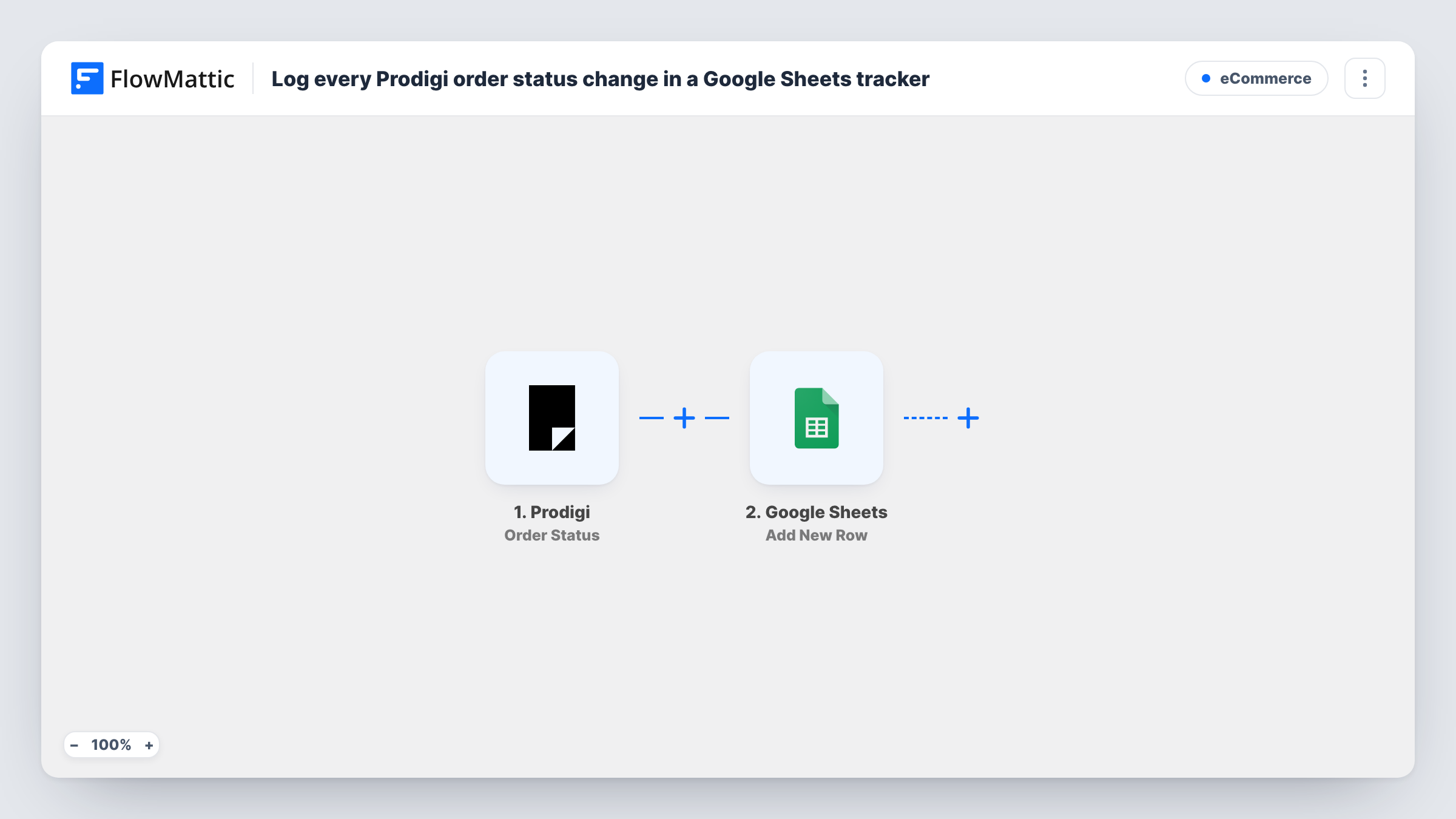
The Prodigi trigger fires when an order's status changes, and the order data comes into FlowMattic. The Google Sheets step then adds a new row to the sheet you pick, with fields such as the order ID and new status mapped to columns.
The step adds a row for each change, so one order appears on several rows over its life. That gives you a history, not a single line per order. To see an order's latest status, sort or filter the sheet by order ID. Task History lists every status change received and Google's response.
Print-on-demand shop owner
You sell posters printed by Prodigi. The sheet shows each order's journey, so you can answer a customer asking where their print is.
Spotting slow orders
A weekly look at the tracker shows orders that have sat in one status longer than usual, worth raising with Prodigi.
Sharing progress with a partner
An artist whose prints you sell gets view access to the sheet and follows their orders without a Prodigi login.
How this workflow runs
What happens at each step once the workflow is on, and what you need before you import it.
 Prodigi Order Status
Starts a run whenever the status of one of your Prodigi orders changes. The order's data, including the new status, is passed on for the sheet.
- Google Sheets Add New Row
Adds a row to the Google Sheets tracker you choose for each status change. Map the order ID, status and any other fields to columns, and connect Google after import.
What you need
- FlowMatticCore
- Prodigi AccountAccount
- Google Sheets AccountAccount
After importing, map your own data. To keep the template universal, not every step is pre-filled. Open each step in the builder and connect your accounts and fields (channels, lists, sheets, recipients) before you switch the workflow on.
Make it yours
Changes worth making after you import it.
- Add a Filter after the trigger that continues only for the statuses you care about, such as a shipped or cancelled value, once a test run shows how Prodigi names them.
- Use a second tab with a formula that picks the latest row for each order ID, so you get one line per order alongside the full history.
- Place a test order in Prodigi's sandbox, if your account has one, or wait for the next real change, then map the fields Task History shows.
Questions about this workflow
Does one Prodigi order fill several rows in Google Sheets?
Yes. Each status change adds its own row, so an order appears once for every change it goes through.
Can the sheet show only the current status of each Prodigi order?
Not as imported, because the step always adds a row. Use a formula on another tab to pull out the latest status for each order ID.
Which Prodigi status changes start a run?
Every change to an order's status. Add a Filter after the trigger to keep only certain statuses.
More E-Commerce workflows
Other ready-to-import templates from the same category.







Import this workflow into your WordPress site
Download the JSON, import it from the Workflows screen and connect your accounts. Every run stays on your server, with no per-task fees.
30-day money-back guarantee Unlimited workflows and runs Self-hosted