

When a new submission is received in Typeform, send a coupon code to user's WhatsApp using WA.Team
When someone submits your Typeform, this workflow sends a WhatsApp template message with a coupon code to the phone number they entered, using your WA.Team account, as a thank-you for filling it in.
 Typeform
 WhatsApp by WA.Team
2 steps Setup ~5 min Used on 685 sites Free to import
What this workflow does
A coupon is a common way to thank people for answering a survey or entering a giveaway. Sending each code by hand means watching for new responses and messaging every person yourself. This workflow sends the code on WhatsApp as each Typeform response comes in.
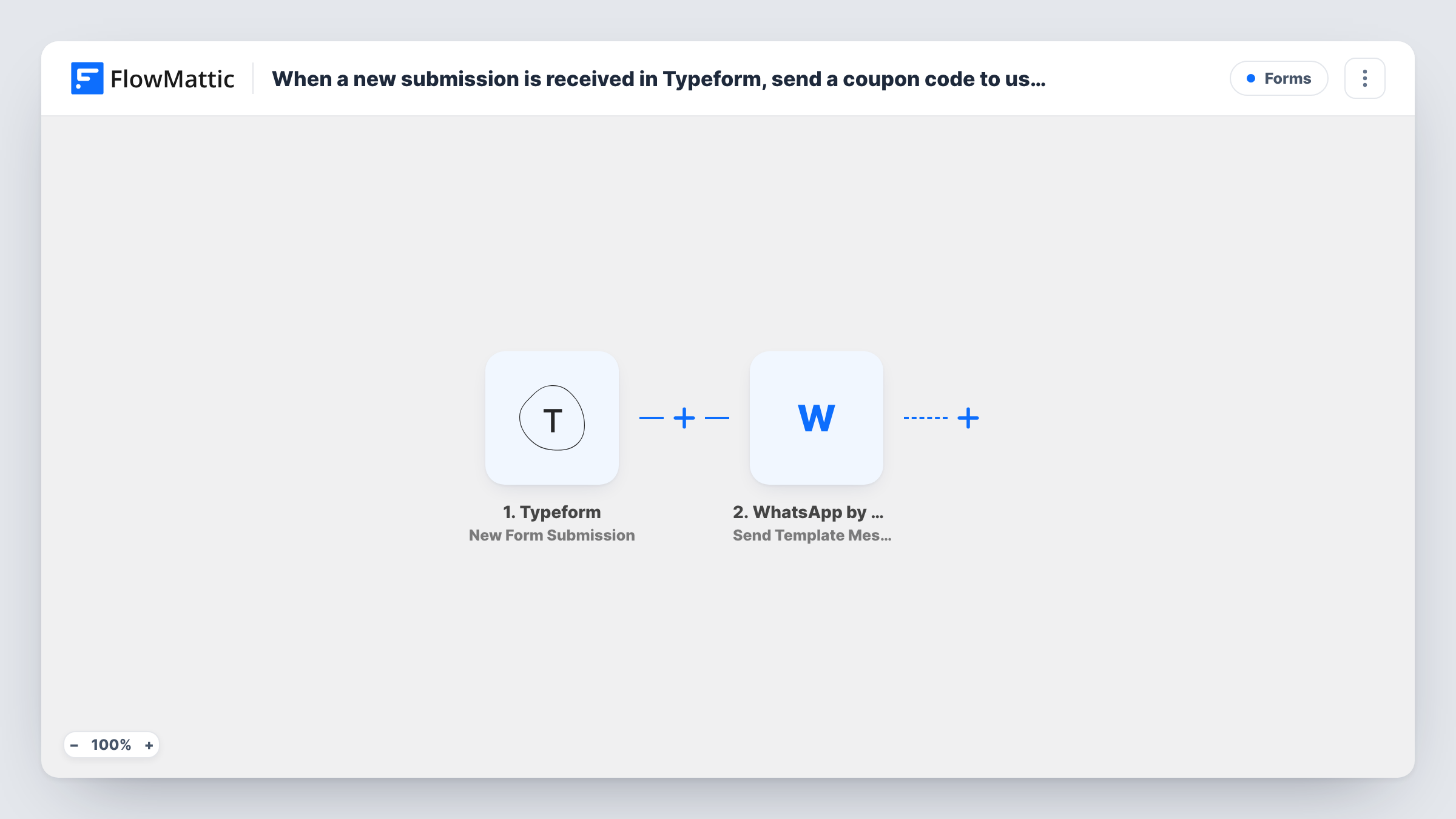
The Typeform trigger fires when a new response is submitted. FlowMattic passes the answers to WhatsApp by WA.Team, whose Send Template Message step messages the phone number from the form. The coupon code goes in the template you choose, either written into the template itself or, if the step lets you fill template values, typed in as a fixed value.
Because this is a template message, it can reach respondents who have never written to your WhatsApp number, provided WhatsApp has approved the template. As imported, every response gets the same code, and nothing stops one person from submitting twice to get it again. The questions below explain both.
Customer feedback survey
Shoppers who complete your Typeform feedback survey get a WhatsApp message with a discount code for their next order.
Event sign-up reward
People who register for an in-store event through Typeform receive a coupon on WhatsApp to use on the day.
Quiz funnel for a product line
A Typeform product quiz ends with a phone question, and each respondent is sent a WhatsApp template carrying the same thank-you code for finishing the quiz.
How this workflow runs
What happens at each step once the workflow is on, and what you need before you import it.
 Typeform New Form Submission
Fires when a new response is submitted to your Typeform. Every answer, including the phone number question, can then be mapped into the WhatsApp step.
- WhatsApp by WA.Team Send Template Message
Sends an approved WhatsApp template through WA.Team to the number from the Typeform response. Pick the template that holds your coupon, map the phone answer, and add the code where the step lets you.
What you need
- FlowMatticCore
- Typeform AccountAccount
- WhatsApp by WA.Team AccountAccount
After importing, map your own data. To keep the template universal, not every step is pre-filled. Open each step in the builder and connect your accounts and fields (channels, lists, sheets, recipients) before you switch the workflow on.
Make it yours
Changes worth making after you import it.
- Use a Phone Number question in Typeform and make it required, so every response arrives with a number that the WA.Team step can send to.
- Add a Filter after the trigger if only some responses should earn a coupon, for example respondents who gave consent to be contacted on WhatsApp.
- Change the code in the WA.Team step when a promotion ends, so new respondents don't receive an expired coupon.
Questions about this workflow
Does each Typeform respondent get a unique coupon code?
No, as imported everyone gets the code you put in the template or the step. Generating a different code per person needs extra steps that create the coupon first.
Can someone submit the Typeform twice to get two messages?
Yes. Each response starts a run, so a repeat submission sends the coupon again. The workflow does not check for earlier responses from the same number.
What if a respondent enters their WhatsApp number in the wrong format?
The WA.Team step may fail to deliver to it, and Task History shows the response for that run. Ask for the number with the country code in your Typeform question.
Do I need my template approved before using this?
Yes. WhatsApp template messages must be approved before they can be sent, so set up the coupon template in WA.Team first.
More Forms workflows
Other ready-to-import templates from the same category.








Import this workflow into your WordPress site
Download the JSON, import it from the Workflows screen and connect your accounts. Every run stays on your server, with no per-task fees.
30-day money-back guarantee Unlimited workflows and runs Self-hosted