

When new feedback is received in SatisMeter, add the feedback as a record in Airtable
Store every new SatisMeter feedback response as a record in an Airtable table. FlowMattic copies the response data you map into the fields of your base, so you can sort, group and review feedback in one place.
 SatisMeter
 Airtable
2 steps Setup ~5 min Used on 2.4k sites Free to import
What this workflow does
SatisMeter collects scores and comments, but many teams plan their work in Airtable. Keeping feedback next to your roadmap, accounts or customer notes makes it easier to act on. This workflow moves each response into your base when it is received.
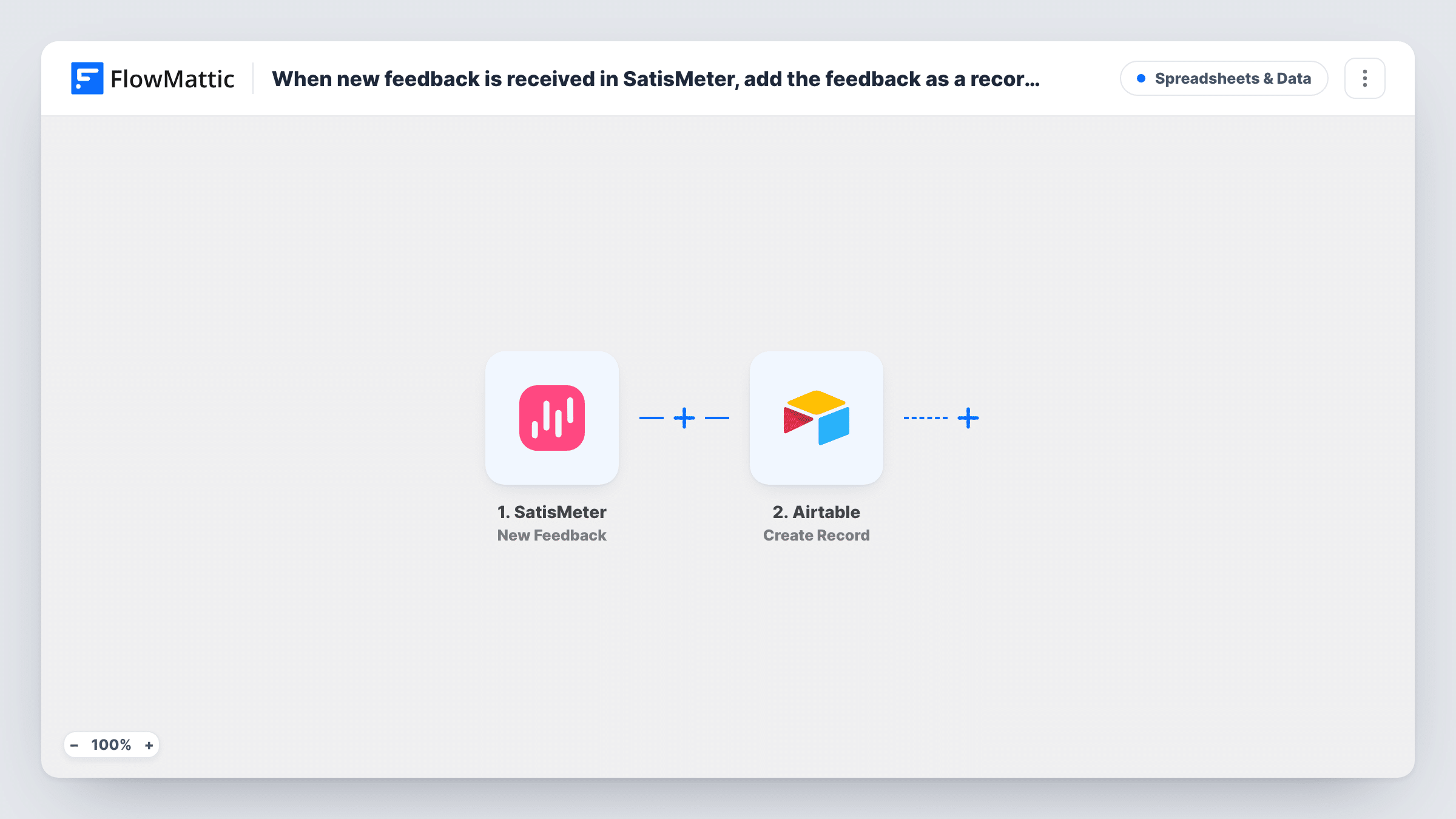
The SatisMeter trigger fires when new feedback arrives. FlowMattic passes the response data to the Airtable Create Record action, which adds a new record to the base and table you choose. You decide which Airtable field receives which piece of the response.
Every response creates its own record, so the table grows with each survey answer. Nothing is merged or updated, which keeps a full history. Once the data is in Airtable you can use your own views to group feedback by score, link it to other tables, or share a view with people who don't use SatisMeter.
Feedback next to the product roadmap
A product team keeps feature requests in Airtable. SatisMeter comments land in the same base, where they can be linked to the matching roadmap item.
Monthly NPS review
Each response becomes a record, so an Airtable view grouped by month and score gives you the material for a monthly feedback meeting.
Sharing feedback with a client
An agency running SatisMeter for a client shares a read-only Airtable view, so the client sees every response without a SatisMeter login.
How this workflow runs
What happens at each step once the workflow is on, and what you need before you import it.
 SatisMeter New Feedback
Starts a run whenever a survey answer reaches your SatisMeter account. The response data is passed to the next step so you can map it into Airtable fields.
- Airtable Create Record
Creates a new record in the Airtable base and table you choose for each response. Connect your Airtable account and map the SatisMeter values into your fields.
What you need
- FlowMatticCore
- SatisMeter AccountAccount
- Airtable AccountAccount
After importing, map your own data. To keep the template universal, not every step is pre-filled. Open each step in the builder and connect your accounts and fields (channels, lists, sheets, recipients) before you switch the workflow on.
Make it yours
Changes worth making after you import it.
- Create the Airtable table and its fields before you map the step, using field types that suit the data, such as a number field for the score.
- Add a Filter before Airtable if you only want to keep responses with a comment, by continuing only when the comment value is not empty.
- Send a test response from SatisMeter after import so FlowMattic captures the real data, then check that each value lands in the right Airtable field.
Questions about this workflow
Does each SatisMeter response create a separate Airtable record?
Yes. The step is Create Record, so every new feedback entry adds a new record. Nothing is matched against records already in the table.
Can I send feedback to more than one Airtable table?
Not as imported. Add a second Airtable Create Record step. If different responses belong in different tables, add a Router and give each route its own Create Record step pointed at its table.
Is old SatisMeter feedback imported?
No. Only feedback received after you turn the workflow on is added to Airtable.
Which SatisMeter values can I store?
Whatever the trigger sends for a response. Run a test after import to see the values FlowMattic receives, then map the ones you need.
More Spreadsheets & Data workflows
Other ready-to-import templates from the same category.





Import this workflow into your WordPress site
Download the JSON, import it from the Workflows screen and connect your accounts. Every run stays on your server, with no per-task fees.
30-day money-back guarantee Unlimited workflows and runs Self-hosted