

When a table export finishes in Browse AI, add a row to Google Sheets
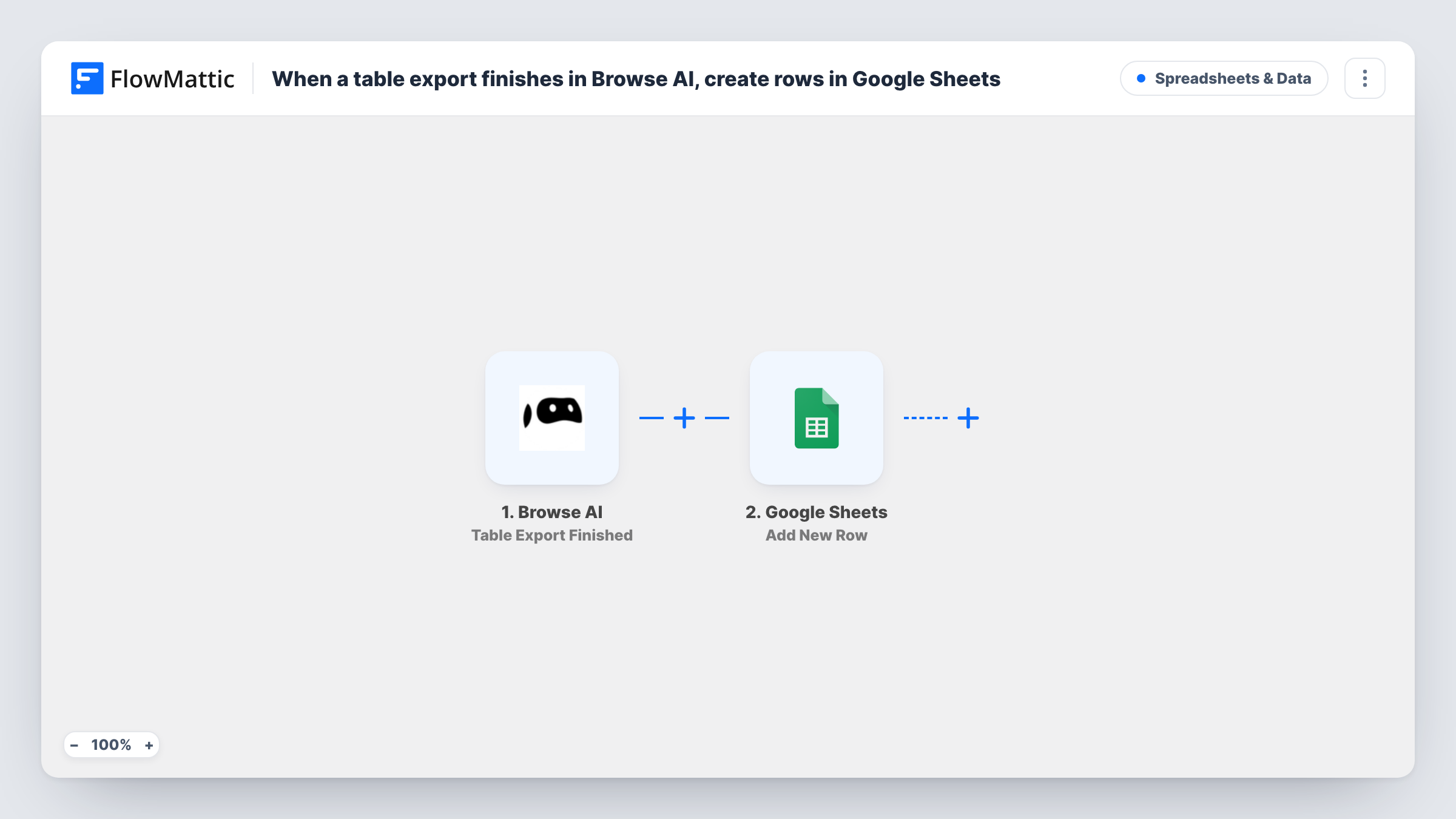
Whenever a Browse AI table export finishes, FlowMattic adds a row to your Google Sheets spreadsheet with the export details you map, so every finished export is logged in one sheet.
 Browse AI
 Google Sheets
2 steps Setup ~5 min Used on 1.3k sites Free to import
What this workflow does
Browse AI robots pull data from websites, and table exports package what a robot collected. If you run exports regularly, it helps to have one sheet that records each one as it completes, without opening Browse AI to check.
The Browse AI Table Export Finished trigger fires when a table export is finished. FlowMattic receives the export event and passes its data to the next step. What the event contains depends on Browse AI, so look at a test run before you map anything.
The Google Sheets Add New Row step then writes one row for the export. The template maps no columns, so after import you connect Google, pick the spreadsheet and sheet, and match the export values to your column headers.
Each finished export adds exactly one row, not one row per scraped record. Treat the sheet as a log of exports, with Task History showing what each run received from Browse AI and what Google Sheets returned.
Log of scheduled price exports
A shop that exports competitor prices from Browse AI each week keeps a sheet with one line per export, so the team can see when the latest data arrived.
Export audit for an agency
An agency running Browse AI robots for several clients records every finished table export in a shared sheet to report on delivery.
Hand-off point for analysts
Analysts watch a Google Sheet for new export rows and open the data in Browse AI only when a fresh export has finished.
How this workflow runs
What happens at each step once the workflow is on, and what you need before you import it.
 Browse AI Table Export Finished
Starts the workflow when a Browse AI table export is finished. The export event's data becomes available to map; run a test export to see what it holds.
- Google Sheets Add New Row
Writes one row per finished export to the Google Sheet you choose. Columns are not mapped in the template, so connect your account, pick the sheet and map the Browse AI values into it.
What you need
- FlowMatticCore
- Browse AI AccountAccount
- Google Sheets AccountAccount
After importing, map your own data. To keep the template universal, not every step is pre-filled. Open each step in the builder and connect your accounts and fields (channels, lists, sheets, recipients) before you switch the workflow on.
Make it yours
Changes worth making after you import it.
- Add a column for the time the export finished and map it from the trigger if the event carries one, so you can sort the log by date.
- If you run several robots, put a Filter between the Table Export Finished trigger and the Google Sheets step that continues only for the robot you care about. Check a test run for the field that names it.
- Use a dedicated sheet for this log rather than one people edit by hand, so the rows FlowMattic adds stay in order.
Questions about this workflow
Does each scraped Browse AI record get its own row?
No. The workflow adds one row each time an export finishes. If the export event carries a list of records, you would need an Iterator between the trigger and the Google Sheets step to write one row per item; check a test run first.
Which values does the Browse AI export send?
That depends on Browse AI's export event. Finish a test export with the workflow active, then open Task History to see the data before you map columns.
Do Browse AI tasks that finish without an export start this workflow?
No. This trigger is Table Export Finished. Browse AI's Task Finished event is a separate trigger you can use for finished tasks.
More Spreadsheets & Data workflows
Other ready-to-import templates from the same category.



Import this workflow into your WordPress site
Download the JSON, import it from the Workflows screen and connect your accounts. Every run stays on your server, with no per-task fees.
30-day money-back guarantee Unlimited workflows and runs Self-hosted