

Send a Slack alert when a new Formdesk submission arrives
Whenever someone submits one of your Formdesk forms, this workflow posts a message in a Slack channel, so your team sees each new entry without opening Formdesk.
 Formdesk
 Slack
2 steps Setup ~5 min Used on 3.3k sites Free to import
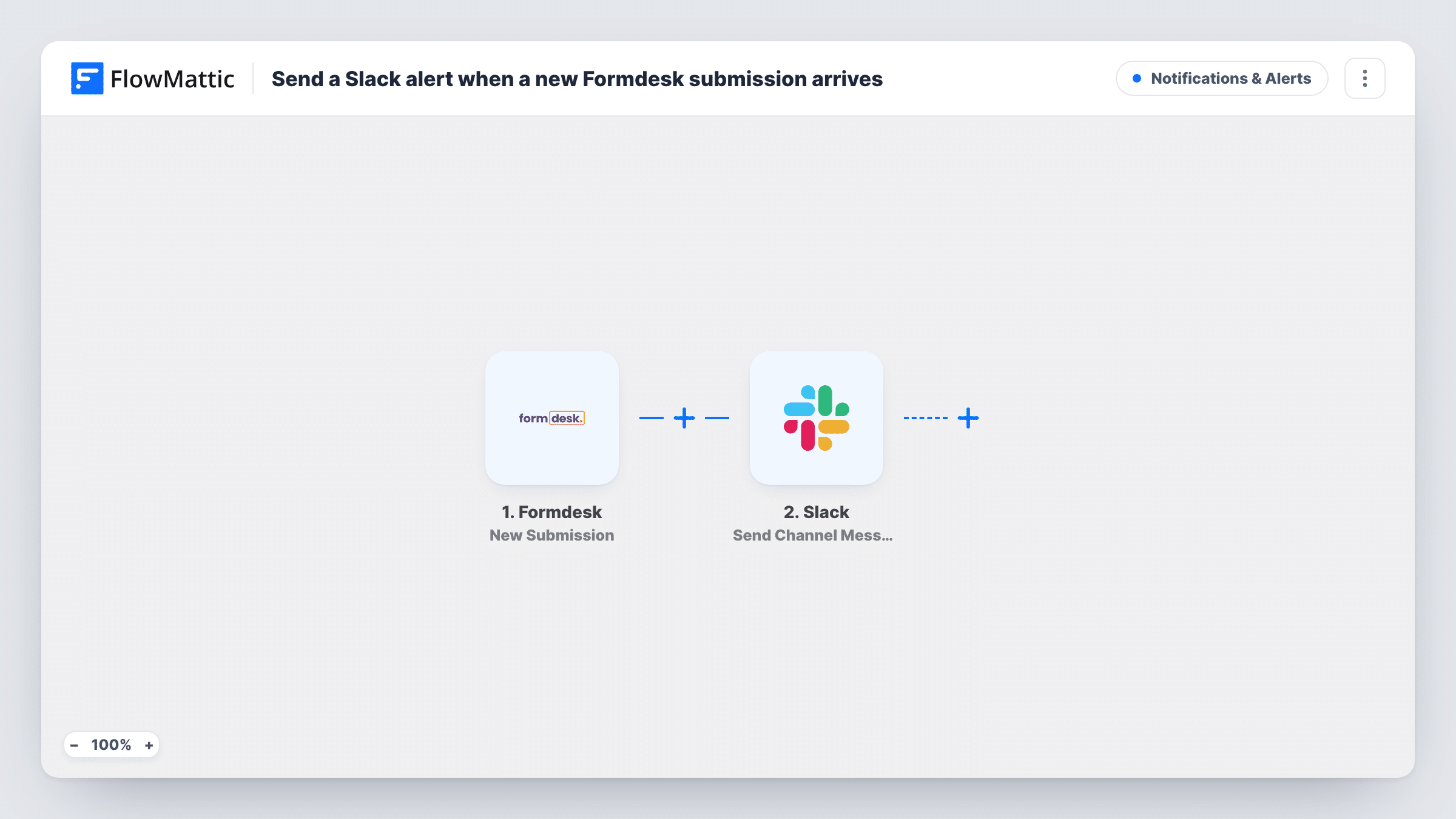
What this workflow does
Form entries that wait in an inbox or a back office often wait too long. If your team talks in Slack, that is the quickest place to tell them a new Formdesk entry has come in. This workflow sends the alert there.
The Formdesk trigger fires for each new form submission. FlowMattic receives the answers and passes them to Slack, where Send Channel Message posts to the channel you choose. You write the message and drop in answers from the form, such as the person's name, email or the reason they got in touch.
Every submission posts a message, so a busy form means a busy channel. Formdesk still stores the entry as usual. You can review every Formdesk alert run, with its posted text, in Task History.
Registration forms for courses
Each new course registration in Formdesk appears in the admin team's Slack channel, so someone can confirm the place the same day.
Service requests from customers
A Formdesk request form for repairs or callbacks alerts the service channel, where a team member picks it up and replies in the thread.
Internal forms
Staff submit leave or expense requests through Formdesk, and managers see each one in their team channel as it arrives.
How this workflow runs
What happens at each step once the workflow is on, and what you need before you import it.
 Formdesk New Submission
Runs when a new submission is made on your Formdesk form. Every answer is passed to the Slack step so you can use it in the message.
- Slack Send Channel Message
Posts your alert in the Slack channel you select. Connect your workspace, write the message, and map Formdesk answers into it so the team sees the key details.
What you need
- FlowMatticCore
- Formdesk AccountAccount
- Slack AccountAccount
After importing, map your own data. To keep the template universal, not every step is pre-filled. Open each step in the builder and connect your accounts and fields (channels, lists, sheets, recipients) before you switch the workflow on.
Make it yours
Changes worth making after you import it.
- Add a Filter after the trigger so only entries with a chosen answer, such as a high priority, reach Slack.
- Switch to Slack's Send Private Channel Message action if the alerts should go to a private channel.
- Submit a test entry in Formdesk after import so FlowMattic captures the fields before you write the message.
Questions about this workflow
Can the Slack alert include the Formdesk answers?
Yes. Any answer from the submission can be mapped into the message text, for example the name and email the person entered.
Does every Formdesk submission post to Slack?
Yes, as imported. Add a Filter after the trigger if only some entries should post.
Will Formdesk still keep the entry?
Yes. FlowMattic just picks up a copy of each Formdesk entry. It does not change or remove anything in Formdesk.
More Notifications & Alerts workflows
Other ready-to-import templates from the same category.





Import this workflow into your WordPress site
Download the JSON, import it from the Workflows screen and connect your accounts. Every run stays on your server, with no per-task fees.
30-day money-back guarantee Unlimited workflows and runs Self-hosted