

When a new report is created in FaceUp, send an SMS via Twilio
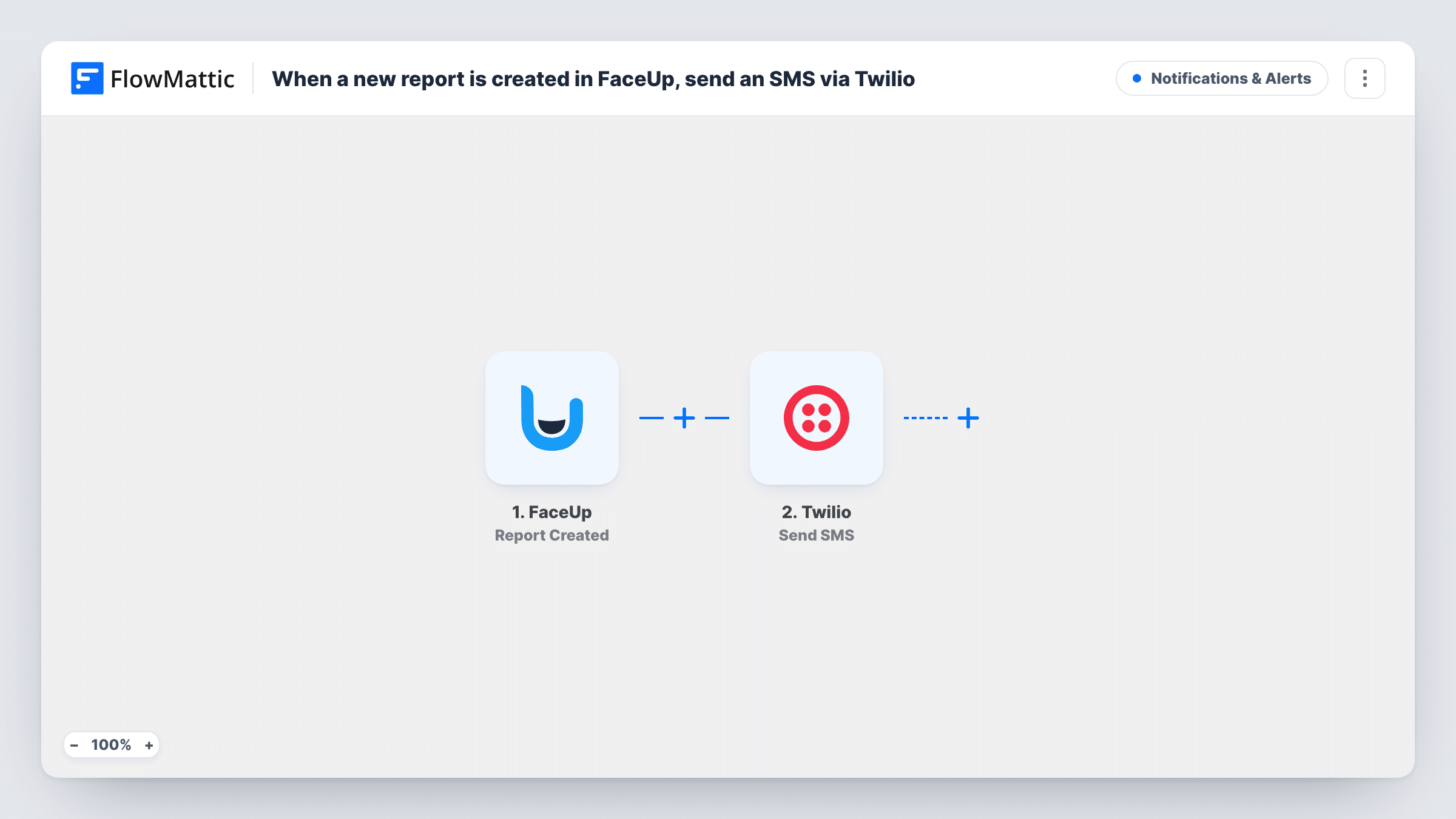
When a new report is created in FaceUp, this workflow sends a text message through Twilio to the number you set, so the person who handles reports hears about it without logging in to check.
 FaceUp
 Twilio
2 steps Setup ~5 min Used on 2.6k sites Free to import
What this workflow does
Whistleblowing and HR reports need someone to look at them, but the people who handle them rarely sit in the FaceUp dashboard all day. A report can wait unread until someone happens to log in. This workflow sends a text the moment FaceUp records a new one.
The FaceUp trigger, Report Created, fires each time a report is created. FlowMattic passes the report data to the next step. The Twilio step then sends an SMS through your Twilio account to the phone number you enter, with a message you write and fill with any report values you choose to map.
Every new report sends one text. There is no Filter in the template, so nothing is held back by category or urgency. Because FaceUp reports can be sensitive and texts show up on lock screens, you may prefer to keep the message to a short notice and read the details in FaceUp itself. Task History lists each run and the response Twilio gave.
Compliance officer on the move
Your compliance lead spends most days in meetings. A text on each new FaceUp report tells them to open the case without watching the inbox.
Out-of-hours safety reports
A worker files a safety report in FaceUp at night. The on-call manager gets an SMS straight away instead of finding it the next morning.
School or club reporting line
Students or members report concerns through FaceUp. The designated safeguarding contact gets a text so the report is picked up quickly.
How this workflow runs
What happens at each step once the workflow is on, and what you need before you import it.
 FaceUp Report Created
Fires each time a new report is created in FaceUp. The report data comes into FlowMattic so you can map parts of it into the text message if you choose.
- Twilio Send SMS
Sends an SMS through your Twilio account to the phone number you enter. Write the message body and connect your Twilio account. A short notice that a report arrived keeps sensitive details off the phone.
What you need
- FlowMatticCore
- FaceUp AccountAccount
- Twilio AccountAccount
After importing, map your own data. To keep the template universal, not every step is pre-filled. Open each step in the builder and connect your accounts and fields (channels, lists, sheets, recipients) before you switch the workflow on.
Make it yours
Changes worth making after you import it.
- To text more than one person, add a second Twilio Send SMS step after the first, with the other phone number. Both numbers then get the alert for every report.
- Keep report content out of the SMS unless you are sure it is safe to show. Text messages appear on lock screens and can be read by anyone holding the phone.
- If only some reports need a text, add a Filter after the trigger on a value FaceUp sends with the report. Run a test report first to see which values are available.
Questions about this workflow
Does the text include the FaceUp report itself?
It holds just the values you place in the message body. You can send a plain notice or add report values from the trigger, and read the full report in FaceUp.
Will I get a text for messages on an existing FaceUp report?
No. This trigger fires on new reports only. FaceUp has a separate Message Created trigger in FlowMattic if you also want alerts for follow-up messages.
What do I need from Twilio to send the alert?
A Twilio account with a phone number that can send SMS to the country of the recipient. You connect that account when you import the workflow, then send a test report to confirm the text arrives.
What if the Twilio message fails to send?
The run still finishes, and Task History shows the error Twilio returned on that step. The report itself is unaffected in FaceUp.
More Notifications & Alerts workflows
Other ready-to-import templates from the same category.




Import this workflow into your WordPress site
Download the JSON, import it from the Workflows screen and connect your accounts. Every run stays on your server, with no per-task fees.
30-day money-back guarantee Unlimited workflows and runs Self-hosted