

Create Discord notifications for new users invited in Zoho Projects
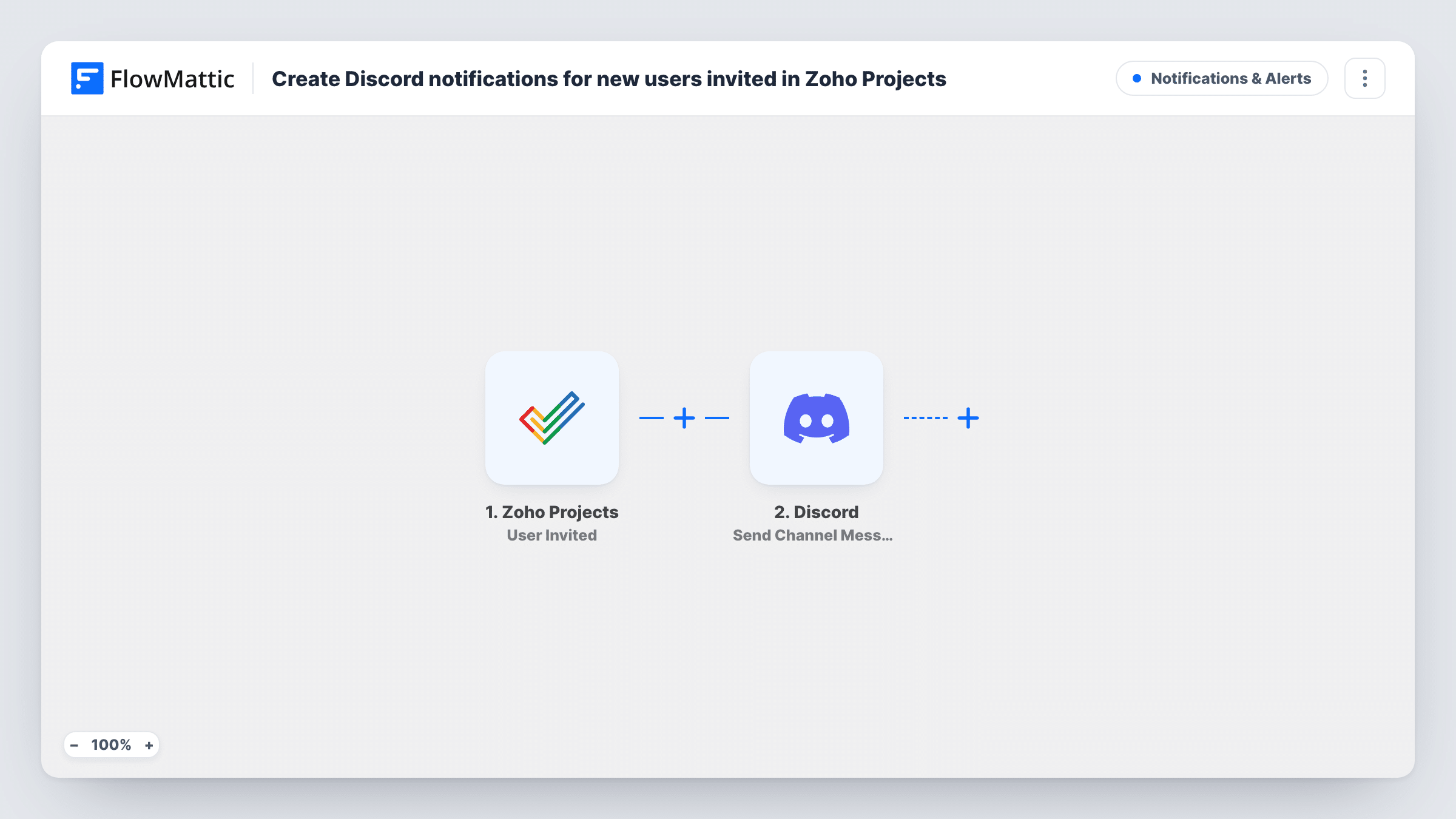
When someone is invited to your Zoho Projects portal, FlowMattic posts a message to the Discord channel you choose, so your team knows a new person is on the way before they start asking questions.
 Zoho Projects
 Discord
2 steps Setup ~5 min Used on 381 sites Free to import
What this workflow does
New people join a project long before anyone mentions it in chat. A contractor gets invited to Zoho Projects, and the rest of the team only finds out when a stranger appears on a task. A short note in Discord when the invitation goes out gives everyone a heads-up.
The Zoho Projects trigger is User Invited, which runs each time a user is invited. FlowMattic then posts to Discord with the Send Channel Message action, in the channel you pick. You write the text and add values from the invitation, for example the person's name or email address and their role, if Zoho sends them.
The message goes out at invitation time, not when the person accepts. Zoho Projects has a separate User Accepted Invite trigger if you would rather announce people once they are actually in. Each invitation the workflow handles is listed in Task History.
Introducing freelancers to the team
An agency invites a freelance designer to a client project. The Discord channel gets a message with their name, so the team can say hello.
Keeping admins aware of new accounts
Post invitations to a private admin channel, so whoever manages access can see each new invite to the Zoho Projects portal as it happens.
Onboarding for a growing startup
Each new hire invited to Zoho Projects triggers a message in the team channel, reminding a teammate to send them the onboarding checklist.
How this workflow runs
What happens at each step once the workflow is on, and what you need before you import it.
 Zoho Projects User Invited
Runs whenever a user is invited in Zoho Projects. Connect your Zoho account, then invite a test user so FlowMattic captures the invitation data, such as the user's name and email, for mapping.
- Discord Send Channel Message
Announces the invitation in a Discord channel. Connect Discord, select where the note should appear, and write the text with Zoho Projects values such as the new user's name and email.
What you need
- FlowMatticCore
- Zoho Projects AccountAccount
- Discord AccountAccount
After importing, map your own data. To keep the template universal, not every step is pre-filled. Open each step in the builder and connect your accounts and fields (channels, lists, sheets, recipients) before you switch the workflow on.
Make it yours
Changes worth making after you import it.
- Swap the trigger for Zoho Projects' User Accepted Invite if you only want to announce people who have joined, not everyone who was invited.
- Leave email addresses out of the message if the channel is open to people outside your company. A name and role are usually enough.
- Add a Filter after the trigger on the user's email domain, so only invites for outside collaborators, or only for staff, reach Discord.
Questions about this workflow
Does the Discord message wait until the Zoho Projects invite is accepted?
No. It is sent when the user is invited. Use the User Accepted Invite trigger instead if you want the message after they join.
Can the message go to a Discord user rather than a channel?
Yes. Replace Send Channel Message with Discord's Send Direct Message action and choose the user who should receive it.
What details about the invited Zoho Projects user appear in Discord?
Whatever Zoho sends with the invitation and you map into the text. Invite a test user to see the available fields.
More Notifications & Alerts workflows
Other ready-to-import templates from the same category.




Import this workflow into your WordPress site
Download the JSON, import it from the Workflows screen and connect your accounts. Every run stays on your server, with no per-task fees.
30-day money-back guarantee Unlimited workflows and runs Self-hosted