

When an auto clock out occurs, log it in Google Sheets and alert the supervisor in Slack
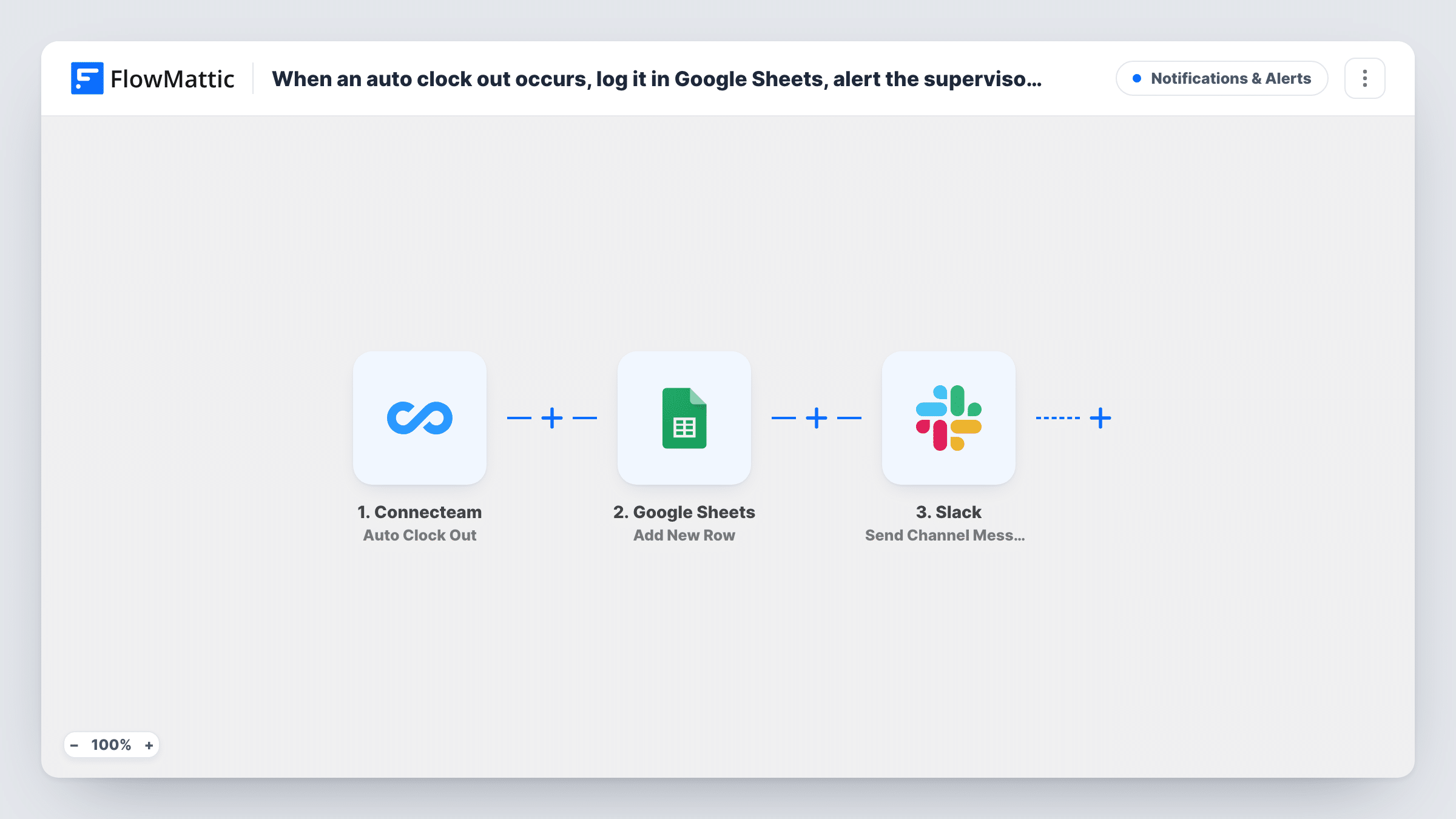
Each time Connecteam clocks an employee out automatically, the event is added as a row in Google Sheets and a message goes to the Slack channel your supervisor watches.
 Connecteam
 Google Sheets
 Slack
Slack3 steps Setup ~5 min Used on 581 sites Free to import
What this workflow does
An automatic clock out usually means someone forgot to end their shift, and the hours on that timesheet may be wrong. Supervisors need to know while the shift is still fresh in everyone's mind, and payroll needs a list of these cases at the end of the period. This workflow handles both from one Connecteam event.
The Connecteam trigger fires when a user is clocked out automatically under the rules in your time clock settings. The details of that time entry are passed to Google Sheets, which adds one row to the sheet you pick. You decide which columns hold the employee, the clock-in and clock-out times or any other value the event carries.
After the row is saved, Slack receives the alert as a channel message. Pick a channel the supervisor follows and write the message, mapping in who was clocked out and when. Neither action step is mapped in the template, so run a test auto clock out and check Task History to see the exact fields Connecteam sends before you map them.
The sheet becomes a running record of every automatic clock out, which you can sort by person or week when you review timesheets.
Catching forgotten clock outs on a building site
Crew members who leave site without clocking out get flagged in the foreman's Slack channel, and the payroll clerk fixes the hours from the sheet.
Retail shift review at the end of the week
A store manager filters the Google Sheet by employee to see who is often auto clocked out and talks to them about their shift habits.
Overtime checks for a cleaning team
An operations lead sees each automatic clock out in Slack and checks whether the cleaner really worked until the cut-off time.
How this workflow runs
What happens at each step once the workflow is on, and what you need before you import it.
 Connecteam Auto Clock Out
Starts a run when Connecteam clocks a user out automatically, based on the settings in your time clock. The time entry details for that user are passed on.
- Google Sheets Add New Row
Adds one row per automatic clock out to the spreadsheet and sheet you choose. The template leaves the columns unmapped, so match the Connecteam fields to your headers after import.
- Slack Send Channel Message
Sends the auto clock out alert to a Slack channel of your choice. Write the alert text and map in the employee and times from the Connecteam event so the supervisor knows whose shift to check.
What you need
- FlowMatticCore
- Connecteam AccountAccount
- Google Sheets AccountAccount
- Slack AccountAccount
After importing, map your own data. To keep the template universal, not every step is pre-filled. Open each step in the builder and connect your accounts and fields (channels, lists, sheets, recipients) before you switch the workflow on.
Make it yours
Changes worth making after you import it.
- Swap the Slack step for the Send Direct Message action if the alert should reach one supervisor instead of a channel.
- Use Slack's Send Private Channel Message action if the supervisors' channel is private.
- Add a column in the sheet for the corrected clock-out time, so the person fixing timesheets can record the change next to the original entry.
Questions about this workflow
When does the Connecteam Auto Clock Out trigger fire?
When a user is clocked out automatically because of the rules set in your Connecteam time clock configuration. Clock outs the employee makes themselves don't start this workflow.
Can the Slack alert go to the supervisor directly instead of a channel?
Yes. Replace Send Channel Message with Slack's Send Direct Message action and pick the supervisor as the recipient.
Which details from Connecteam can I put in the sheet and the message?
Whatever the Auto Clock Out event sends. Trigger a test, open Task History to see the fields, and map the ones you need into the Google Sheets row and the Slack text.
More Notifications & Alerts workflows
Other ready-to-import templates from the same category.



Import this workflow into your WordPress site
Download the JSON, import it from the Workflows screen and connect your accounts. Every run stays on your server, with no per-task fees.
30-day money-back guarantee Unlimited workflows and runs Self-hosted