

Send a Slack alert to the fulfillment team when a Sendcloud parcel status changes
Each time Sendcloud reports a change in a parcel’s status, this workflow posts a Slack message to your fulfillment channel with the parcel details you map in, so the team sees shipping updates where they already talk.
 Sendcloud
 Slack
2 steps Setup ~5 min Used on 1.5k sites Free to import
What this workflow does
Shipping problems tend to surface late when nobody is watching tracking pages. If your fulfillment team works in Slack, a message for each parcel update keeps them informed without checking the Sendcloud panel. This workflow sends a Slack post for each Sendcloud parcel update.
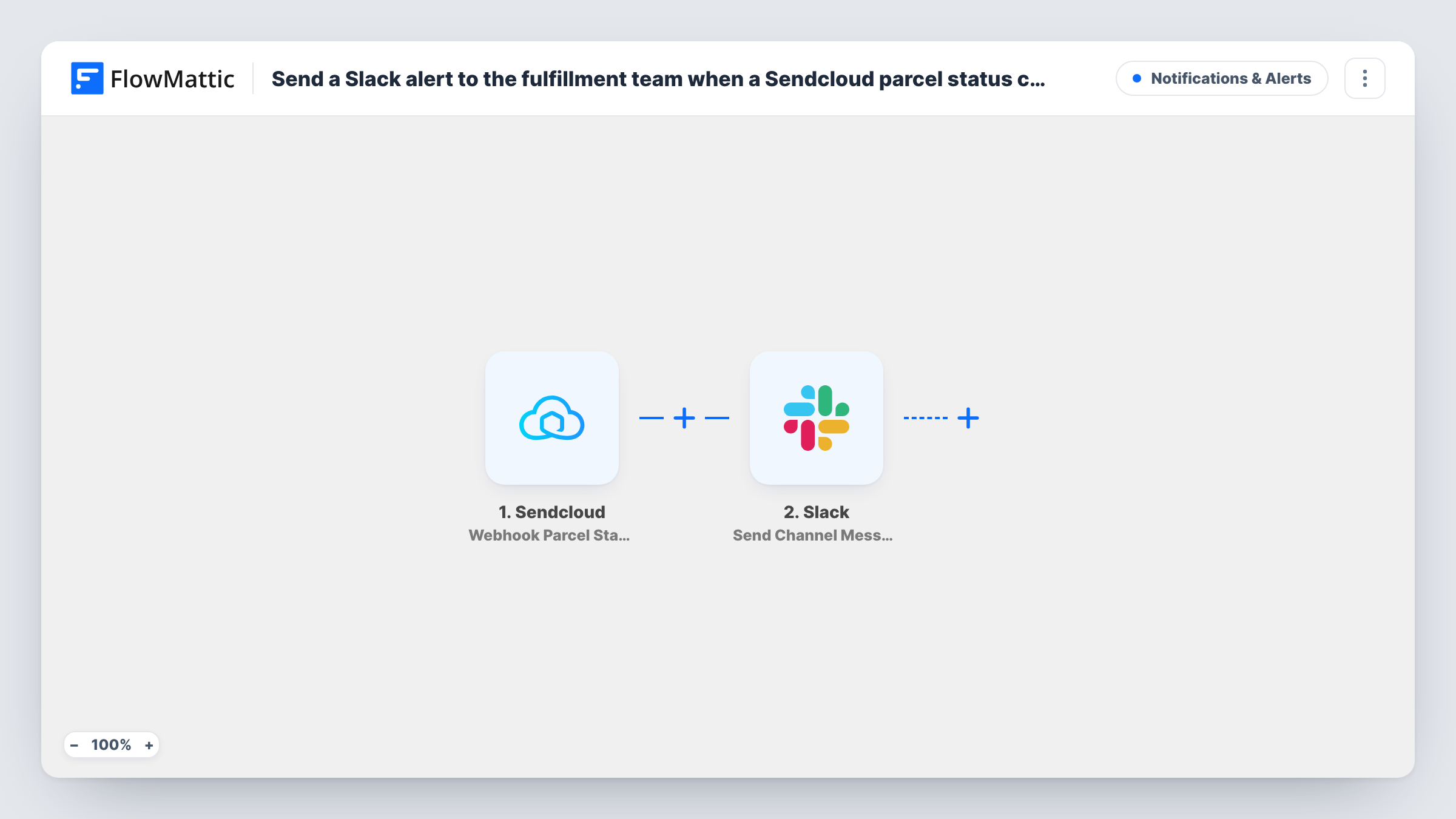
The Sendcloud trigger, Webhook Parcel Status Changed Object, fires when a parcel's status changes. The parcel data in that webhook is passed to Slack, where Send Channel Message posts to the channel you choose. You write the message and map in details such as the order number, tracking number and new status.
Every status change for every parcel sends a message, because the template has no Filter. On a busy store that can mean many posts a day, so you may want to narrow it down after import. You can check each run, and the text it posted, in Task History.
Spotting parcels that need attention
Add a Filter so the fulfillment channel only hears about statuses your team acts on, such as a delivery problem or a parcel returned to sender.
Small shop with one channel
A store sending a handful of parcels a day posts every Sendcloud status update to one Slack channel, giving the owner a running view of shipments.
Customer service context
Support agents follow parcel updates in Slack, so when a customer asks where their order is, the latest status is already in the channel.
How this workflow runs
What happens at each step once the workflow is on, and what you need before you import it.
 Sendcloud Webhook Parcel Status Changed Object
Fires when Sendcloud reports that a parcel's status has changed. The parcel data in the webhook is passed on so you can map it into the Slack message.
- Slack Send Channel Message
Posts your message in the Slack channel you select. Write the alert and map in the Sendcloud parcel details, such as the order number and the new status.
What you need
- FlowMatticCore
- Sendcloud AccountAccount
- Slack AccountAccount
After importing, map your own data. To keep the template universal, not every step is pre-filled. Open each step in the builder and connect your accounts and fields (channels, lists, sheets, recipients) before you switch the workflow on.
Make it yours
Changes worth making after you import it.
- Add a Filter after the trigger on the parcel status value, so only the statuses your team needs to act on post to Slack.
- Use a Router with one route per status value and a separate Slack step on each, to send delivery problems and delivered parcels to different channels.
- Ship a test parcel, or wait for the first update, then check Task History to see the Sendcloud fields you can map into the message.
Questions about this workflow
Will every Sendcloud parcel update post to Slack?
Yes, as imported. Each status change for any parcel sends a message. Add a Filter on the status value if you only want some of them.
Can the Sendcloud alert mention someone in Slack?
You can include a Slack mention in the text you write. Test it in your channel to make sure it notifies the person you expect.
Does this update anything in Sendcloud?
No. The workflow only reads the webhook and posts to Slack. Your parcels and shipping settings in Sendcloud are not changed.
Can the parcel updates go to customers instead of the team?
Not with this template. It posts to an internal Slack channel. You would add an email step and map the customer's address from the parcel data to notify customers.
More Notifications & Alerts workflows
Other ready-to-import templates from the same category.






Import this workflow into your WordPress site
Download the JSON, import it from the Workflows screen and connect your accounts. Every run stays on your server, with no per-task fees.
30-day money-back guarantee Unlimited workflows and runs Self-hosted