

When a DIDWW inbound SMS arrives, log it in Google Sheets and notify the team in Slack
Every SMS that arrives on your DIDWW number is written to a Google Sheets row and posted to a Slack channel, so inbound texts are kept on record and the team sees them as they come in.
 DIDWW
 Google Sheets
 Slack
3 steps Setup ~5 min Used on 3.3k sites Free to import
What this workflow does
Texts sent to a business number are easy to miss when they only show up in a provider's portal. If customers, drivers or field staff text your DIDWW number, someone on the team should see the message quickly, and you want a record you can search later. This workflow gives you the alert and the record from one inbound text.
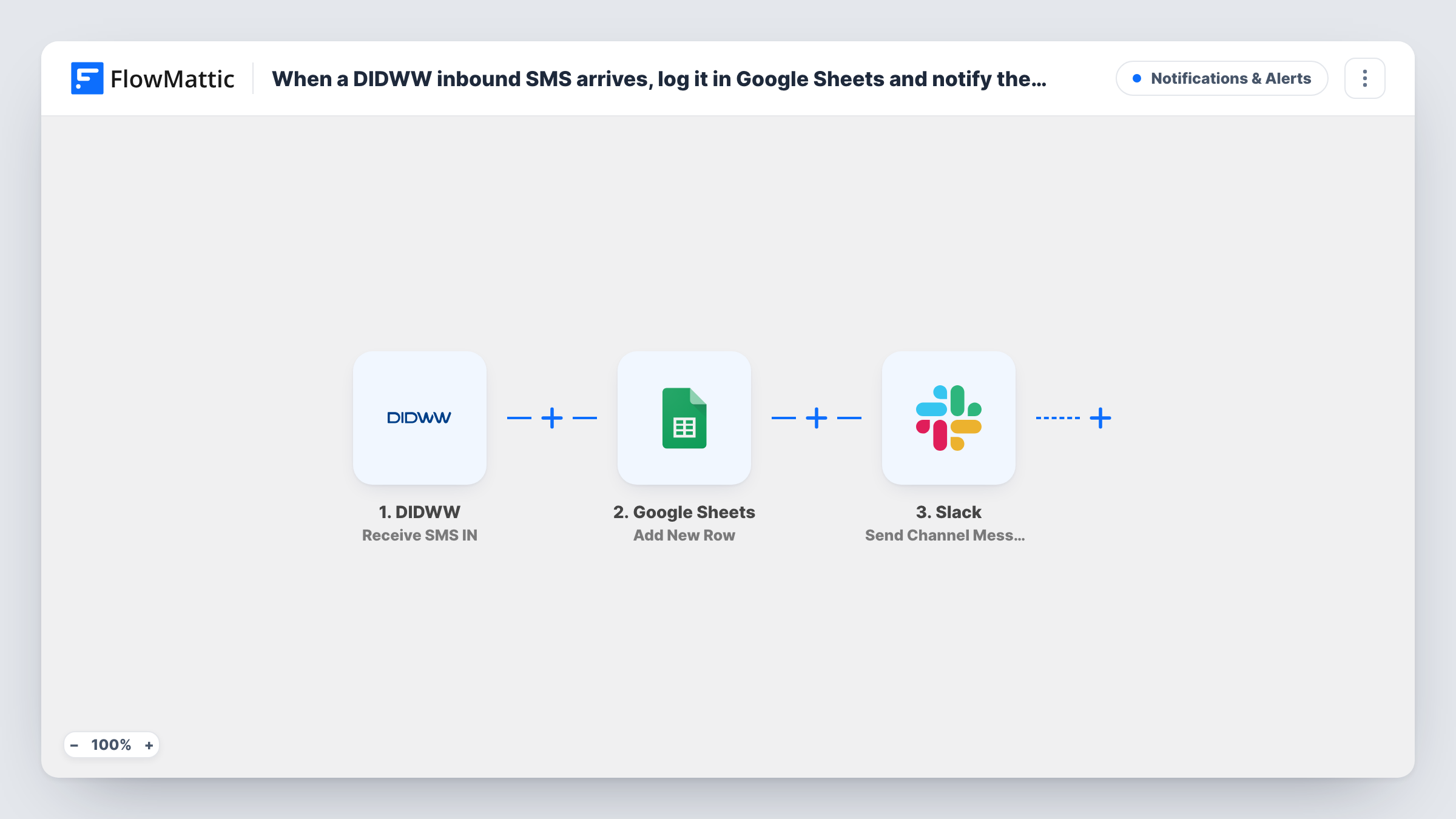
The DIDWW trigger fires when an SMS is received on your DIDWW number and passes the message data to FlowMattic. The Google Sheets step adds a row with the values you map, such as the sender's number, the text and the time. The Slack step then posts the message to a channel, so whoever is on duty can read and follow up.
Each inbound SMS is one run, with one row and one Slack message. The workflow doesn't reply to the sender; it only records and shares what arrived.
Customer text line for a small shop
Customers text your DIDWW number with order questions. The shop's Slack channel shows each text, and the sheet keeps the full history per number.
Delivery drivers reporting in
Drivers text a short update when a drop is done. Dispatch sees it in Slack, and the sheet becomes a log of delivery confirmations.
Verification codes for shared accounts
Codes sent to a shared DIDWW number reach a private team channel instead of one person's phone, with a record of when each arrived.
How this workflow runs
What happens at each step once the workflow is on, and what you need before you import it.
 DIDWW Receive SMS IN
Fires when an SMS is received on your DIDWW number. Run a test by texting the number so FlowMattic captures the sender, recipient and message values to map.
- Google Sheets Add New Row
Adds a row to the Google Sheets spreadsheet you choose for every inbound text. Map the sender's number, the message body and a timestamp to your columns.
- Slack Send Channel Message
Posts the inbound SMS to a Slack channel of your choice. Include the sender's number and the text so the team can follow up without opening the sheet.
What you need
- FlowMatticCore
- DIDWW AccountAccount
- Google Sheets AccountAccount
- Slack AccountAccount
After importing, map your own data. To keep the template universal, not every step is pre-filled. Open each step in the builder and connect your accounts and fields (channels, lists, sheets, recipients) before you switch the workflow on.
Make it yours
Changes worth making after you import it.
- If you have several DIDWW numbers, add a Filter after the trigger on the receiving number so only the line this workflow is for sends rows and Slack messages.
- Verification codes or other sensitive texts? Send them to a private Slack channel with Slack's Send Private Channel Message action rather than an open channel.
- Add a Filter before the Slack step that skips texts containing words like STOP, so opt-out replies are logged in the sheet without pinging the team.
Questions about this workflow
Does this reply to the person who texted my DIDWW number?
No. The workflow logs the text and posts it to Slack. Nothing is sent back to the sender.
Are inbound voice calls on DIDWW logged too?
No. The trigger only covers incoming SMS. DIDWW has separate voice call triggers in FlowMattic if you want a second workflow for calls.
Can the Slack alert for DIDWW texts go to one person?
Yes. Replace the channel step with Slack's Send Direct Message action and pick the teammate who covers the text line.
What does the DIDWW number need for this to work?
It must be able to receive SMS, and DIDWW must send inbound messages to FlowMattic. Follow the trigger's setup instructions after import and text the number to test.
More Notifications & Alerts workflows
Other ready-to-import templates from the same category.



Import this workflow into your WordPress site
Download the JSON, import it from the Workflows screen and connect your accounts. Every run stays on your server, with no per-task fees.
30-day money-back guarantee Unlimited workflows and runs Self-hosted