

Log every Fluxguard change detection in a Google Sheets spreadsheet
Each time Fluxguard detects a change on a page it monitors, this workflow adds a row to Google Sheets, building a dated log of web page changes that you can sort, filter and share.
 Fluxguard
 Google Sheets
2 steps Setup ~5 min Used on 3.0k sites Free to import
What this workflow does
Fluxguard tells you a page changed, but questions come later: when did the pricing page last change, how often does a partner update their terms? A spreadsheet log answers those without digging through old notifications. This workflow writes one row per detected change.
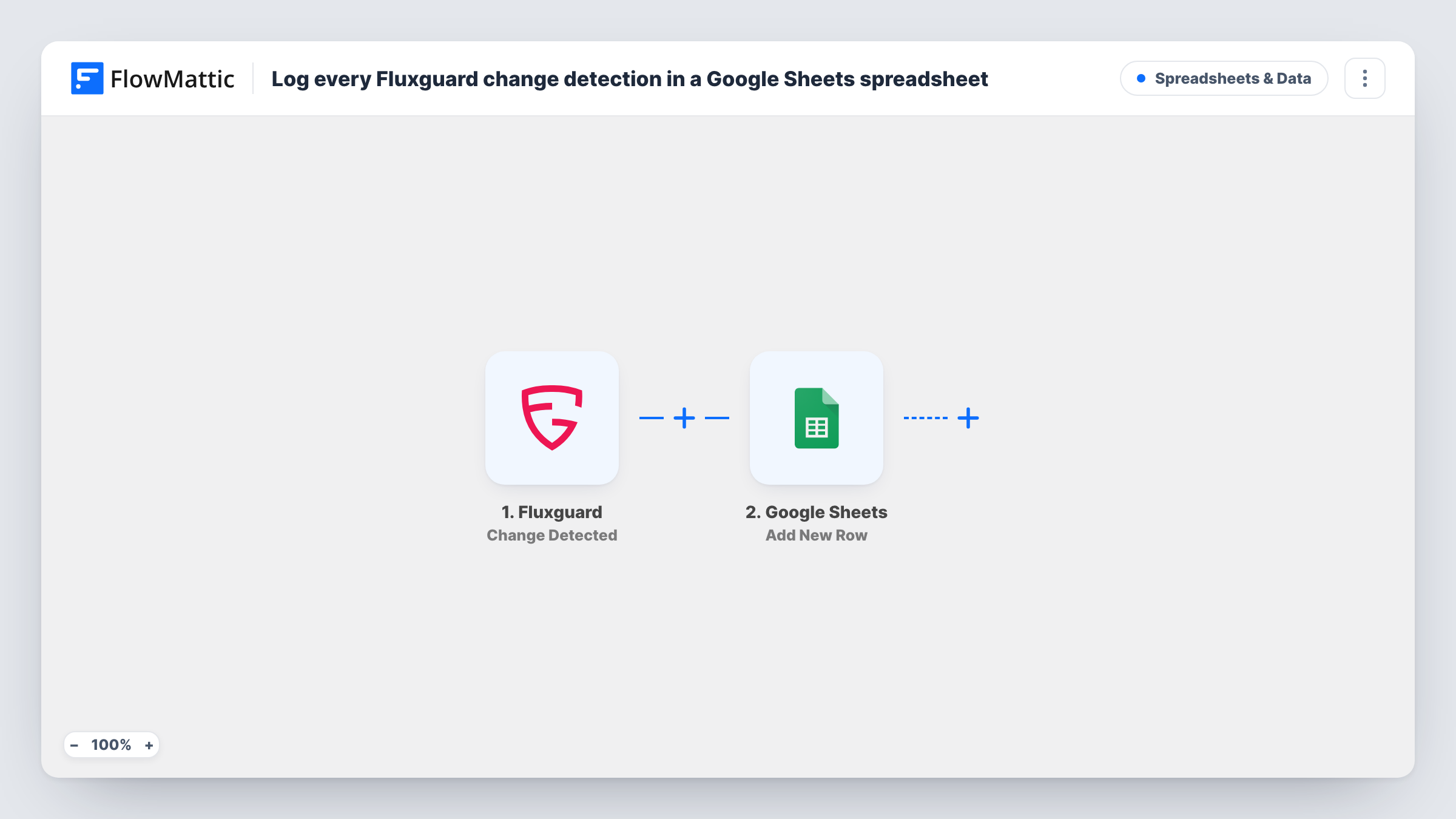
The Fluxguard trigger fires when a change is detected on a monitored web page. FlowMattic passes the change data on to Google Sheets, where Add New Row appends a row to the sheet you pick. You map Fluxguard's details into your columns, along with anything else you want recorded.
Rows are only ever added, so the sheet grows into a history of every change. Nothing is removed or merged. If a run fails, for example because the sheet was renamed, Task History shows the error on the Google Sheets step.
Audit trail for regulated content
A compliance team keeps a sheet listing every change to product disclosure pages, with the date of each, to show reviewers when wording changed.
Competitor change history
Marketing keeps a sheet of every change Fluxguard sees on competitor sites, then reviews the month's rows in a planning meeting.
Measure how often a page changes
Count the rows per page in the sheet to see which monitored pages change most, and decide which ones need closer attention.
How this workflow runs
What happens at each step once the workflow is on, and what you need before you import it.
 Fluxguard Change Detected
Runs when Fluxguard detects a change on one of your monitored web pages. The details Fluxguard sends with the change are passed on for mapping.
- Google Sheets Add New Row
Writes one fresh line per Fluxguard change into the spreadsheet and tab you point it at. Map the Fluxguard change details into its columns and connect your Google account.
What you need
- FlowMatticCore
- Fluxguard AccountAccount
- Google Sheets AccountAccount
After importing, map your own data. To keep the template universal, not every step is pre-filled. Open each step in the builder and connect your accounts and fields (channels, lists, sheets, recipients) before you switch the workflow on.
Make it yours
Changes worth making after you import it.
- Add a header row to the sheet before import, with a column for each Fluxguard detail you want, so the mapping is clear.
- Include the time of the run in a column if Fluxguard's data doesn't already carry a date, so each row shows when the change was logged.
- Add a Slack Send Channel Message step after the sheet if your team should also get an alert for each change.
Questions about this workflow
Does the Google Sheets log update an existing row for a page?
No. The step is Add New Row, so every change Fluxguard detects gets its own row, and earlier rows stay as they were.
Which Fluxguard details can I log?
Whatever Fluxguard sends with the change event. Run a test after import and the available fields appear for mapping.
Are past Fluxguard changes added to the sheet?
No. Only changes detected after you turn the workflow on create rows.
Can several people view the Fluxguard log?
Yes. It is a normal Google Sheet, so you can share it with anyone who needs it through Google's sharing settings.
More Spreadsheets & Data workflows
Other ready-to-import templates from the same category.




Import this workflow into your WordPress site
Download the JSON, import it from the Workflows screen and connect your accounts. Every run stays on your server, with no per-task fees.
30-day money-back guarantee Unlimited workflows and runs Self-hosted