

When a new notification occurs in Robotalp, log the event in Google Sheets
Keep a spreadsheet record of your Robotalp monitoring alerts. Each new Robotalp notification is written to a Google Sheets row with the details you map, so you can look back over downtime and incidents later.
 Robotalp
 Google Sheets
2 steps Setup ~5 min Used on 557 sites Free to import
What this workflow does
Uptime alerts are useful in the moment, but once they are read they tend to disappear into an inbox. When a client asks how often their site went down, or you want to compare months, a list of past alerts is what you need. Here, FlowMattic keeps that list of Robotalp alerts going without you.
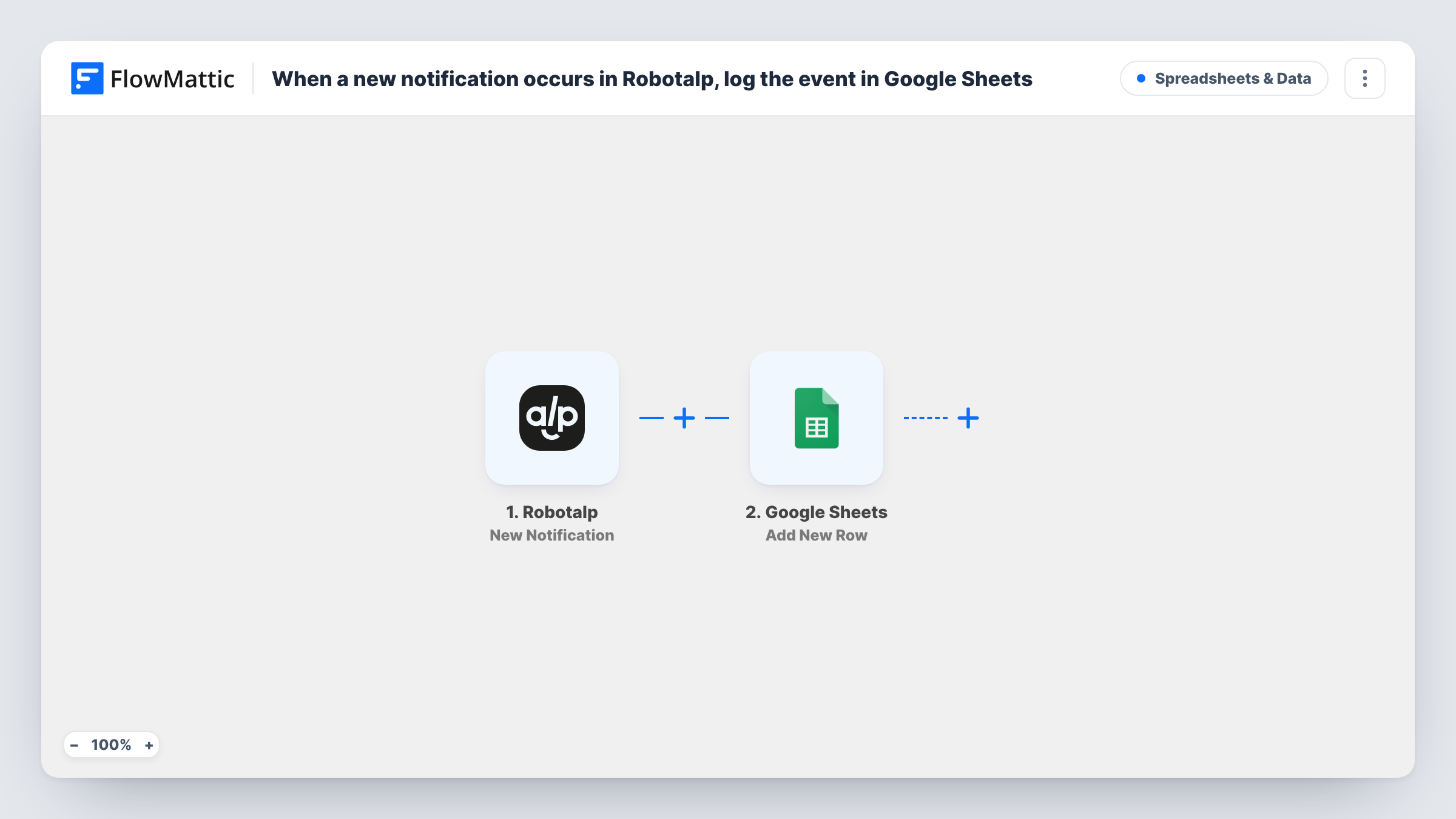
The Robotalp trigger fires when a new notification occurs. FlowMattic takes the notification data and passes it to the Google Sheets Add New Row action. You pick the spreadsheet and map each column to a value from the alert.
Every notification adds one row, so you get a plain timeline of what Robotalp reported. The workflow doesn't decide which alerts matter. If you only want certain notifications in the sheet, add a Filter after import. Task History keeps a record of each run, which is handy when a row looks incomplete.
Monthly uptime report for clients
An agency monitors client sites with Robotalp. At month end, the rows for each site give the material for a short downtime summary.
Reviewing incidents after a bad week
After several outages, the team sorts the sheet by time to see when Robotalp alerts started and how often they repeated.
Alert history for a shared team
Developers and managers who don't log in to Robotalp read the same Google Sheet to see which monitors raised notifications.
How this workflow runs
What happens at each step once the workflow is on, and what you need before you import it.
 Robotalp New Notification
Fires when a new notification occurs in your Robotalp account. The alert data is passed on so you can map it to columns. Run a test to see which values Robotalp includes.
- Google Sheets Add New Row
Adds a row to the Google Sheets spreadsheet you choose for every Robotalp notification. Connect your Google account, pick the sheet and map each column to an alert value.
What you need
- FlowMatticCore
- Robotalp AccountAccount
- Google Sheets AccountAccount
After importing, map your own data. To keep the template universal, not every step is pre-filled. Open each step in the builder and connect your accounts and fields (channels, lists, sheets, recipients) before you switch the workflow on.
Make it yours
Changes worth making after you import it.
- Create a header row first with columns such as time, monitor and message, so it is clear which alert value goes where when you map the step.
- If only some alerts belong in the log, add a Filter between the steps that checks a value from the notification, such as the monitor name.
- Add an email or Slack step after the sheet step if someone should also hear about each notification, not just find it in the log later.
Questions about this workflow
Does every Robotalp notification create a row?
Yes, as imported. There is no condition between the trigger and Google Sheets, so each new notification adds one row.
Are past Robotalp alerts copied into the sheet?
No. Only notifications that occur after you turn the workflow on are logged.
Can I log alerts from several Robotalp monitors in one sheet?
Yes, if they all raise notifications in the connected account. Map a value that identifies the monitor to its own column so you can tell them apart.
What if Google Sheets is unavailable when an alert comes in?
That run shows an error on the Google Sheets step in Task History, and no row is added for that notification.
More Spreadsheets & Data workflows
Other ready-to-import templates from the same category.




Import this workflow into your WordPress site
Download the JSON, import it from the Workflows screen and connect your accounts. Every run stays on your server, with no per-task fees.
30-day money-back guarantee Unlimited workflows and runs Self-hosted