

Route new Grist records by status to the right follow-up
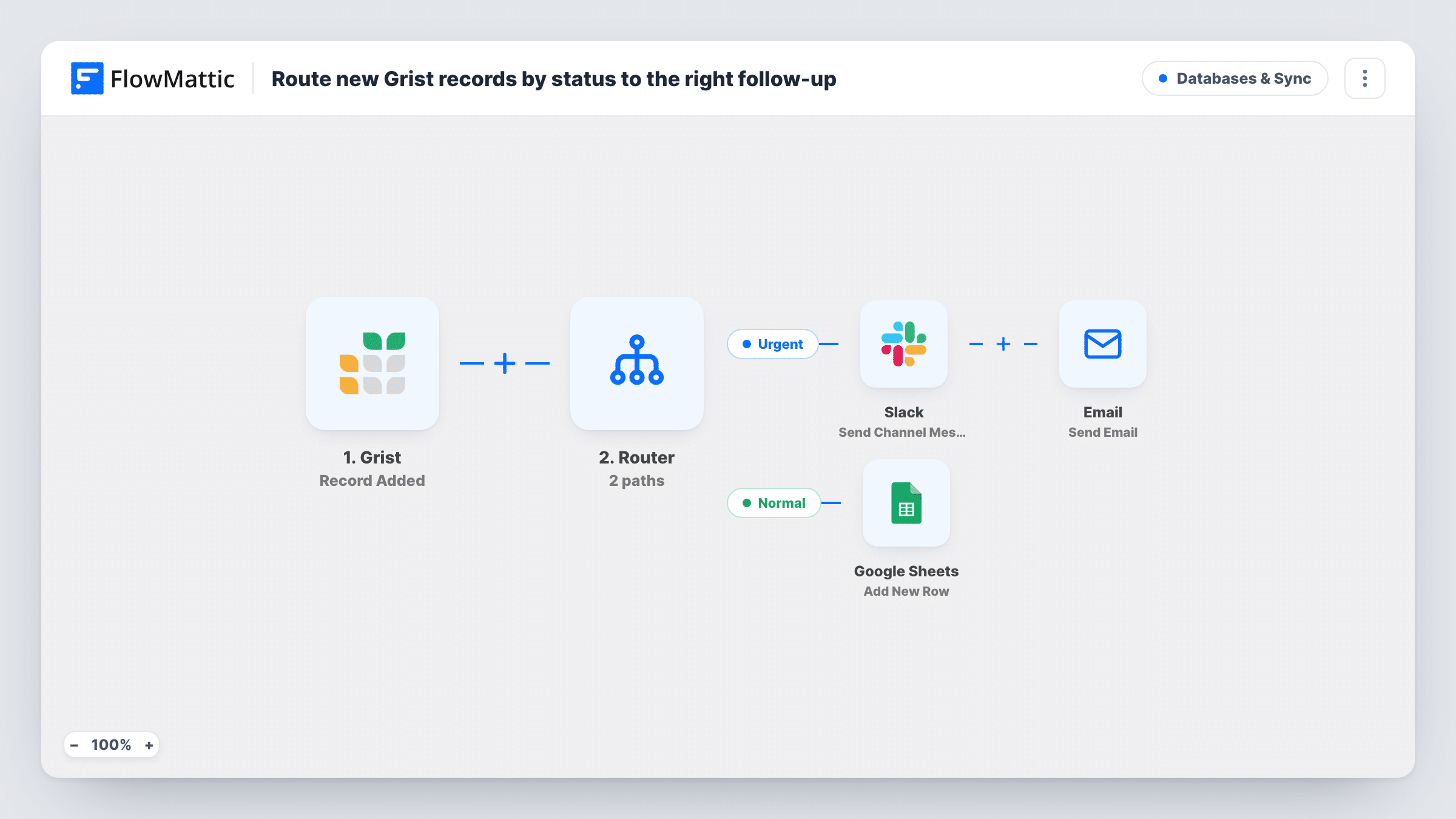
A Router reads the Status of each new Grist record: urgent records post to Slack and email the owner, normal records are added as a row in Google Sheets, and other statuses get no follow-up.
 Grist
Grist
 Router
 Slack
Slack
 Email
Email
 Google Sheets
5 steps Setup ~8 min Used on 635 sites Databases & Sync Free to import
What this workflow does
When a Grist table collects requests, orders or tickets, not every new record deserves the same reaction. Urgent ones need someone to look now, while routine ones only need to be recorded. This workflow sorts each new record by its Status column and sends it down the matching path.
The Grist Record Added trigger starts a run for every new record. A Router then checks the Status field. The Urgent route runs when Status exactly matches urgent, and the Normal route runs when it exactly matches normal. Both checks ignore upper and lower case. One value can't equal both words, so each record follows at most one route.
On the Urgent route, a Slack message names the record and its Amount, and FlowMattic's Email step sends a note to [email protected] with the same details. Replace that placeholder address with a real one and pick the Slack channel after import.
On the Normal route, the Google Sheets Add New Row step ships unmapped, so you choose the spreadsheet and map the record's columns. A record whose Status is empty, or holds any other value, matches neither route and nothing else happens. The template expects columns called Status, Name and Amount in your Grist table.
Support requests with a priority column
A help desk run from Grist pings the on-call Slack channel and emails the lead when a request is entered as urgent, and logs routine ones to a sheet for the weekly review.
Sales orders that need a fast response
A wholesaler marks rush orders as urgent in Grist, so the warehouse manager hears about them in Slack with the order amount while normal orders go to the tracking sheet.
Maintenance tickets for a building
A facilities team logs repair requests in Grist. Leaks marked urgent alert the team at once, and normal requests build up in a Google Sheet for scheduling.
How this workflow runs
What happens at each step once the workflow is on, and what you need before you import it.
 Grist Record Added
Starts a run each time a new record is added to your Grist table. The record's fields, including Status, Name and Amount, are passed to the Router and the follow-up steps.
- Router 2 paths
Checks the record's Status field against two routes. Urgent runs when Status exactly matches urgent, Normal when it exactly matches normal, case ignored. Any other status matches no route.
- Slack Send Channel Message
Urgent route: posts a Slack channel message reading Urgent record, followed by the record's Name and Amount. Connect Slack and choose the channel the alert should go to.
 Email Send Email
Urgent route: sends an email to [email protected] with the record's Name in the subject and its Amount in the body. Change the address to the person who handles urgent records.
- Google Sheets Add New Row
Normal route: adds a row to Google Sheets for the record. The step ships unmapped, so pick the spreadsheet and sheet and map the Grist fields you want into its columns.
What you need
- FlowMatticCore
- Grist AccountAccount
- Slack AccountAccount
- Google Sheets AccountAccount
After importing, map your own data. To keep the template universal, not every step is pre-filled. Open each step in the builder and connect your accounts and fields (channels, lists, sheets, recipients) before you switch the workflow on.
Make it yours
Changes worth making after you import it.
- Make Status a Choice column in Grist with urgent and normal as options, so a typo such as urgnet can't slip past both routes.
- To catch records with any other status, add a third route whose conditions are that Status does not match urgent and does not match normal, and send those to the same sheet.
- Add a Google Sheets row on the Urgent route too, after the Email step, if you want one sheet that holds every record that came through.
Questions about this workflow
What happens to a Grist record with an empty or different Status?
Nothing after the Router. The Urgent and Normal routes only run for those exact words, so a blank status or a value like high stops without a Slack message, email or sheet row.
Does the Router care whether Status is written Urgent or urgent?
No. Its exact match ignores upper and lower case, so Urgent, URGENT and urgent all take the Urgent route.
Can one Grist record run both the Slack alert and the sheet row?
Not as imported. Status can't equal both urgent and normal, so a record takes one route at most. Add a Sheets step to the Urgent route if urgent records should be logged as well.
Do I need columns with these exact names in my Grist table?
The template reads fields called Status, Name and Amount. If your columns use other names, update the route conditions and the Slack and email text to map your own fields.
Does changing a record's Status later send it down a route?
No. The trigger is Record Added, so only new records start a run. Grist also offers a Record Updated trigger in FlowMattic if you build a separate workflow for status changes.
More Databases & Sync workflows
Other ready-to-import templates from the same category.




Import this workflow into your WordPress site
Download the JSON, import it from the Workflows screen and connect your accounts. Every run stays on your server, with no per-task fees.
30-day money-back guarantee Unlimited workflows and runs Self-hosted