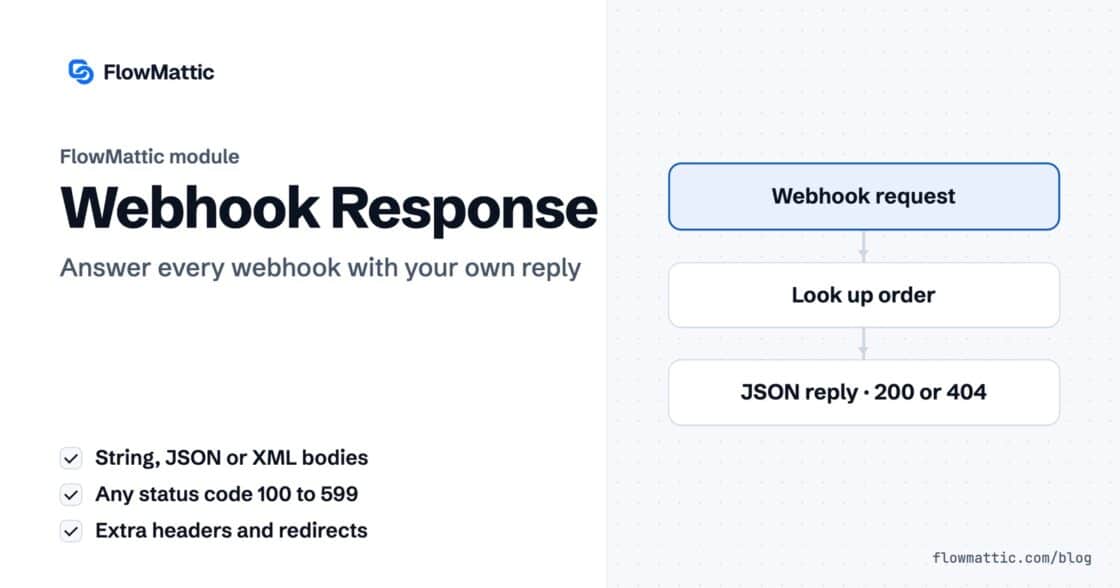
Custom Webhook Response: Send Your Own Status, Headers and Data
Reply to a webhook with data from the run: String, JSON or XML bodies, any HTTP status from 200 to 599, extra…


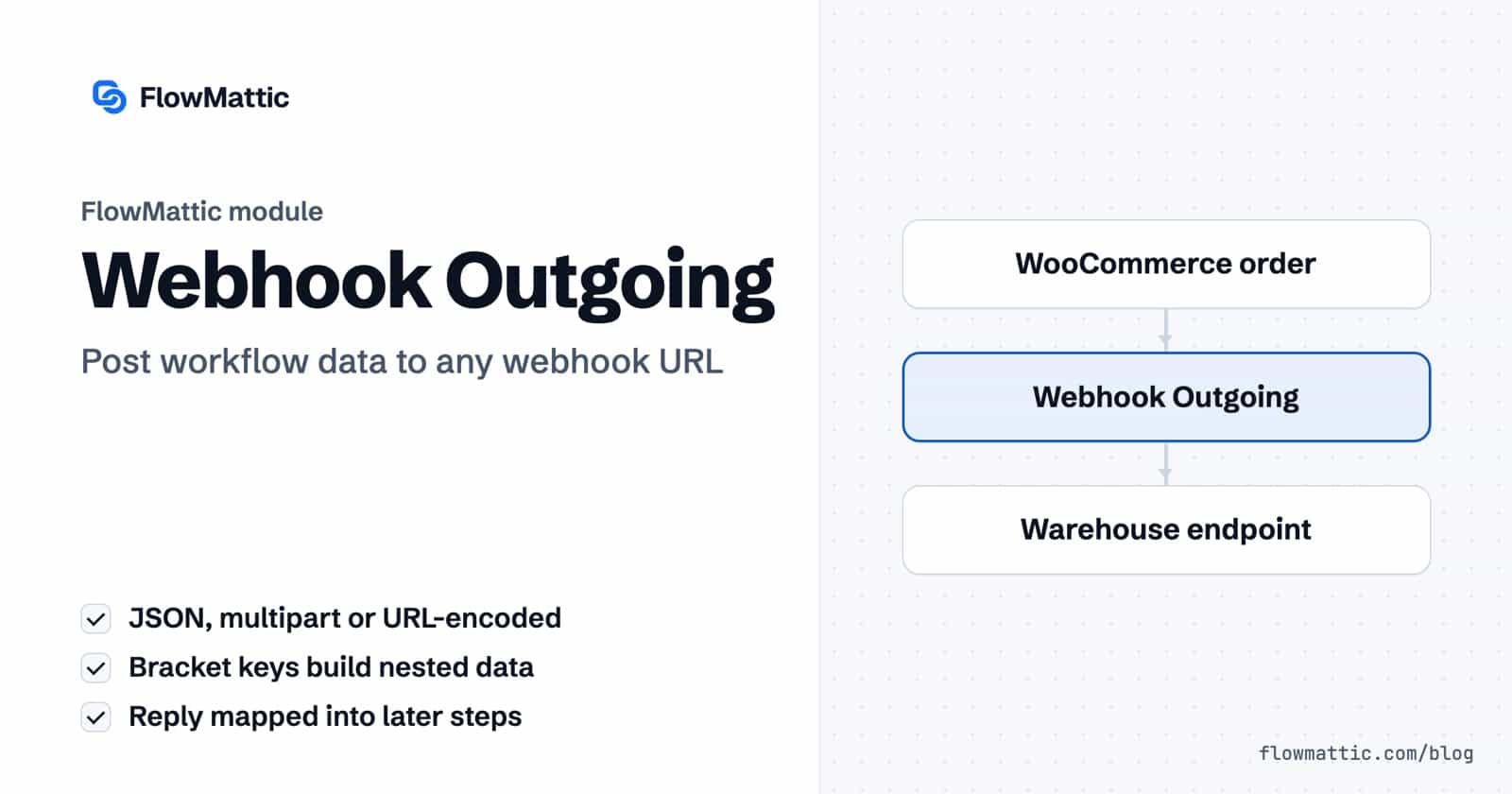
To send a webhook from WordPress in the middle of a workflow, FlowMattic has the Webhook Outgoing module. It posts the data you choose to any webhook URL, as JSON, multipart form data or URL-encoded fields, and hands the receiver’s reply to the next step.
It is the quickest way to notify a chat channel, feed a legacy system, or pass a record to another site, with no code. This guide covers its fields, how it shapes the request body, what it does with the response, and six workflows where it fits.
Webhook Outgoing is a built-in action app in the FlowMattic workflow builder with one action, Submit Data to Webhook. It always uses the POST method. Add it after any trigger or step, and every run sends one request to the URL you set.
It is deliberately simple: a URL, a body format and a list of parameters. When an endpoint needs custom headers, authentication or a method other than POST, use the API module instead.
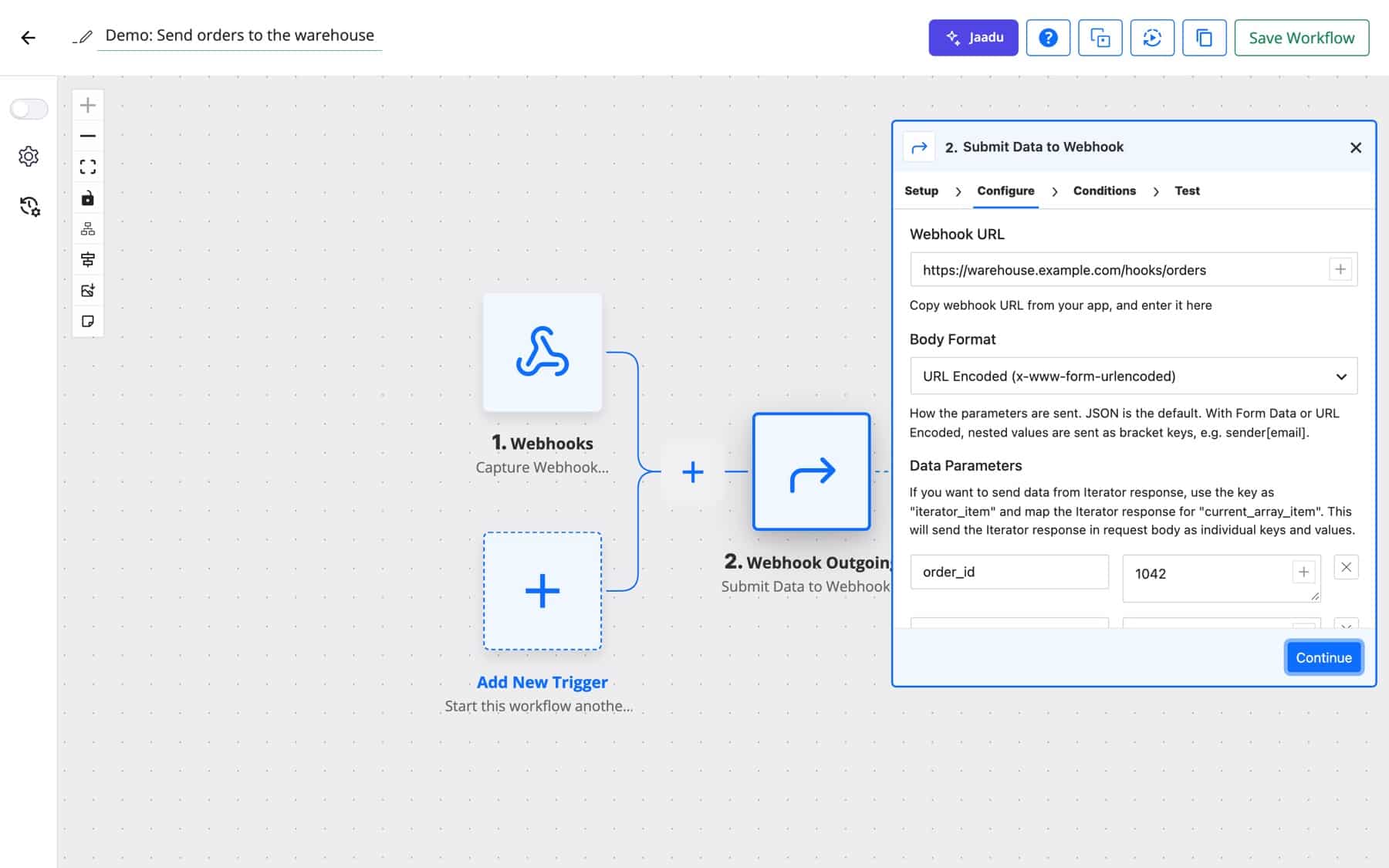
| Field | What it does |
|---|---|
| Webhook URL | The address that receives the POST request. It must be reachable from your server. |
| Body Format | JSON (default) sends a JSON body. Form Data sends multipart/form-data. URL Encoded sends x-www-form-urlencoded fields. With the two form formats, nested values are sent as bracket keys such as sender[email]. |
| Data Parameters | The key and value pairs that make up the body. |
| Need Response? | Yes (default) waits for the reply and returns it as step output. No sends the data without waiting, and the step reports that no response is available. |
customer[email] is sent as {"customer": {"email": "…"}}, so you can build nested objects without writing JSON.42 is sent as a number. Values such as 01234 stay strings, and flat keys are always sent as the text you typed.iterator_item and map the Iterator’s current item, and that item’s keys and values are added to the body individually.With Need Response? set to Yes, the receiver’s reply becomes the step’s output, ready to map into later steps. An empty reply is reported as “Request has no response data”, and a plain-text reply such as ok is wrapped so it still shows as data. Any 2xx answer (200, 201, 202 or 204) counts as delivered. Any other status fails the step and says why: the HTTP code with the receiver’s reply, or the connection error when the URL cannot be reached. A 404 adds a reminder to use a publicly accessible URL. Task History shows the parameters that were sent with each run under Request Payload.
An older fulfilment system only accepts form posts. Webhook Outgoing with URL Encoded sends each new order’s ID, items and shipping address in the format it expects, and the reply is kept in Task History.
Flow: WooCommerce new order → Submit Data to Webhook (URL Encoded)
A support team creates an incoming webhook in their chat app and sends a text parameter as JSON whenever a high-priority form arrives. Chat apps that answer with a plain ok show that reply as data.
Flow: Form submission → Filter (priority is high) → Submit Data to Webhook (JSON)
An agency runs a central reporting site. Each client site posts new leads to a webhook trigger on the central site, which adds them to one table.
Flow: New lead on client site → Submit Data to Webhook → Central site’s webhook trigger → WP Tables
A SaaS onboarding endpoint expects {"user": {"email", "plan"}}. Keys typed as user[email] and user[plan] produce exactly that body from a WordPress registration.
Flow: New user registered → Submit Data to Webhook (JSON, bracket keys)
An inventory service wants one call per product. An Iterator walks the order’s line items, and the iterator_item key spreads each item’s fields into its own request.
Flow: Order paid → Iterator (line items) → Submit Data to Webhook
Marketing tracks course completions in an analytics tool that does not need to answer. With Need Response? set to No, the step sends the event and the workflow continues without waiting.
Flow: Lesson completed → Submit Data to Webhook (Need Response: No) → Next step
Accept: application/json, a FlowMattic user agent and the content type for the chosen format. Endpoints that need an API key header or OAuth belong in the API module with a Connect.Add a Webhook Outgoing step with the Submit Data to Webhook action to any FlowMattic workflow. Enter the receiver’s URL, choose a body format and map your data into key and value rows; every run posts it.
Not in Webhook Outgoing, which sends a fixed set of headers. Use the API module when the receiver needs an authorization header, an API key or a different HTTP method.
JSON, which is the default, multipart/form-data and x-www-form-urlencoded. With the two form formats, nested values are flattened into bracket keys such as sender[email].
Webhook Outgoing treats any 2xx answer, such as 200, 201, 202 or 204, as delivered. Any other status fails the step, and the step output shows the HTTP code with the receiver’s reply, or the connection error if the URL could not be reached. Fix the cause and re-execute the run from Task History.
Webhook Outgoing ships with every FlowMattic plan, next to nearly 900 integrations. Try FlowMattic and send your first webhook from WordPress in a few minutes.
Reply to a webhook with data from the run: String, JSON or XML bodies, any HTTP status from 200 to 599, extra…
Give any app a URL on your WordPress site and turn each request into a workflow run, with signature checks, sample payloads…
Store a value once and use it in any step of any workflow as a {{name}} token. Covers custom, system and local…