
FTP automation in WordPress: upload, download and watch folders
The FTP app uploads, downloads, moves and deletes files on FTP, FTPS and SFTP servers from any workflow, and starts workflows when…


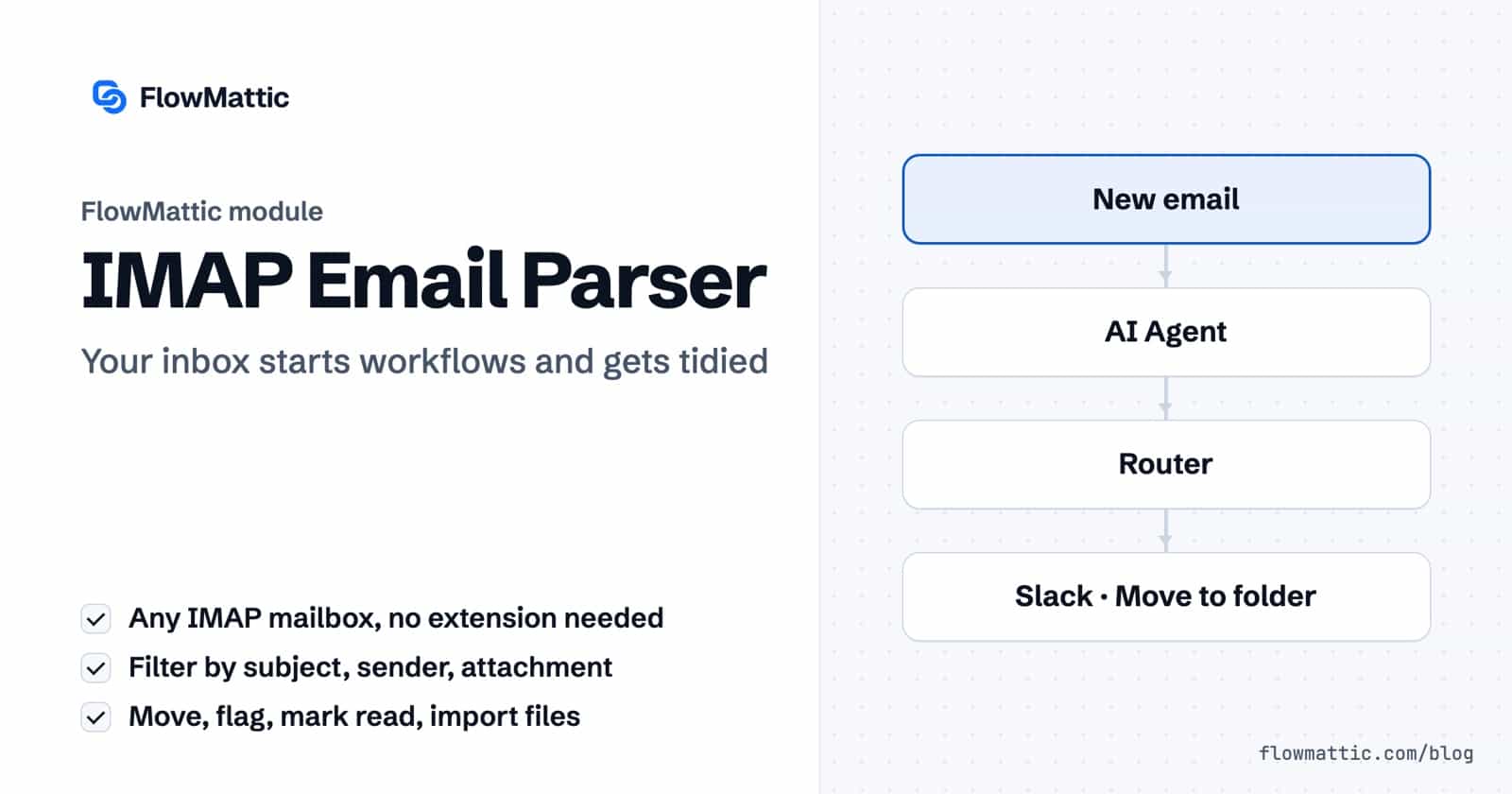
IMAP email automation lets a workflow read a real mailbox. FlowMattic’s IMAP Email Parser connects to any account that speaks IMAP, starts a workflow when a new message arrives in the folder you choose, and gives you six actions to manage that message afterwards: import its attachments, mark it read or unread, flag it, or move it to another folder.
It suits teams whose work arrives by email in an inbox they already own: support@, invoices@, orders@ or a shared sales address. The mailbox stays where it is, and FlowMattic checks it from your WordPress site on the schedule you set.
IMAP Email Parser is a core FlowMattic app with four triggers and six actions. Mailbox accounts are added once in FlowMattic’s Settings and can then be used by any workflow. The connection uses a pure PHP implementation, so no IMAP extension is needed on the server, though the module does need PHP 8.1 or later.
If you would rather not connect a mailbox at all, the separate Email Parser gives each workflow an address to forward mail to. IMAP is the better fit when the workflow should also act on the mailbox itself.
Open FlowMattic → Settings → IMAP Email and click Add IMAP Account. The form asks for:
Click Test Connection to check the details, then Add Account.

Add a trigger, choose IMAP Email Parser and pick one of four events:
| Trigger | Starts a run when | Extra field |
|---|---|---|
| Email Received | A new email arrives in the folder. | None |
| Email with Subject Contains | The subject contains your text, ignoring case. | Subject Filter |
| Email from Specific Sender | The sender’s address or name contains your text, ignoring case. | Sender Email |
| Email with Attachment | The email has at least one attachment. | None |
Every trigger also has Choose IMAP Account, Email Folder (INBOX by default, with a Refresh Folders link to load the rest), Mark as Read (“Automatically mark processed emails as read”) and Frequency, from 1 Minute to 1 Day with 10 Minutes as the default. Capture a response and the newest matching email becomes your sample data.
On each check, FlowMattic looks at unread messages in the folder from about the last day, newest first, and stops when it reaches the last email it processed. The newer ones run through the workflow one at a time, oldest first, so a burst of mail is handled in the order it arrived.
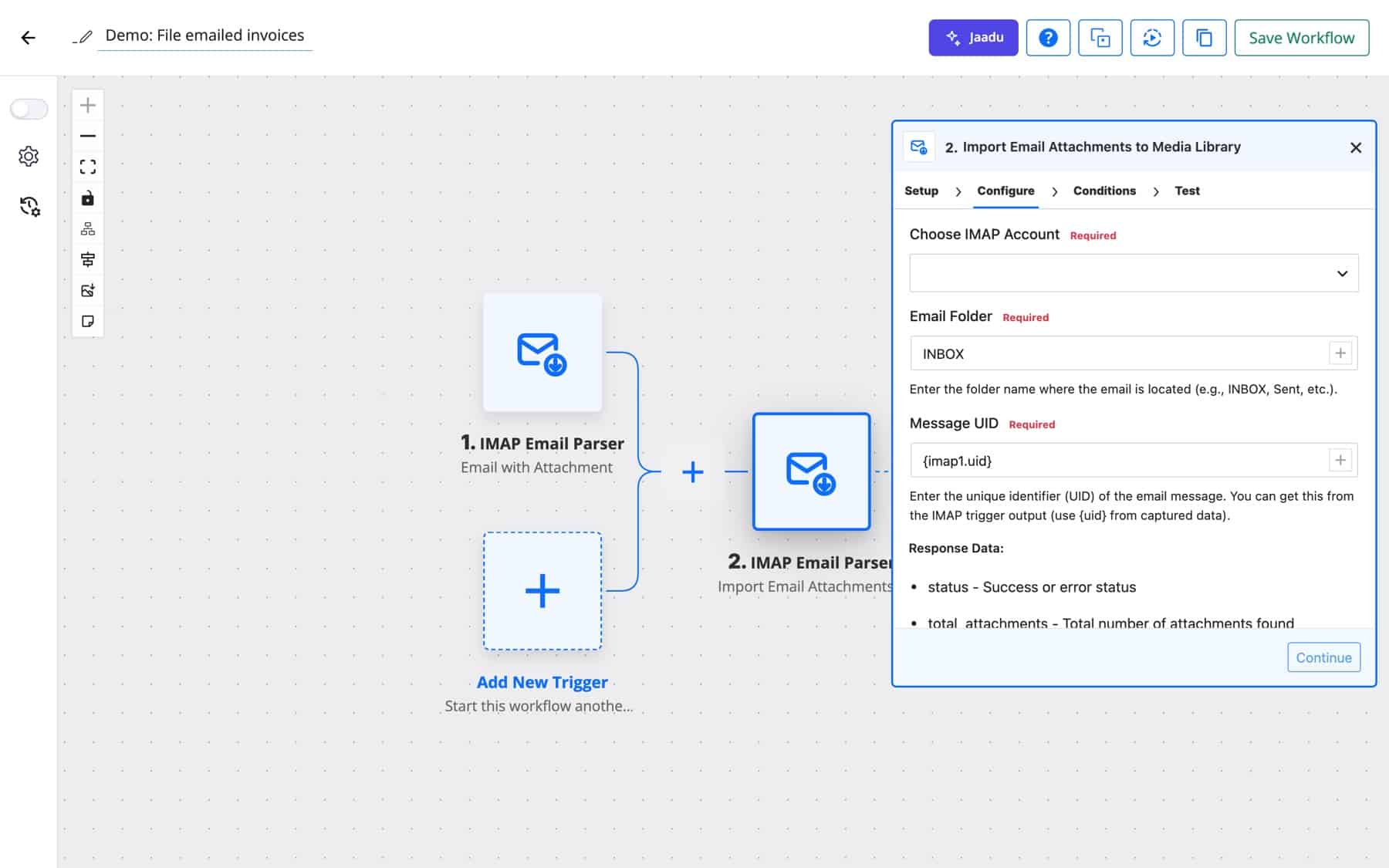
uid, message_id, subject, date, folder, priorityfrom_email, from_name, to, cc, reply_tobody_text and body_htmlhas_attachments, attachment_count and attachments, a list of each file’s name, size and typein_reply_to and referencesenvelope_to, delivered_to, x_original_to and original_to, FlowMattic’s best guess at the address a forwarded message was first sent toEach action takes Choose IMAP Account, the folder the email is in, and its Message UID, which you map from the trigger’s uid.
| Action | What it does |
|---|---|
| Import Email Attachments to Media Library | Downloads every attachment into the WordPress Media Library and returns media_1_id, media_1_url, media_1_name, media_1_type and so on for each file, plus total_attachments and imported_attachments. |
| Mark Email as Read | Sets the message as seen. |
| Mark Email as Unread | Sets it back to unseen, so it stays visible to the team. |
| Move Email to Folder | Moves it from Source Folder to Target Folder. The target folder must already exist. |
| Flag Email (Mark as Important) | Adds the flag or star. |
| Unflag Email (Remove Important) | Removes it. |
An AI Agent reads each new message and labels it as a support request, an invoice or a newsletter. A Router posts support requests to Slack with a summary and moves newsletters out of the inbox.
Email Received → AI Agent → Router → Slack · Move Email to Folder
For an accounts mailbox, the attachment trigger picks up every bill. The files go to the Media Library, the PDF Parser reads the amount, and a WP Tables row records it with a link to the file.
Email with Attachment → Import Email Attachments to Media Library → PDF Parser → WP Tables
A fulfilment partner emails dispatch confirmations. The sender trigger catches only their mail, a Text Formatter extracts the order number and tracking code, and the note lands on the order.
Email from Specific Sender → Text Formatter → WooCommerce: Add Order Note
A client’s old website sends “New enquiry” emails that nobody wants to retype. The subject trigger picks them up, FluentCRM gets the contact, and the email is marked read so the inbox shows only what still needs a person.
Email with Subject Contains → FluentCRM: create contact → Mark Email as Read
sales@, billing@ and partners@ all forward into one mailbox. A Router reads original_to and sends each message to the right team, even though they share an inbox.
Email Received → Router (original_to) → Slack · Email · Telegram
A SaaS account manager wants to know the moment Priya Sharma at Acme writes in. The sender trigger flags the message so it stands out in every mail client, and a Telegram message follows.
Email from Specific Sender → Flag Email (Mark as Important) → Telegram
A few things to know before you rely on IMAP email automation for a busy inbox:
uid.To send, sequence and approve by email as well, see email automation.
It works with any mailbox that offers IMAP access with a username and password. For Gmail, the account form asks you to use an App Password rather than your normal password.
No. The module connects through a pure PHP library, so hosts without the IMAP extension are fine. It does need PHP 8.1 or later.
Within the Frequency you set, which can be as short as 1 minute or as long as 1 day. The default is every 10 minutes.
The trigger is built for new mail: it checks unread messages from about the last day and skips anything older than the email you captured. For a one-off backlog, forward the messages to an Email Parser address instead.
Yes. Import Email Attachments to Media Library saves every attachment of a message and returns each file’s media ID and URL, ready for the next step.
Put your busiest inbox to work. See FlowMattic pricing and connect your first mailbox today.
The FTP app uploads, downloads, moves and deletes files on FTP, FTPS and SFTP servers from any workflow, and starts workflows when…
Share Secrets turns a password or API key into a link that expires after a set time, a set number of views,…
Generate Magic Login Link creates single-use sign-in links from any workflow, valid from 1 minute to 30 days, with a confirmation page…

