
FTP automation in WordPress: upload, download and watch folders
The FTP app uploads, downloads, moves and deletes files on FTP, FTPS and SFTP servers from any workflow, and starts workflows when…


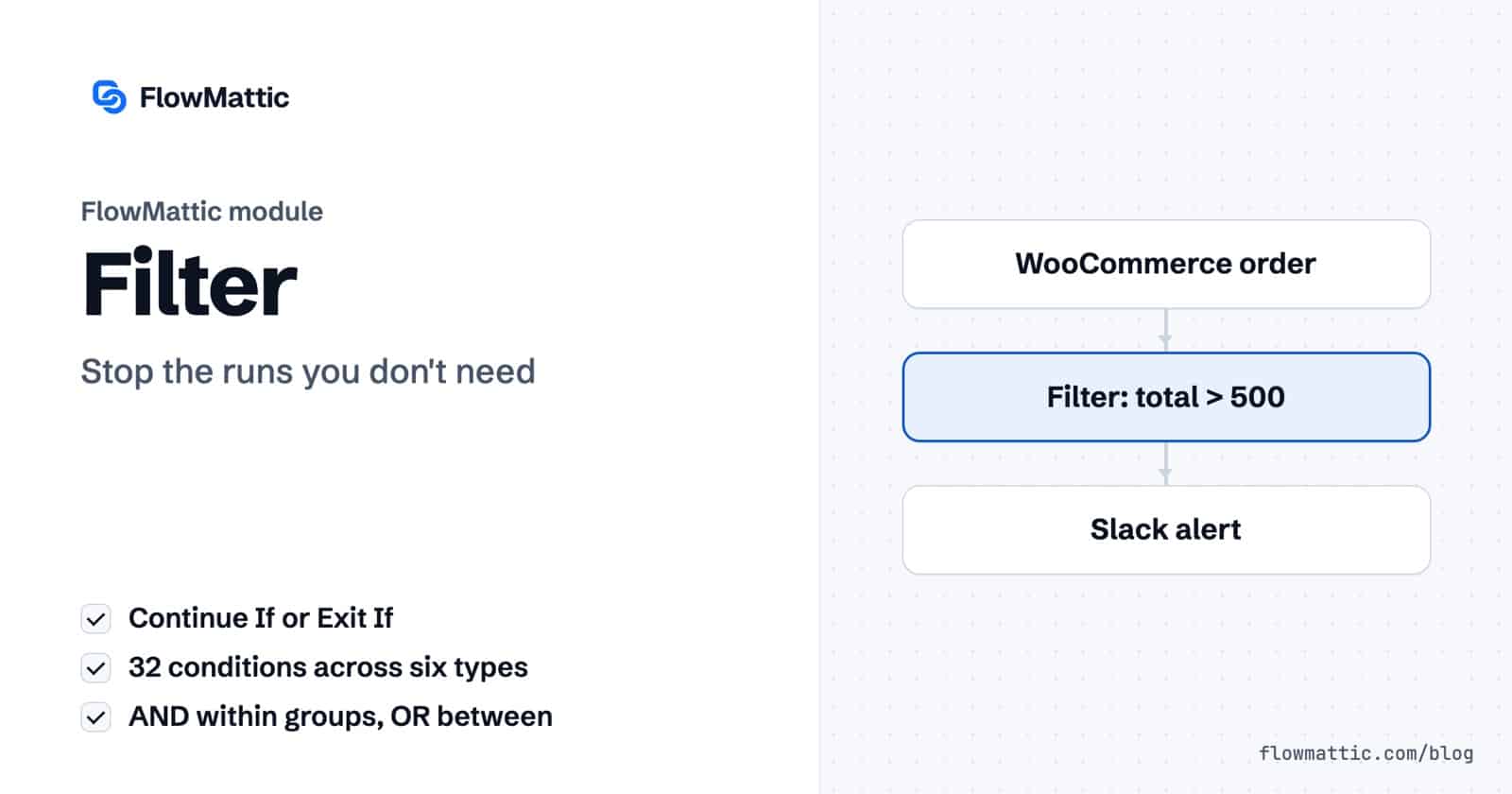
Workflow filter conditions decide whether a run is worth finishing. In FlowMattic, the Filter module checks data from the trigger or any earlier step against conditions you set, then either lets the run continue or ends it on the spot, so the steps after it never fire for events you don’t care about.
It is the module to reach for when a trigger fires more often than it should: test orders, forms from existing customers, webhooks for event types you don’t handle. One Filter step near the top of a workflow keeps your CRM, your Slack channels and your inbox free of noise.
The Filter is a built-in step called Filter by FlowMattic. You find it in the app picker under Flow Controls, described as “Continue only when your conditions are met.” It has two action events:
The two are mirror images. Pick whichever reads more naturally for the rule you have in mind: “continue if the order total is over 500” or “exit if the email ends with a test domain”. Both live alongside the other workflow logic modules on the same canvas as your app steps.
The grouping logic behind workflow filter conditions is simple: every condition inside a group must match for that group to pass, and the Filter passes when any one group passes. So “country is US AND total over 100” OR “customer tag is VIP” is two groups, the first with two conditions.
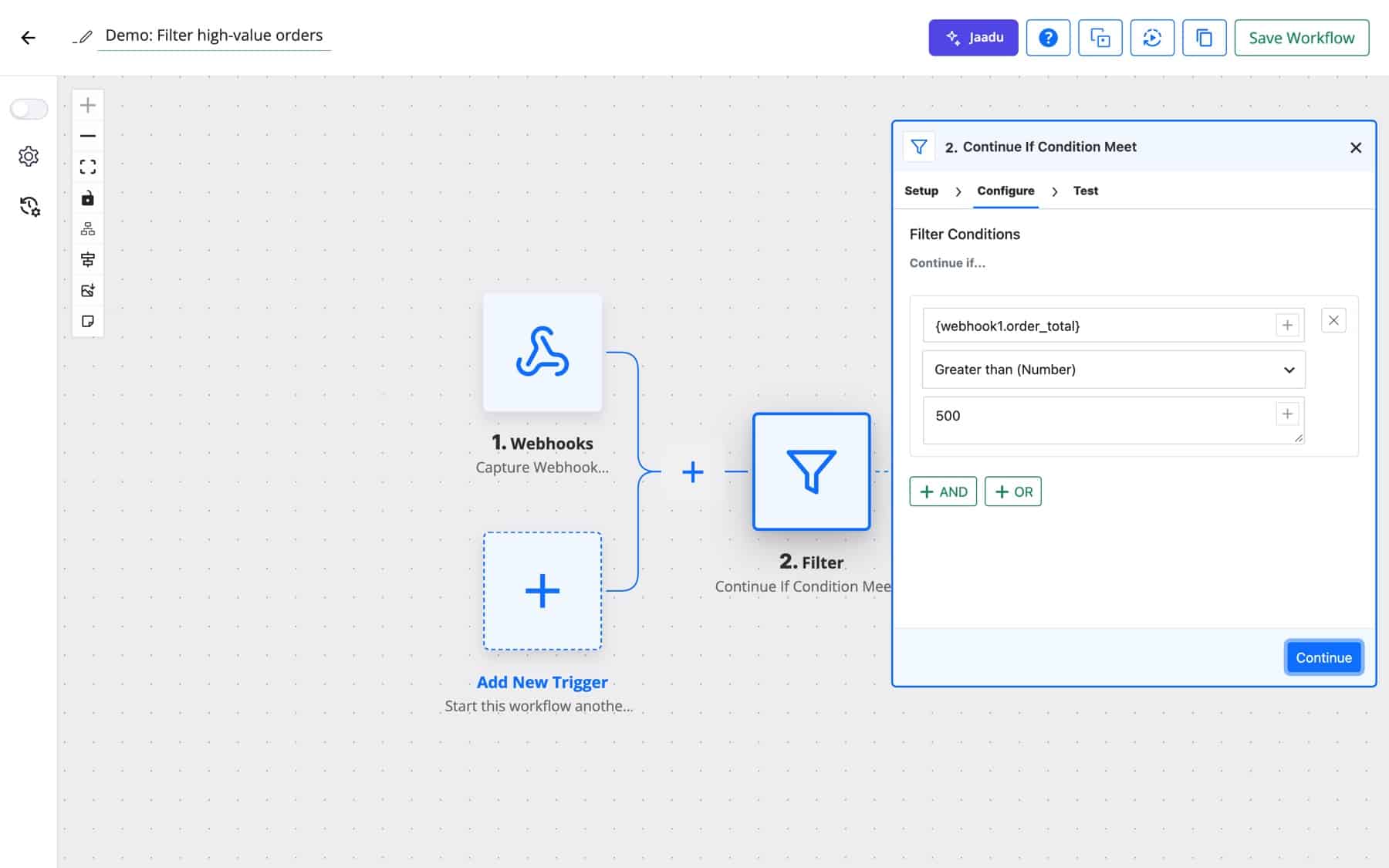
At run time, a passing Continue If step lets the run move on to the next step. When it does not pass, it records “Conditions does not meet. Execution will stop.” and nothing after it runs. Exit If works the other way round. Either way, Task History keeps the conditions the Filter checked.
The condition list holds 32 comparisons, grouped by the kind of value they expect. Conditions that need no value (such as Exists or Is Valid JSON) hide the value box.
| Type | Conditions |
|---|---|
| Text | Contains, Does not contain, Exactly matches, Does not exactly match, Is in, Is not in, Starts with, Does not start with, Ends with, Does not end with |
| Number | Greater than, Less than, Equal to, Not equal to, Greater than or equal to, Less than or equal to |
| Date/time | After, Before, Equals, Does not equal |
| Boolean | Is true, Is false |
| Presence | Exists, Does not exist, Is empty, Is not empty, Is blank, Is not blank |
| Format checks | Is Valid Email Format, Is Valid JSON, Is Valid URL Format, Is Numeric |
Is true matches true or 1. Is false matches false, 0 or an empty value. The value box accepts dynamic tags, so you can compare two fields from the run.
Staff place test orders, and they should never reach the warehouse sheet. An Exit If step on the order note stops them before anything else runs.
WooCommerce new order → Filter (Exit If: customer note Contains "test") → Google Sheets row → Slack message
A Slack ping for every order becomes noise. Filter on the total so the channel only lights up when it matters.
WooCommerce new order → Filter (Continue If: total Greater than 500) → Slack message to #big-orders
An agency’s contact form collects a budget field. Two conditions in one group make sure only real, qualified leads are created as contacts.
Fluent Forms submission → Filter (Continue If: email Is Valid Email Format AND budget Greater than or equal to 2000) → HubSpot contact
A SaaS billing provider sends many event types to one webhook URL. Match the event name exactly and let everything else stop quietly.
Webhook (Capture Webhook Response) → Filter (Continue If: type Exactly matches invoice.payment_failed) → Send Email to the customer
Use two OR groups so either an urgent priority or the word “outage” in the subject reaches the on-call channel.
Freshdesk new ticket → Filter (Continue If: priority Exactly matches urgent OR subject Contains outage) → Slack message to #on-call
An AI Agent reads each inbound message and answers with one word. The Filter turns that answer into a hard gate before anything is written to your CRM.
Webhook → AI Agent (classify as sales, support or spam) → Filter (Continue If: answer Exactly matches sales) → FluentCRM contact
us also matches a list containing aus. When values overlap, use Exactly matches in separate OR groups.0 and for an empty list [].You don’t always need a Filter step. Every action step has a Conditions tab with Enable Conditional Execution, which skips just that one step when its conditions don’t match. The trigger’s Conditions tab can stop the whole workflow before step one, and it is also where Skip Duplicate Events lives. Use a Filter when you want the decision visible as its own step in the middle of the chain.
A Filter makes one decision: keep going or stop. A Router splits the run into several named routes, each with its own conditions and its own steps. Use a Filter to drop unwanted events, and a Router when different events need different actions.
No. FlowMattic lowercases both the field and the value before comparing text, so capitalisation never decides the result. That applies to Contains, Exactly matches, Starts with and the other text conditions.
Yes. Open the run in Task History and expand the Filter step. It shows the conditions it checked and the message it recorded, such as “Conditions does not meet. Execution will stop.”
Workflow filter conditions are included in every FlowMattic plan, with unlimited workflows and runs on your own server. Compare plans on the pricing page and add your first Filter today.
The FTP app uploads, downloads, moves and deletes files on FTP, FTPS and SFTP servers from any workflow, and starts workflows when…
Share Secrets turns a password or API key into a link that expires after a set time, a set number of views,…
Generate Magic Login Link creates single-use sign-in links from any workflow, valid from 1 minute to 30 days, with a confirmation page…

