
FTP automation in WordPress: upload, download and watch folders
The FTP app uploads, downloads, moves and deletes files on FTP, FTPS and SFTP servers from any workflow, and starts workflows when…


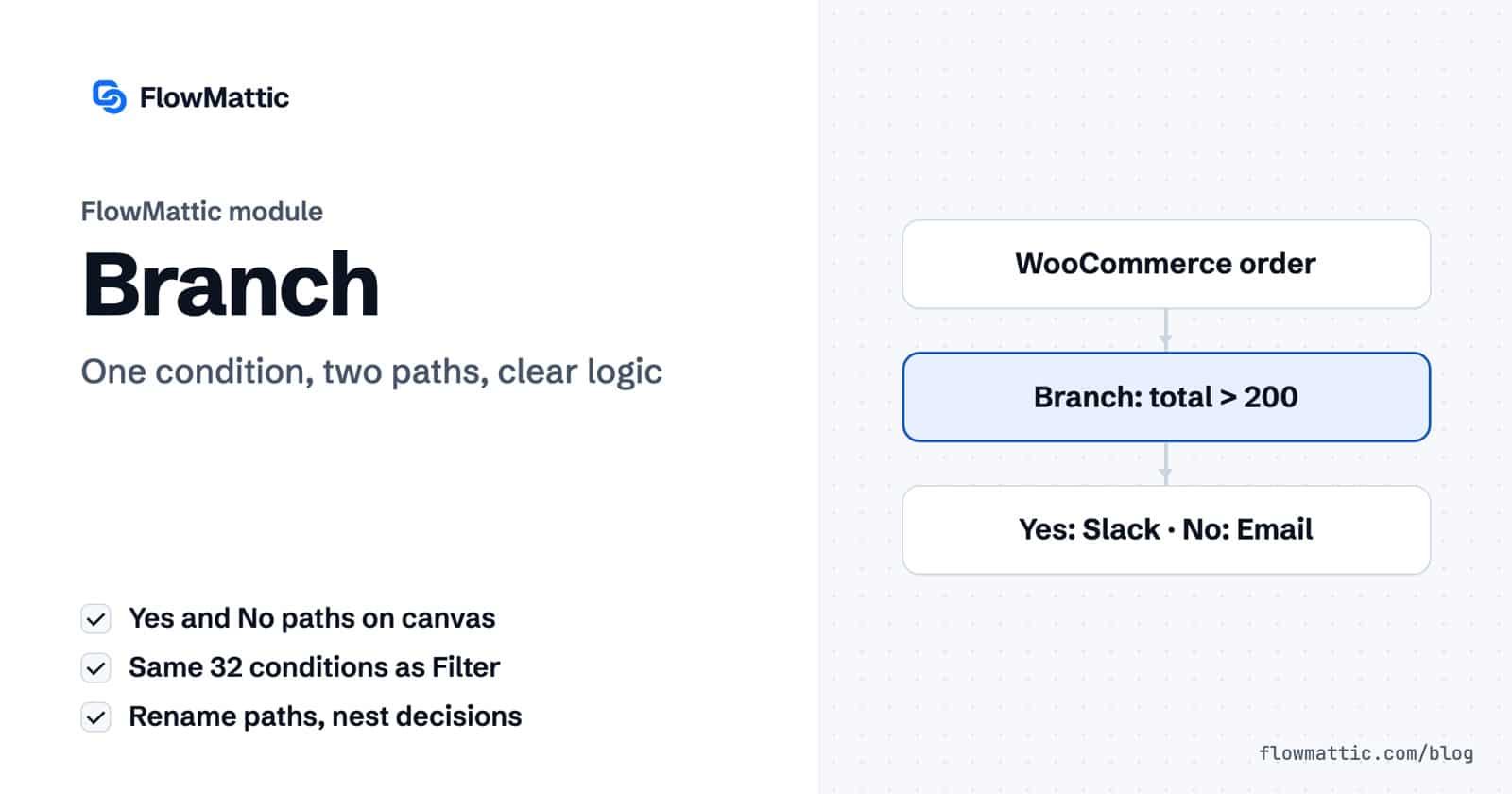
If else workflow automation is the most common decision in any process: if a condition is true, do one thing, otherwise do something else. In FlowMattic, the Branch module handles it. It checks your conditions once and sends the run down a Yes path or a No path, each with its own chain of steps.
Branch suits every builder who needs two outcomes from one event: a VIP order and a normal order, a new customer and a returning one, an AI answer that is positive or negative. You see both paths on the canvas, so the logic reads like the sentence you would use to explain it.
Branch by FlowMattic is a built-in step in the Flow Controls group of the app picker. It has a single action event, Evaluate Condition, which FlowMattic selects for you: “Evaluate a condition and determine Yes/No path to execute”.
On the canvas, a Branch node reads “Split by Yes/No condition” until you rename it, and two path markers sit under it: Yes and No. You add steps under each one, just as you would in the main chain. Branch is one of several workflow logic modules that share the same condition builder.

The condition builder is the same one the Filter uses: 32 conditions covering text, numbers, dates, booleans, presence (Exists, Is empty, Is blank) and format checks (Is Valid Email Format, Is Valid JSON, Is Valid URL Format, Is Numeric). All conditions in a group must match, and the Branch takes Yes when any group matches.
| Output | What it holds |
|---|---|
path_to_execute | yes or no: the path the run took |
condition_met | true when the conditions matched, false when they didn’t |
Task History logs each decision in words: “Conditions meet. Executing Yes path.” or “Conditions does not meet. Executing No path.”, with the conditions it checked as the step’s input. When a run goes the wrong way, that entry tells you which value tipped it.
Orders above a threshold get a personal touch, everything else gets the standard confirmation.
WooCommerce new order → Branch (total Greater than 200) → Yes: Slack message to the account team / No: Send Template Email confirmation
Staff accounts don’t belong in your marketing list. A Branch on the email domain sends them somewhere else.
WordPress New User → Branch (email Ends with @acme.com) → Yes: Slack message to IT / No: FluentCRM contact with the welcome tag
A support form gets many kinds of questions. Anything mentioning a refund goes to a human, the rest gets an instant answer.
Form submission → Branch (message Contains refund) → Yes: Fluent Support ticket for the billing team / No: Send Email with help-centre links
An AI Agent labels each review as positive or negative. Branch acts on the label.
Webhook (new review) → AI Agent (answer positive or negative) → Branch (answer Exactly matches negative) → Yes: Slack alert to support / No: Google Sheets row
A SaaS product receives one webhook for every new account. The plan field decides which onboarding sequence starts.
Webhook (new account) → Branch (plan Exactly matches trial) → Yes: Mailchimp trial audience / No: HubSpot contact plus a Slack note to customer success
An agency checks each client endpoint on a schedule and only wakes someone up when the check fails.
Schedule (every 15 minutes) → API request → Branch (status code Equal to 200) → Yes: WP Tables row "up" / No: Send Email to the on-call address
path_to_execute from the Branch, which is useful in a summary email or a log row.Use Branch when the decision is a plain yes or no. Use a Router when you need several named paths, each with different conditions. A Branch is quicker to set up because its No path needs no conditions of its own.
No. The Branch evaluates its conditions once and runs either the Yes path or the No path. If you need steps that run after either path, add a Join after the paths.
Put a second Branch on the No path of the first one. For three or more outcomes that depend on the same field, a Router with one route per outcome is usually easier to read.
Branch is part of every FlowMattic plan, with unlimited workflows and runs on your own server. Try FlowMattic on a live demo site and build your first if else workflow automation in a few minutes.
The FTP app uploads, downloads, moves and deletes files on FTP, FTPS and SFTP servers from any workflow, and starts workflows when…
Share Secrets turns a password or API key into a link that expires after a set time, a set number of views,…
Generate Magic Login Link creates single-use sign-in links from any workflow, valid from 1 minute to 30 days, with a confirmation page…

