

Add new Airtable records to ActiveCampaign as tagged contacts
Each new record in your Airtable table becomes an ActiveCampaign contact with a tag, so leads you collect or import in Airtable are ready for your email automations. It suits teams that keep a lead list in Airtable but send campaigns from ActiveCampaign. After import, select your base and table in the trigger, map the field names, and pick the tag.
 Airtable
 ActiveCampaign
3 steps Setup ~5 min Used on 2.6k sites Growth Free to import
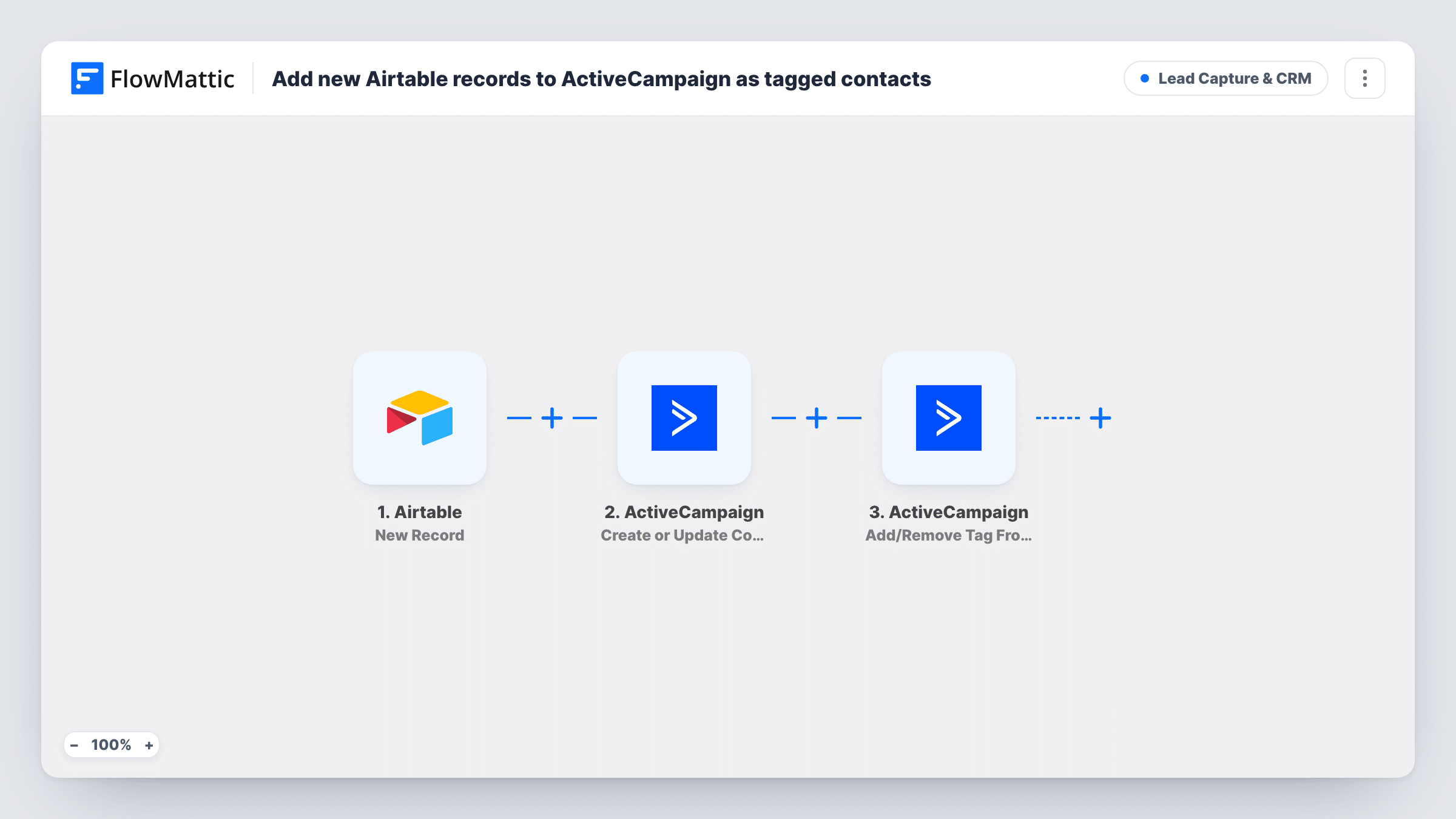
How this workflow runs
What happens at each step once the workflow is on, and what you need before you import it.
 Airtable New Record
The workflow starts automatically when a new record is created in Airtable. FlowMattic captures that data for the steps below.
- ActiveCampaign Create or Update Contact
ActiveCampaign — creates a new contact, or updates an existing contact. Data is mapped from earlier steps; connect your ActiveCampaign account on import.
- ActiveCampaign Add/Remove Tag From Contact
ActiveCampaign — add or remove a tag from a Contact. Data is mapped from earlier steps; connect your ActiveCampaign account on import.
What you need
- FlowMatticCore
- Airtable AccountAccount
- ActiveCampaign AccountAccount
After importing, map your own data. To keep the template universal, not every step is pre-filled. Open each step in the builder and connect your accounts and fields (channels, lists, sheets, recipients) before you switch the workflow on.
More Lead Capture & CRM workflows
Other ready-to-import templates from the same category.






Import this workflow into your WordPress site
Download the JSON, import it from the Workflows screen and connect your accounts. Every run stays on your server, with no per-task fees.
30-day money-back guarantee Unlimited workflows and runs Self-hosted