

Score inbound leads with AI and log them to Google Sheets
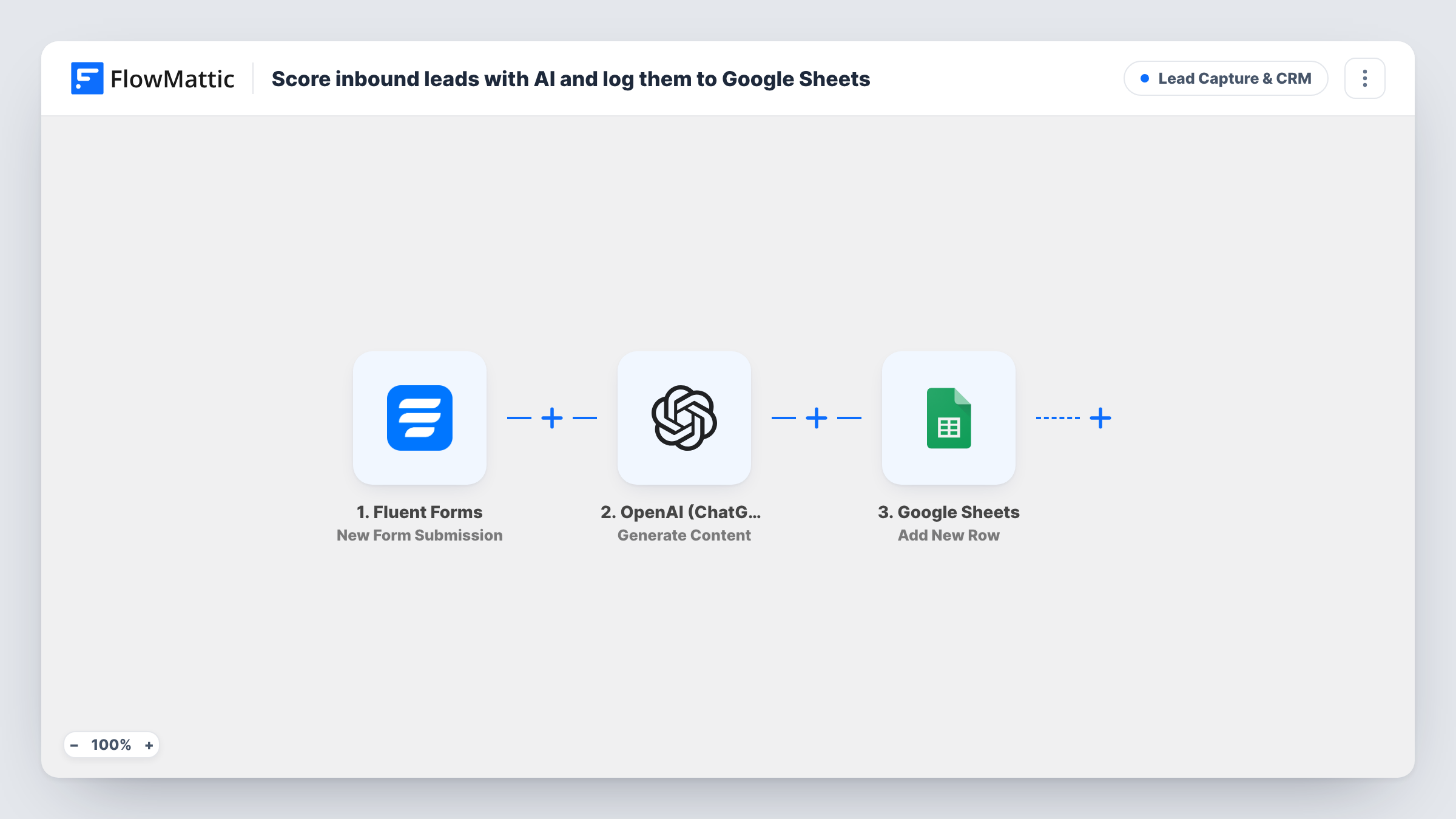
Each Fluent Forms enquiry is sent to OpenAI with a prompt asking for a buying-intent score from 1 to 10 and a one-line reason, then the lead and that answer are added to a Google Sheets row.
 Fluent Forms
 OpenAI (ChatGPT)
 Google Sheets
3 steps Setup ~5 min Used on 3.0k sites Growth Free to import
What this workflow does
When enquiries pile up, a sales team has to decide which ones to read first. Reading every message closely takes time. This workflow asks OpenAI for a quick first opinion on each lead and puts it next to the lead in a spreadsheet you can sort.
The Fluent Forms trigger fires on each new submission. FlowMattic then sends a prompt to OpenAI (ChatGPT) using the gpt-4o model. The prompt includes the visitor's message, name and company, and asks for an intent score from 1 to 10 plus a one-line reason. The model's reply comes back as text you can map.
Then FlowMattic writes a fresh row to Google Sheets for the lead. The template leaves the columns unmapped, so after import you choose where the lead's details go and which column holds OpenAI's answer. The score is the model's judgment of the message text, not a fact about the lead, so treat it as a sorting aid and read the reason beside it.
Sorting a busy enquiry inbox
A consultancy gets dozens of contact messages a week. Sorting the sheet by the AI column puts messages that mention budgets and deadlines near the top for a first read.
Splitting leads between two reps
A sales manager reviews the sheet each morning and hands higher-scored leads to the senior rep, using the one-line reason to check the call.
Reviewing what your form attracts
A marketer reads the reasons column over a month to see whether the contact page draws buyers or mostly support questions.
How this workflow runs
What happens at each step once the workflow is on, and what you need before you import it.
 Fluent Forms New Form Submission
Fires when a visitor submits your Fluent Forms form. The template's prompt uses the message, name and company answers, so your form should collect those.
- OpenAI (ChatGPT) Generate Content
Sends the prompt to OpenAI with the gpt-4o model, asking for a 1 to 10 intent score and a short reason based on the visitor's message. Connect your OpenAI account and adjust the prompt to your own idea of a good lead.
- Google Sheets Add New Row
Adds the lead to your chosen Google Sheets spreadsheet. Map the form answers to columns and put OpenAI's reply in its own column so you can sort and read it.
What you need
- FlowMatticCore
- Fluent Forms PluginPlugin
- OpenAI (ChatGPT) AccountAccount
- Google Sheets AccountAccount
After importing, map your own data. To keep the template universal, not every step is pre-filled. Open each step in the builder and connect your accounts and fields (channels, lists, sheets, recipients) before you switch the workflow on.
Make it yours
Changes worth making after you import it.
- Ask the model to reply with the number alone on the first line, then the reason. A consistent format is easier to sort and to use in a Filter later.
- Want an alert for strong leads? Change the prompt so OpenAI returns only the number, then add a Filter with a greater-than condition and a Slack or email step after it.
- Describe your ideal customer in the prompt, such as company size or the service you sell, so the model scores against your criteria instead of guessing.
Questions about this workflow
Do I need an OpenAI account to score Fluent Forms leads?
Yes. The scoring step runs through your own OpenAI account, which you connect after import. Each submission sends one request from that account.
Is the AI score saved in Fluent Forms too?
No. The reply from OpenAI is only sent to the Google Sheets step. Fluent Forms keeps the original entry as it normally does.
Will every submission be added to the sheet, even low scores?
Yes. There is no Filter in the template, so each submission gets a row whatever the model says. Add a Filter between OpenAI and Google Sheets if you want to log only some.
Can I trust the score to decide who to call?
Use it as a hint. The model only sees the message, name and company from the form and can misread short or unusual messages. Read the reason and the message before acting.
More Lead Capture & CRM workflows
Other ready-to-import templates from the same category.






Import this workflow into your WordPress site
Download the JSON, import it from the Workflows screen and connect your accounts. Every run stays on your server, with no per-task fees.
30-day money-back guarantee Unlimited workflows and runs Self-hosted