FlowMattic 7.3: On-Time Schedules, Cloud Webhooks and More
FlowMattic 7.3 runs schedules on time with FlowMattic Cloud, keeps webhooks from getting lost, and adds Tables views and templates, booking questions,…


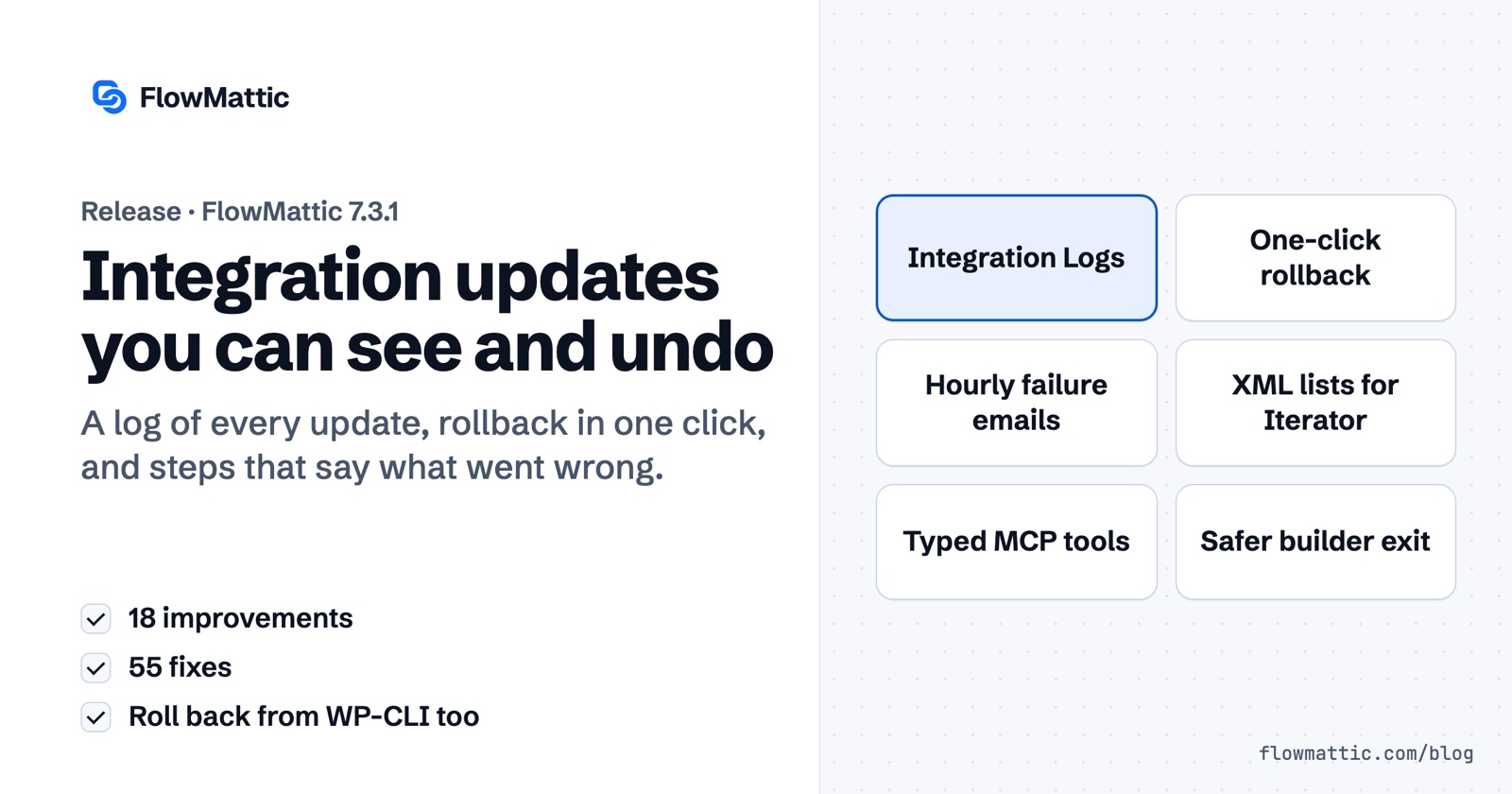
FlowMattic 7.3.1 puts you in control of your integration updates. A new Logs page records every update, and every update keeps the version it replaced, so you can go back in one click. Failure emails are calmer, steps say clearly when something went wrong, and the builder catches unfinished steps before you leave.
The release has 18 improvements and 55 fixes. Here are the ones you will notice first, and where to find them. The full list is in the changelog.
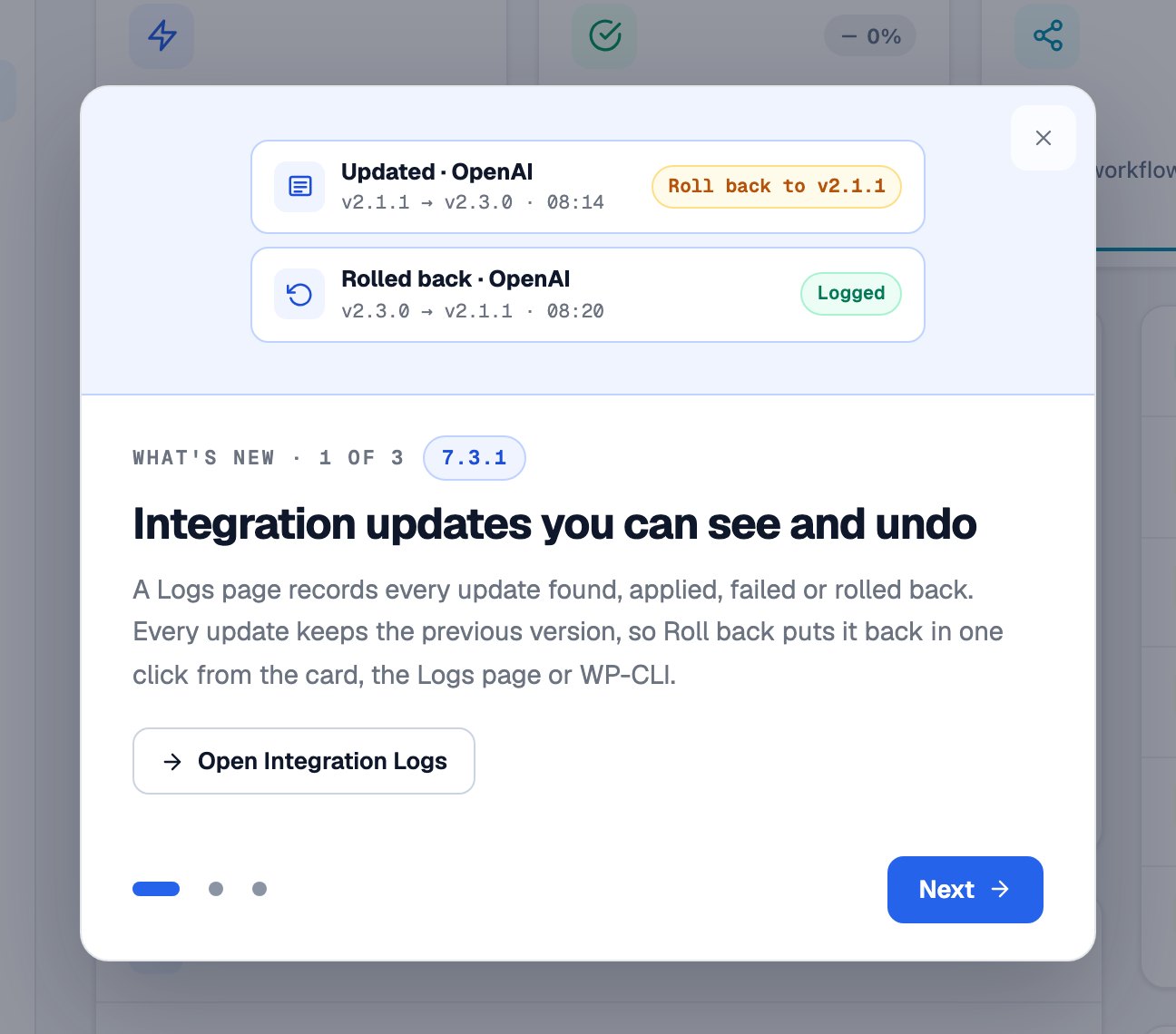
FlowMattic connects to more than 900 apps through its integrations, and each one is updated on its own. Open Integrations → Logs to see what changed on your site: updates found, applied, failed and rolled back, with the versions, the source (by hand, daily auto-update or WP-CLI) and the reason when one fails. Filter by event, or click a total at the top.
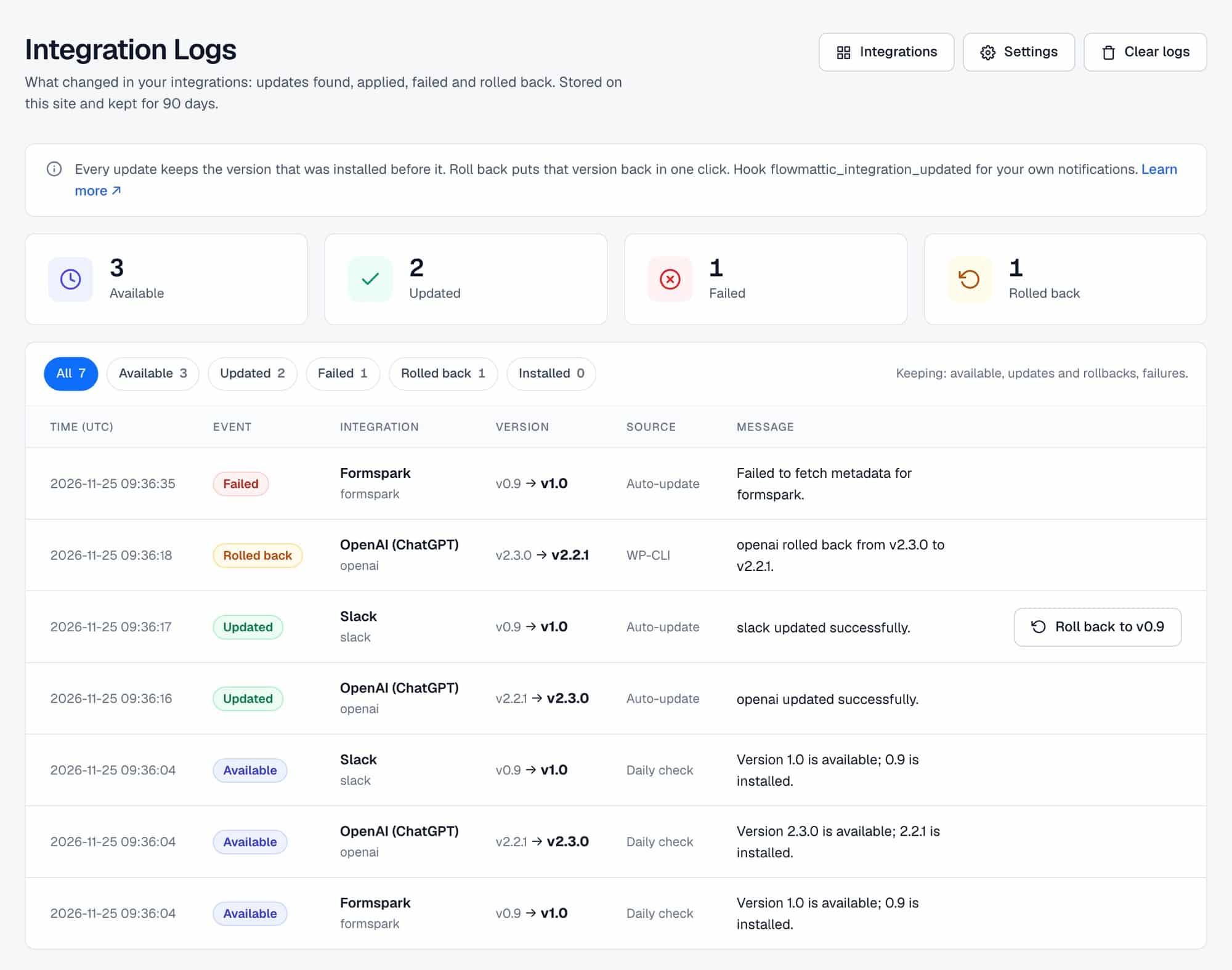
Under Settings → Advanced you choose which events to record and how long to keep them, from 7 to 365 days. If you use auto-update, FlowMattic can also email you when a daily run could not update an integration. The email names the integration, gives the reason and links to the log.
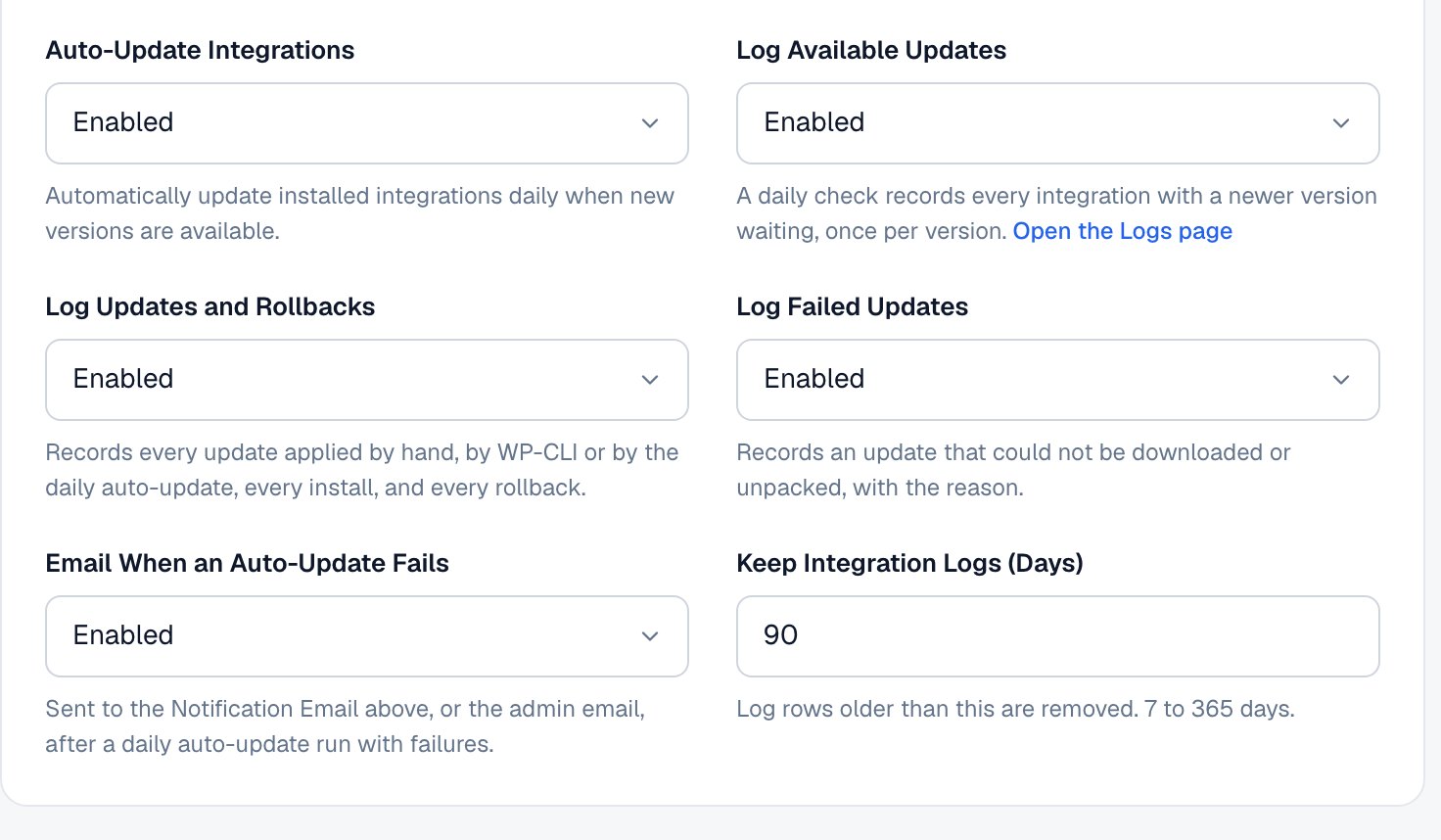
Every update now keeps the version that was installed before it. If an update does not suit your workflow, choose Roll back on the integration card or on the Logs page, and the previous version is put back. Nothing else on the site changes, and the rollback is recorded in the log.
You can do the same from the command line:
wp flowmattic integrations update --all
wp flowmattic integrations rollback slack
The update command now exits with an error when an integration could not be updated, so a deploy script or a scheduled job can react to it. Developers also get the flowmattic_integration_updated hook, which runs after every update attempt. Use it to post to Slack, open a ticket or start a check of your own.
When a workflow fails again and again, you no longer get an email for every run. FlowMattic sends at most one failure email an hour for each workflow, with the latest error and the number of further failures. Every run is still in Task History, with the details of each step.
false or throws an uncaught Exception now fails the step, so the run stops and you are told. Turn on Ignore Errors to continue and keep false as the result.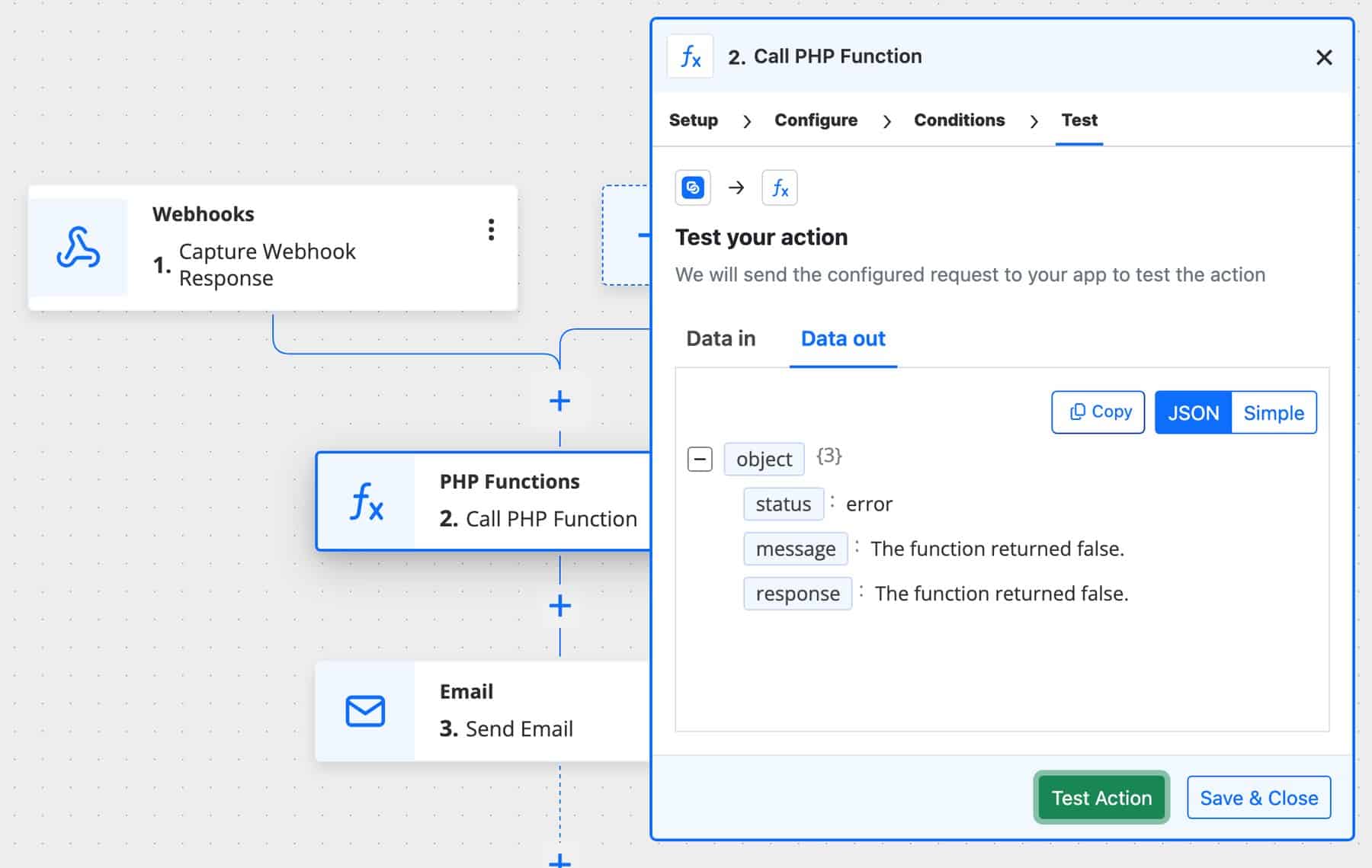
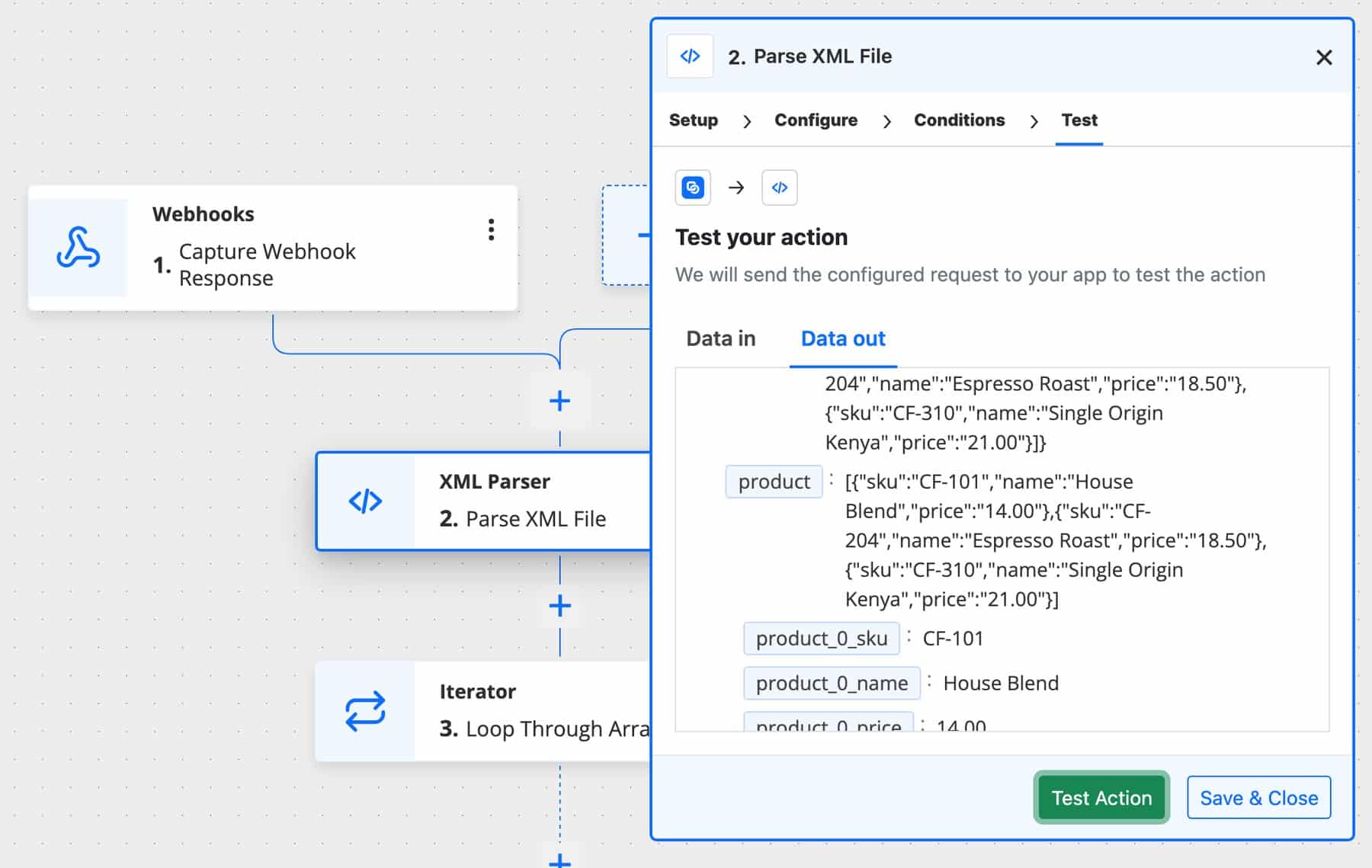
Supplier catalogues and product feeds usually repeat one block, such as <product>, many times. The XML Parser now also returns those repeating blocks as one list, named after the tag. Map that list straight into an Iterator and each product runs through the steps that follow. The separate fields, such as product_0_sku, are still there.
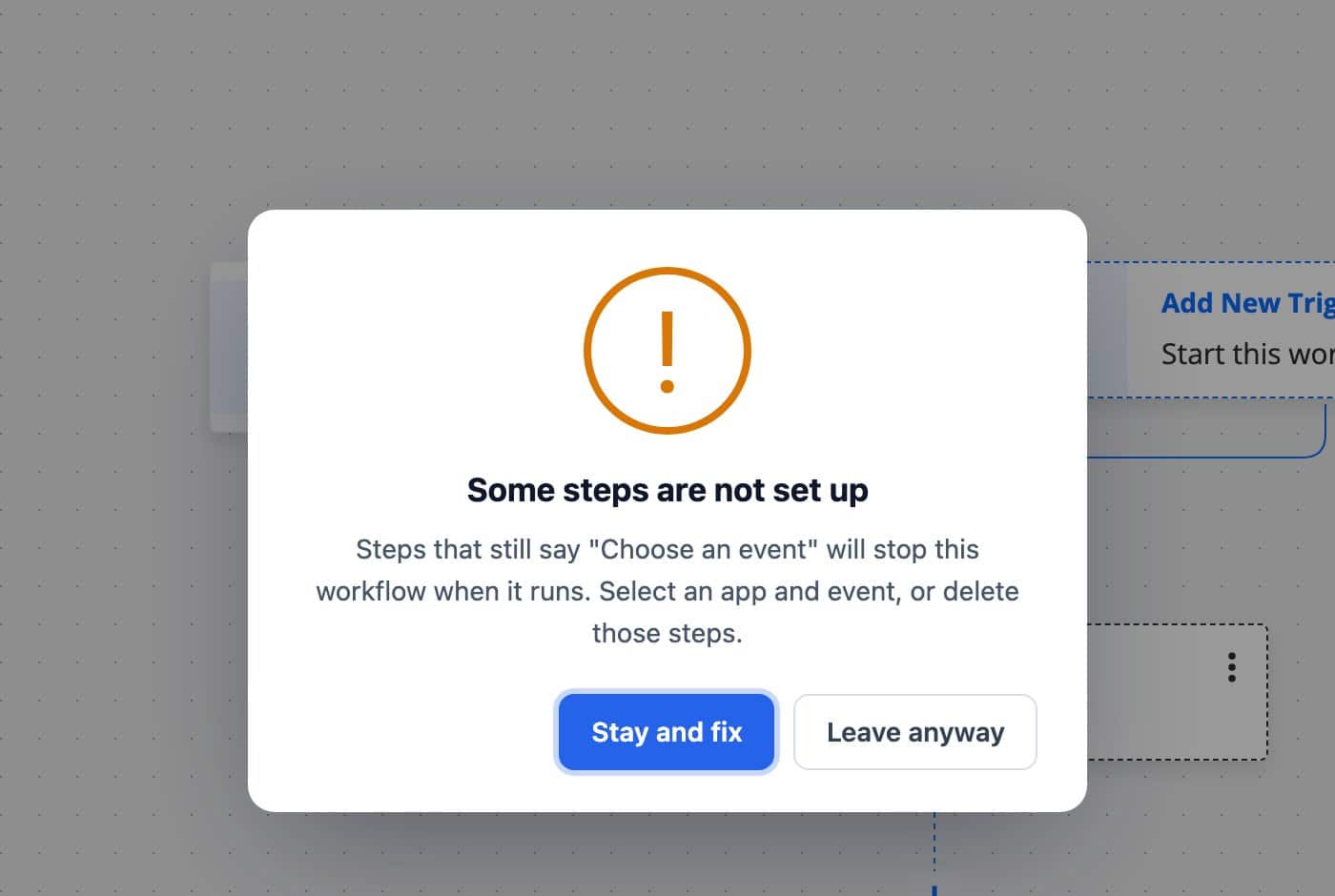
If a step still has no app or event, the Back arrow now asks before you go, so a half-built step does not stop a live run. Stay and fix keeps you in the builder; Leave anyway lets you finish later.
Three more changes save time while you build:
false: if one of your functions returns false as a normal answer, turn on Ignore Errors for that step.Open Integrations → Logs and choose Roll back next to the update, or use Roll back on the integration card. From the command line, run wp flowmattic integrations rollback followed by the integration’s slug. Rollback covers updates made with 7.3.1 or later, because the previous version is kept from then on.
Only if you turn it on. Auto-Update Integrations is off by default and is under Settings → Advanced. When it is on, FlowMattic updates installed integrations once a day, records the result in the log and can email you if one fails.
No. Existing workflows keep running as they are. The one thing to check is a PHP Functions step whose function returns false on purpose, because that now fails the step unless Ignore Errors is on.
Each workflow sends at most one failure email an hour. The email counts the failures since the last one, and every failed run is in Task History.
FlowMattic 7.3.1 is available now from your WordPress dashboard. Update the plugin, take the short What’s New tour, then open Integrations → Logs to see your integrations’ history build up. New to FlowMattic? See the plans and start automating your WordPress site.
FlowMattic 7.3 runs schedules on time with FlowMattic Cloud, keeps webhooks from getting lost, and adds Tables views and templates, booking questions,…
Live run status in Task History — Ongoing, Waiting, Interrupted — plus MCP clients that can read run results and manage WP…
Multi-trigger workflows, the new Join step, AI that builds workflows over MCP — plus PDF Parser, webhook signature verification, barcodes and HTML-to-PDF,…