Custom Webhook Response: Send Your Own Status, Headers and Data
Reply to a webhook with data from the run: String, JSON or XML bodies, any HTTP status from 200 to 599, extra…


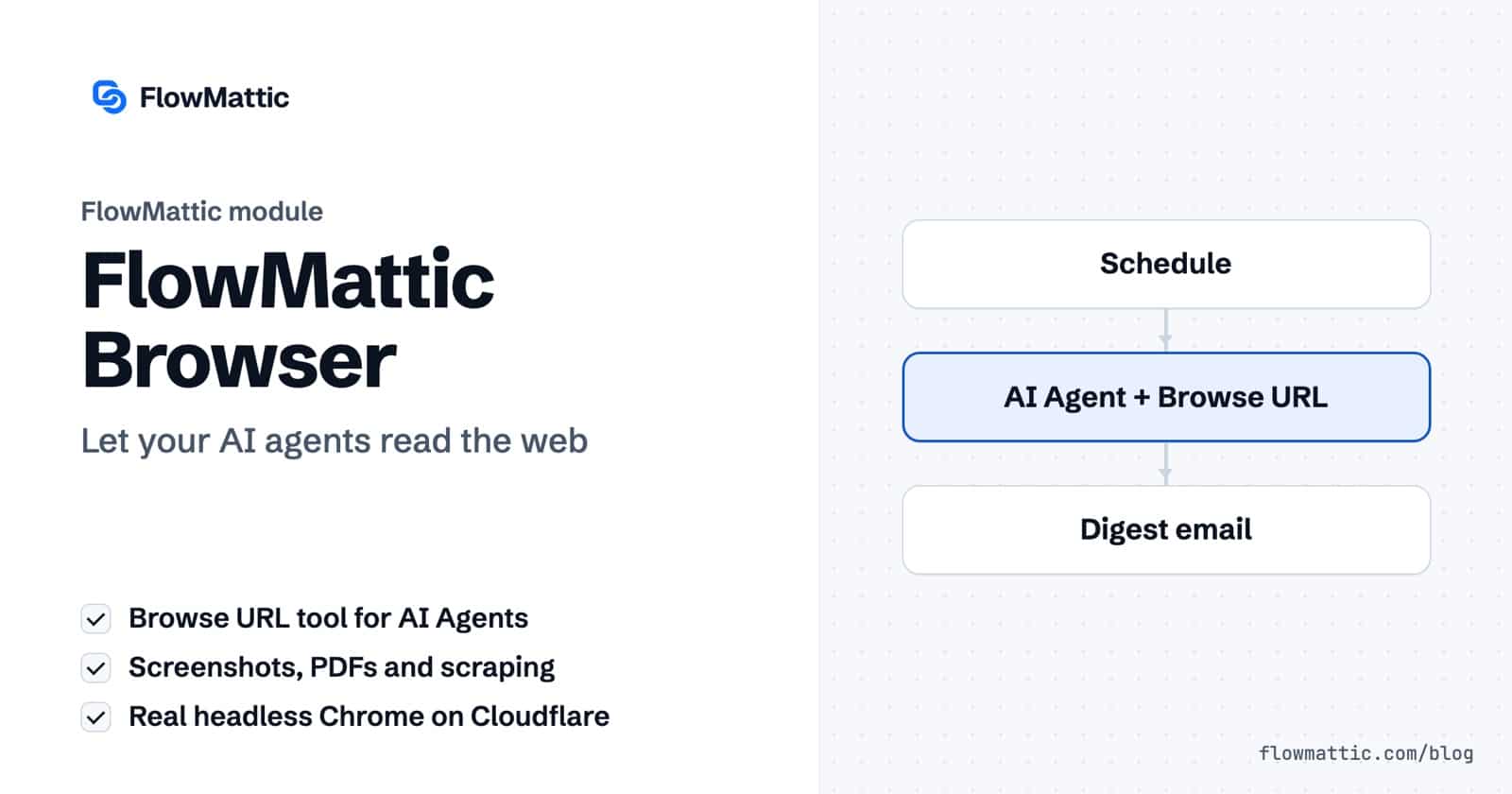
FlowMattic Browser turns an AI Agent step into an AI web browsing agent: the agent can open a live web page in a real headless browser, read it as clean Markdown and reason over what it found. The same module also gives any workflow screenshots, PDFs, scraping by CSS selector, rendered HTML and link lists, all from your WordPress site.
It is for teams that need fresh information from the web inside an automation: price checks, research digests, lead enrichment, page archives and social images. Every action runs through Cloudflare Browser Rendering on your own Cloudflare account, so JavaScript-heavy pages render the way a visitor sees them.
FlowMattic Browser is a core action app in the workflow builder. In the app picker it sits under utilities with the blurb “Screenshot, scrape, and render pages in a headless browser.” It has ten actions. Nine are page tools you can use in any workflow, and one, Browse URL (for AI Agent), is designed to be handed to an AI Agent as a tool.
Rendering happens in headless Chrome on Cloudflare, not with a plain HTTP fetch. That is why Get Rendered HTML works on single-page apps where a simple request returns an empty shell. The same Cloudflare credentials also power PDF exports in the PDF Template Builder.
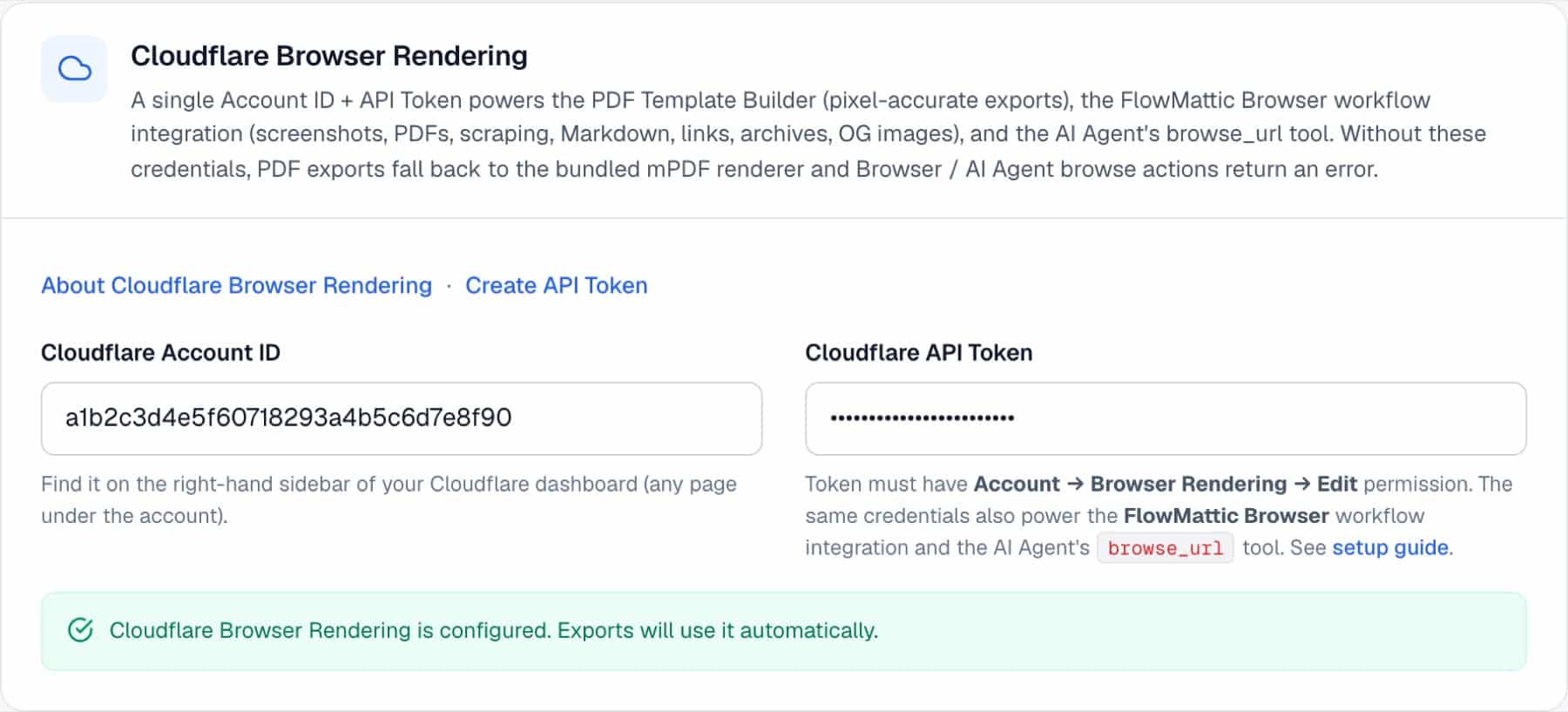
Open FlowMattic → Settings, choose Cloudflare and fill the Cloudflare Browser Rendering card: Cloudflare Account ID and Cloudflare API Token. The token needs the Account → Browser Rendering → Edit permission. When both are saved the card confirms that Browser Rendering is configured, and every Browser step shows a “Configured” badge.
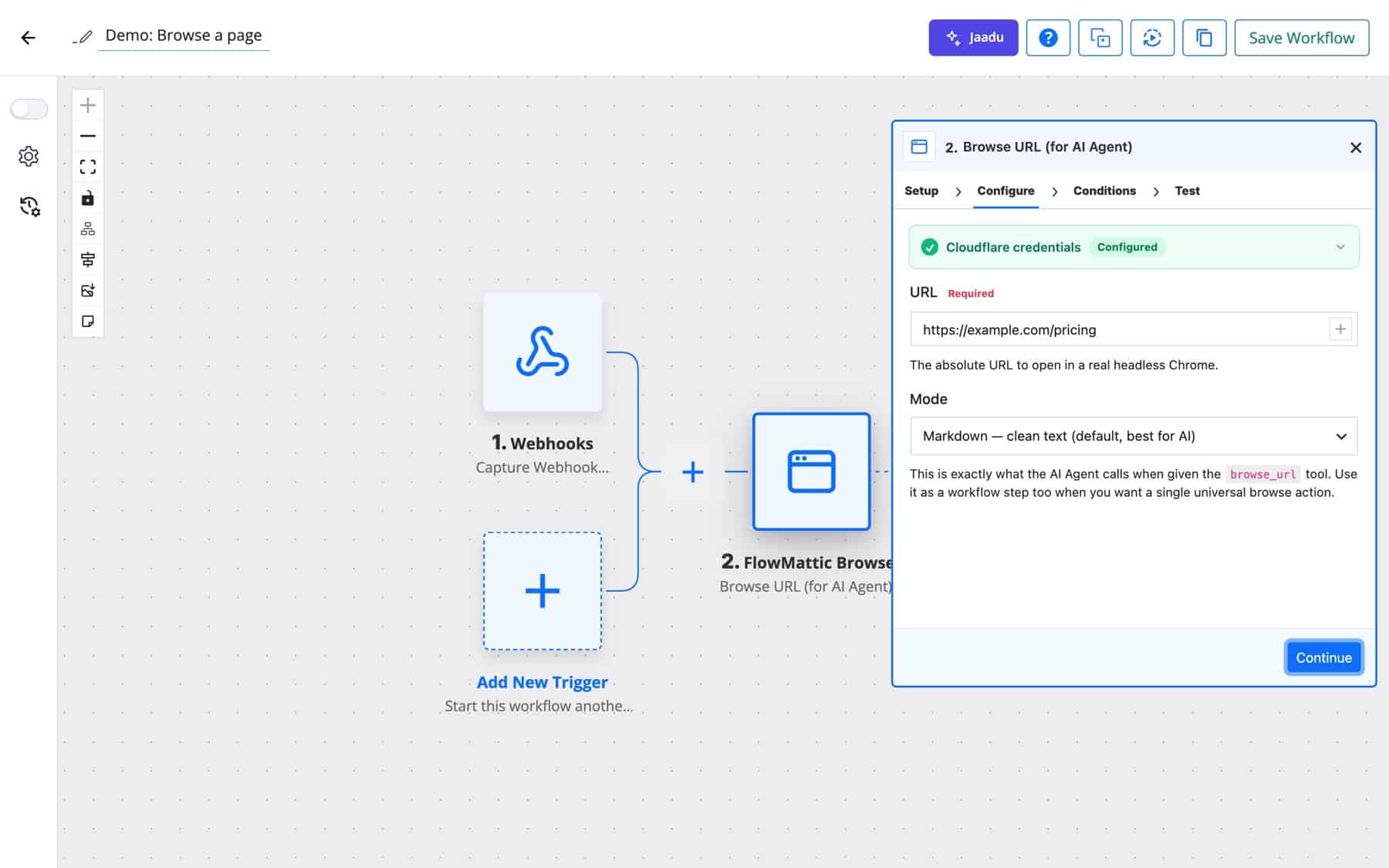
On your AI Agent step, click the + on the Tools connector to add a tool. Choose the FlowMattic Browser app and the Browse URL (for AI Agent) event, give the tool a clear Tool Name and Tool Description (for example “Open a web page and return its text”), then set the fields on the Configure tab.
A field you fill in stays fixed; the model cannot change it. To let the agent decide which page to open, put AI: before an example value in the URL field, such as AI: https://example.com/pricing. The Configure tab shows this tip itself. Pick a Mode to control what comes back:
That is all an AI web browsing agent needs. When the agent runs, it calls the tool whenever its goal needs a page, reads the result and decides what to do next, up to the Max Iterations you set under Agent Limits on its Chat Model (1 to 100, default 10). A research task that opens several pages may need more than the default. The agent’s final answer goes to the next step like any other output, and the run is recorded in Task History.
| Action | What it does and key options |
|---|---|
| Take Screenshot of URL | PNG or JPEG of the viewport or the full page. Viewport Width and Viewport Height (default 1440 × 900), Settle animations before capture? |
| Generate PDF from URL | Renders a page to PDF. Output Filename, Page Size (Letter, A4, Legal, A3, A5), Orientation. |
| Scrape Content by Selector | Returns text for named CSS selectors, one name: selector per line, for example price: .product-price. |
| Page to Markdown | Clean Markdown of a page, with its length. |
| Get Page Links | Every link on the page, with Restrict to Same Origin? |
| Get Rendered HTML | The HTML after JavaScript has run. |
| Archive Page (HTML + PNG) | Saves the rendered HTML and a full-page screenshot together, with an optional Label used in the filename. |
| Generate Social Image (OG) | A PNG from your own HTML, or from Title, Subtitle / Kicker, Background Color and Foreground Color, at a set Width and Height (1200 × 630 by default). |
| Browse URL (for AI Agent) | One action with a Mode of Markdown, Content, Links or Screenshot. |
| Search Google Maps | Business listings for a Search Term, up to 10 per page, with Page, Country, Language and Fetch full details for address, phone and website. |
Actions that produce files have a Save to option: the Media Library in its usual dated folder, the Media Library in a Custom Folder Path, or a raw file in uploads/flowmattic-browser/ with no Media Library entry. The step returns the file’s public URL, so you can attach it to an email or upload it in the next step.
A schedule hands an agent a list of industry pages. It opens each one in Markdown mode, notes what changed and writes a short digest for the team.
Schedule (Monday 08:00) → AI Agent with Browse URL tool → Send email
A form gives you a name and a company domain. The agent browses the company’s site, sums up what it does and who it serves, and the summary lands on the contact record before sales calls Yuki Tanaka back.
Form submission → AI Agent with Browse URL tool → CRM add note
No AI needed when you know where the price sits. Scrape Content by Selector reads the product title and price from a competitor’s page each morning and appends a row to a sheet.
Schedule (daily) → Scrape Content by Selector → Google Sheets add row
When a client approves a page, Archive Page saves its HTML and a full-page screenshot with a label such as the client’s name. The files go to the project folder, so there is a record of exactly what was approved.
Webhook (approval) → Archive Page (HTML + PNG) → Send email with links
Generate Social Image (OG) turns the post title and your brand colours into a 1200 × 630 PNG, which you can pass to a social posting step.
WordPress new post → Generate Social Image (OG) → Social post with image
Search Google Maps for “coffee shops in Austin”, loop through the results and store each business in a table. Use the returned next_page to walk further pages.
Schedule → Search Google Maps → Iterator → WP Tables new record
A ticket includes a link to the page where something looks wrong. The agent opens it, describes what it sees and drafts a reply for the support team to review.
Help desk new ticket → AI Agent with Browse URL tool → Slack message to support
AI: deliberately. A URL you type is fixed for every call. Prefix it with AI: only when the model should pick the page.Yes. Add FlowMattic Browser’s Browse URL (for AI Agent) action as a tool on the AI Agent step. The agent can then open pages and read them as Markdown, HTML, a link list or a screenshot while it works toward its goal.
Yes. Every Browser action runs on Cloudflare Browser Rendering, so you need a Cloudflare Account ID and an API Token with Browser Rendering edit permission. Usage limits and any charges are set by Cloudflare on your account, as described in the Cloudflare Browser Rendering docs.
Yes. Pages are rendered in headless Chrome before anything is read, so content built by JavaScript is included. Get Rendered HTML exists for exactly the single-page apps where a plain request returns nothing.
Yes. All ten actions are ordinary workflow steps. Use Scrape Content by Selector, Take Screenshot of URL or Generate PDF from URL directly when you know exactly what you need from the page.
Ready to give your agents eyes on the web? Try FlowMattic on a demo site, or see pricing to run it on your own server.
Reply to a webhook with data from the run: String, JSON or XML bodies, any HTTP status from 200 to 599, extra…
Post workflow data to any webhook URL as JSON, multipart form data or URL-encoded fields, with nested bracket keys and the receiver's…
Give any app a URL on your WordPress site and turn each request into a workflow run, with signature checks, sample payloads…