Custom Webhook Response: Send Your Own Status, Headers and Data
Reply to a webhook with data from the run: String, JSON or XML bodies, any HTTP status from 200 to 599, extra…


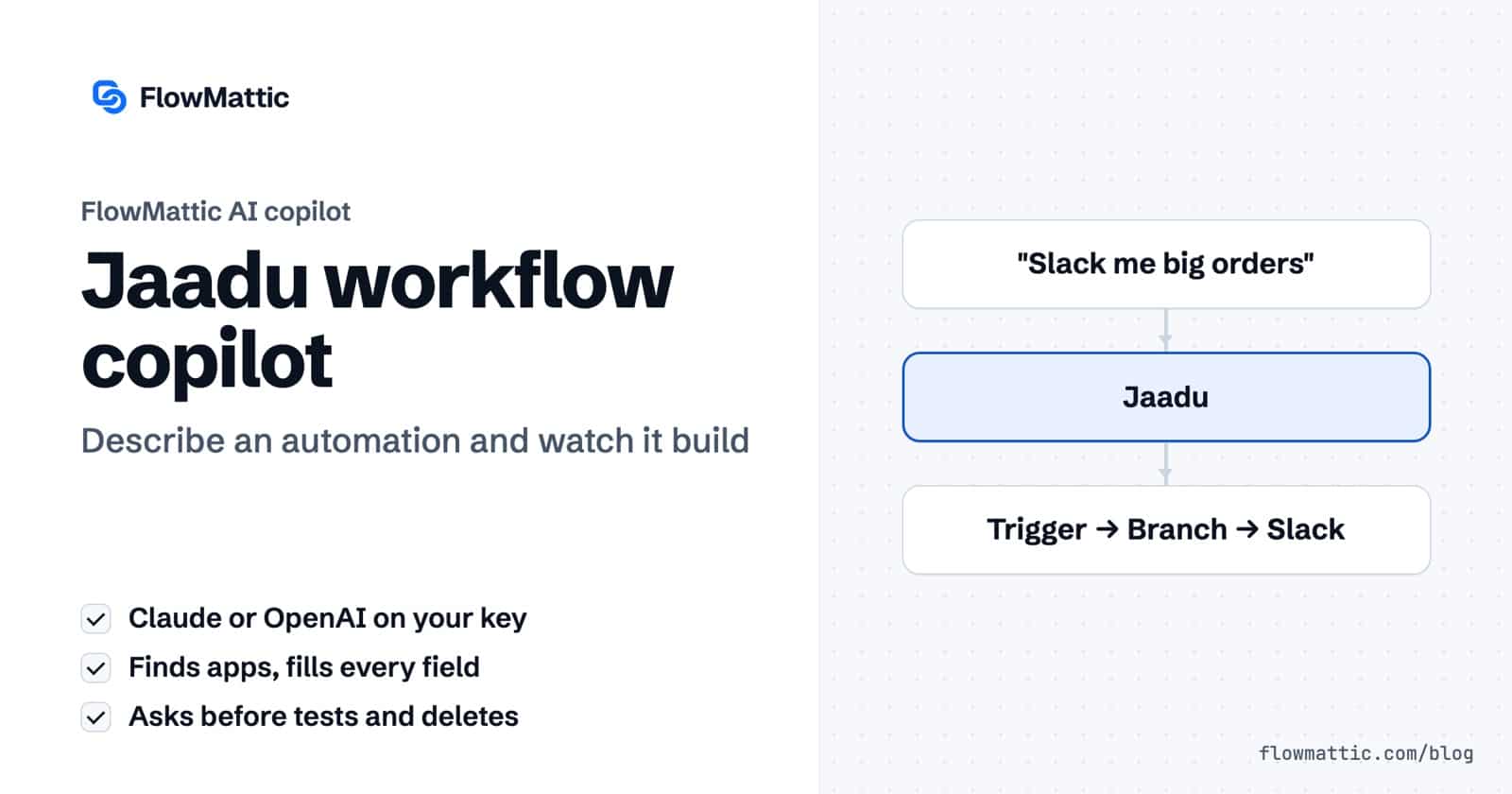
Jaadu is the AI workflow generator built into the FlowMattic workflow builder. You describe an automation in plain language, and Jaadu sets the trigger, finds the right apps, adds the steps and fills their fields on the canvas you have open. You can watch each change land and edit anything by hand at any point.
It is for anyone who knows what should happen but not which app event or field does it: store owners, agencies building for clients, and teams who want a first draft in minutes instead of an afternoon. Jaadu runs on your own Anthropic (Claude) or OpenAI connection, so there is no separate AI subscription to buy.
This guide covers where Jaadu lives, how it builds a workflow step by step, what it can and cannot do, and seven ways to put it to work.
Jaadu is a chat copilot that edits the workflow in front of you. It is not a template picker or a preview. Every step it adds is an ordinary FlowMattic step, the same one you would add yourself, with the same Setup, Configure, Conditions and Test tabs.
You open it from the Jaadu button in the header of the visual workflow builder. Its tooltip reads “Jaadu — build, fix & configure with AI”. A drawer opens on the right of the canvas with the subtitle “Build, fix & configure — just ask.” The canvas moves aside so you can see both.
The same chat panel also appears in the Email, PDF and Image template builders and in Forms. There it reads the template or form you have open and makes the edit you describe.
Jaadu uses a connection you saved in FlowMattic Connects. The first time you open it, the panel asks you to Choose your AI provider (Claude / Anthropic or OpenAI / GPT), pick a Connection if you have more than one, Choose a model from the list your provider returns, and click Start building. If no connection exists yet, Jaadu tells you to add one on the Connects page first. The onboarding wizard has a “Connect AI” step for the same purpose.
Type into the box at the bottom of the drawer. Its placeholder suggests the tone: “Build, fix, configure, or test — e.g. “add a Slack alert after checkout””. On an empty workflow you also get starter chips such as Build from scratch, Add the first step and What can you do?. On a workflow that already has steps, the chips change to Add a step, Add a Router, Test the last action and Configure a step. Clicking a chip fills the box without sending, so you can adjust the wording first.
Jaadu works through a set of builder tools and shows a short status line for each one, such as “Searching apps”, “Configuring a step” or “Adding a router”. In practice it:
When a field needs a value only you know, such as which Slack channel or which email address, Jaadu opens that step on its Configure tab and asks you.
Jaadu can test a step and read its output, but it asks first: a test runs the action for real, so you get a confirmation bar with buttons such as Run test and I’ll do it. For a webhook trigger it can post a realistic sample payload to the workflow’s webhook URL so later steps have fields to map. It then saves the workflow through the builder’s own save and ends a build with a “Before you go live” note listing anything untested or guessed.
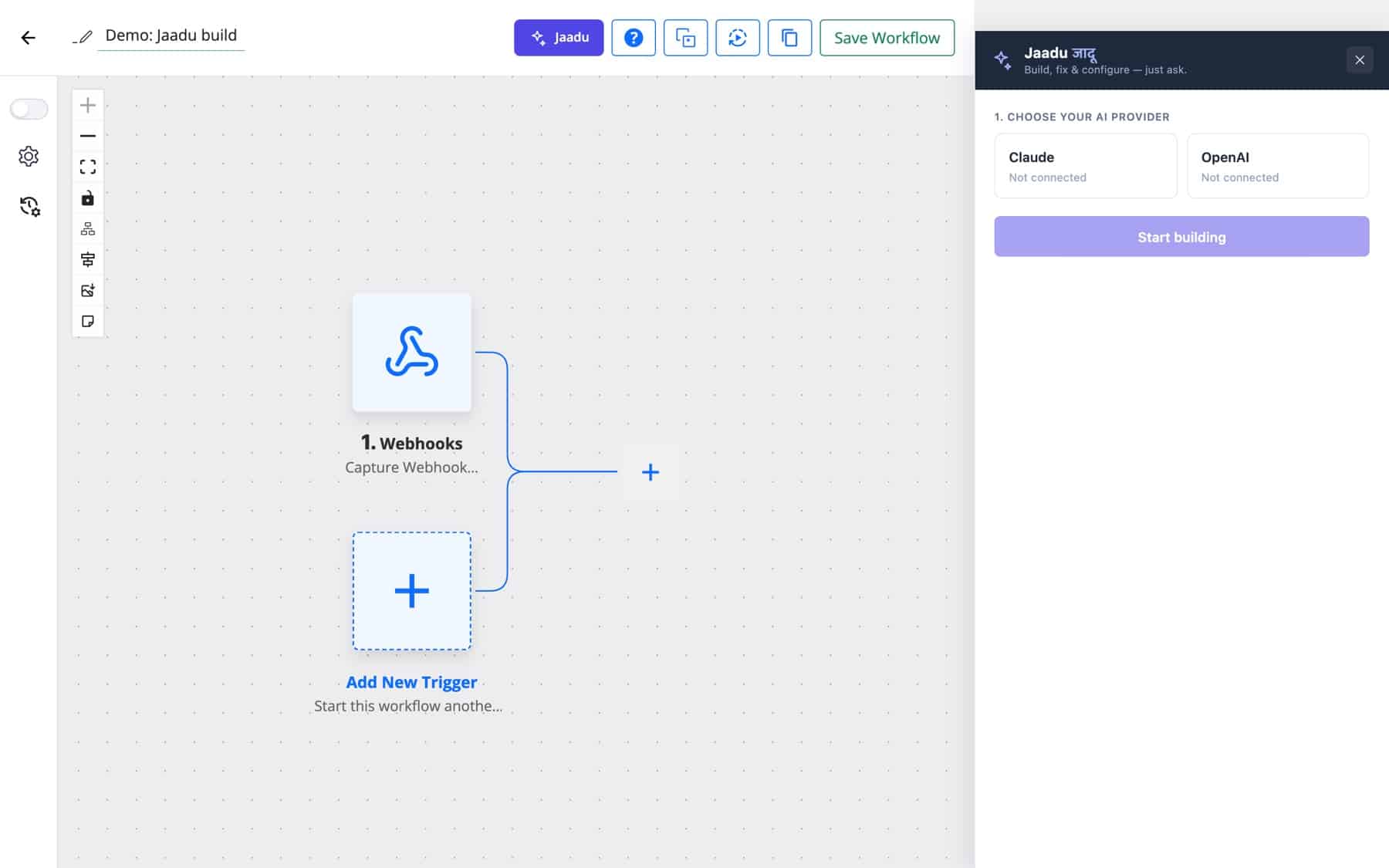
| Option | What it does |
|---|---|
| Choose your AI provider | Claude / Anthropic or OpenAI / GPT. Only these two providers drive Jaadu. |
| Connection | Which saved Anthropic or OpenAI connection to use, shown when you have several. |
| Choose a model | The model list loaded from your provider. Your last choice is remembered for next time. |
| Change AI model | Header button to switch provider or model mid-session. |
| New chat | Clears the conversation and starts over on the same workflow. |
| Stop | Halts the current turn while Jaadu is working. |
| Token counter | Shows tokens in, tokens out and cached tokens under the box, so you can see what a session uses on your key. |
There is no Jaadu switch in Settings. If you have an Anthropic or OpenAI connection and access to the builder, Jaadu is available.
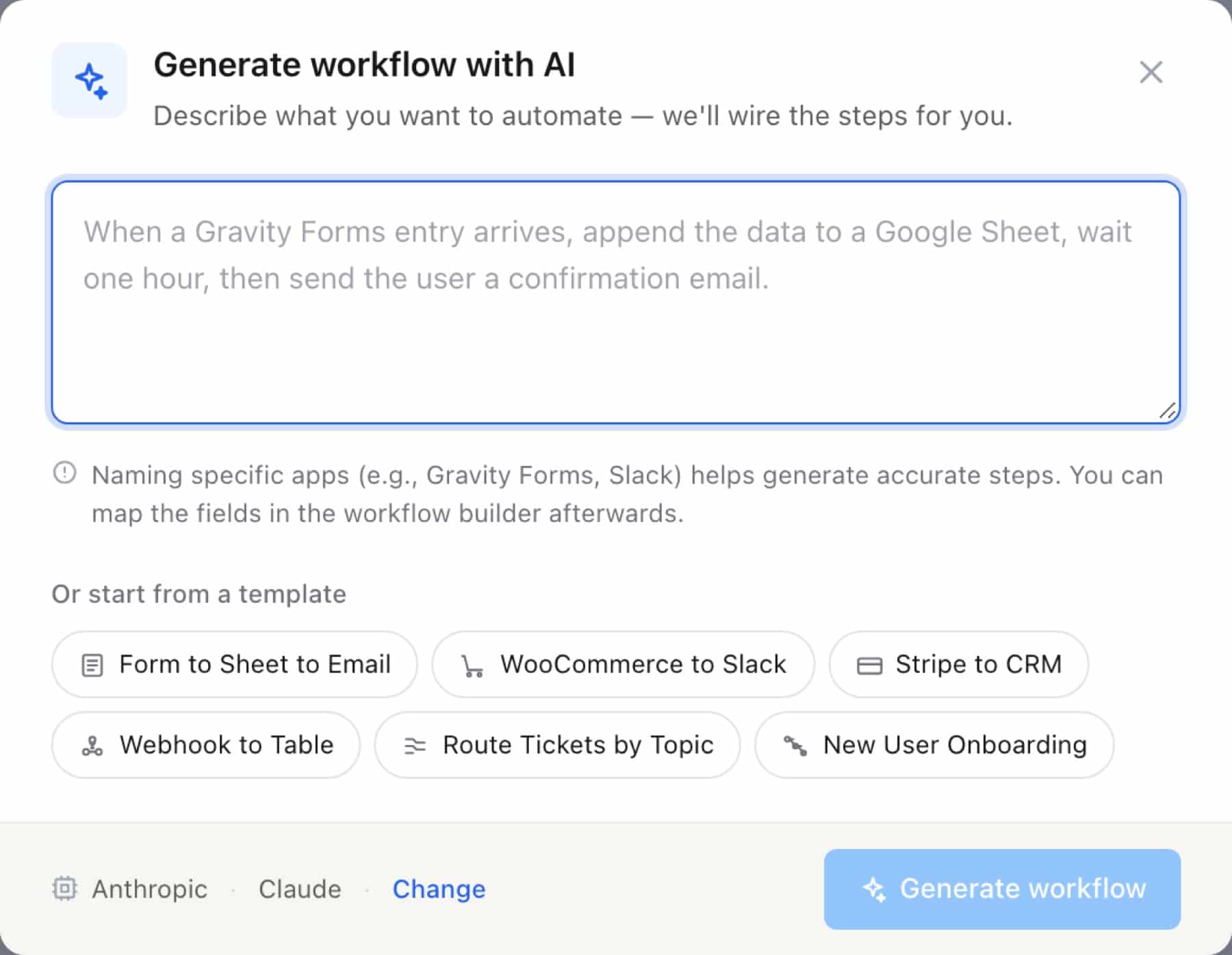
The Workflows screen has a separate one-shot path: the Generate with AI button. It opens a “Generate workflow with AI” dialog with a Workflow description box, starter templates such as “Form to Sheet to Email”, “WooCommerce to Slack” and “Route Tickets by Topic”, and an AI Provider and AI Connect picker. Click Generate workflow and the server builds and validates a draft, saves it switched off and opens it in the builder.
This path runs on the server and accepts more providers, including Google, Groq, Mistral, xAI, Perplexity, DeepSeek, OpenRouter and Straico as well as Anthropic and OpenAI. As its own tip says, connect IDs, recipient emails and message text are filled in the editor, not by the AI. Use it for a quick skeleton, then open Jaadu in the builder to finish the details.
Ask for “a message to the sales channel when an order over 500 comes in”. Jaadu finds the WooCommerce order trigger and the Slack message action, adds a Branch with the condition and maps the order total and customer name into the message on the Yes path.
WooCommerce new order → Branch (total over 500) → Yes: Slack message
Describe three kinds of tickets and where each should go. Jaadu adds a Router with routes named Billing, General and Pre-purchase, sets a condition on each and adds the right action inside every route.
Webhook (help desk) → Router → Billing: Email · General: Slack · Pre-purchase: CRM contact
An agency building for Acme can say “when the intake form is submitted, create the WordPress user and email the welcome pack”. Jaadu sets the form trigger, adds the create user step with the form’s name and email mapped, and adds the email step after it.
Form submission → WordPress create user → Send email
For a webhook from your billing system, Jaadu can send a sample payload such as {"name":"Priya Sharma","email":"[email protected]","plan":"pro"} to the workflow’s URL so the trigger has fields, then map them into a CRM contact and a Slack note.
Webhook (payment succeeded) → CRM create contact → Slack message
Ask Jaadu to “write a short social post for each new blog post and send it to the team chat”. It adds an AI Agent step, sets its chat model, instructions and input from the post, and maps the agent’s answer into the message step.
WordPress new post → AI Agent → Telegram message
Open an existing workflow and say “add a step after the AI Agent that writes its answer to a Google Sheet”. Jaadu reads the canvas first, inserts the step in the right place and leaves the rest of your work alone.
Existing trigger → AI Agent → (new) Google Sheets add row
Tell Jaadu which step broke and paste the error. It reads that step’s settings and last output, changes what is wrong and offers to test it again.
Failing step → Jaadu reads config and output → corrected fields → Run test
It is a workflow generator you talk to. Each message becomes edits on the canvas: a trigger set, a step added, fields filled. It is not the chat widget for site visitors; that is AI Assistants.
Anthropic (Claude) or OpenAI, through a connection you saved in Connects. You choose the provider and model in the Jaadu panel. The separate Generate with AI dialog on the Workflows screen accepts more providers.
No. Jaadu comes with the plugin. Your provider bills the tokens a conversation uses on your own key, and the token counter in the panel shows how many that is.
Yes. Open the workflow and describe the change. Jaadu reads the current canvas, adds around your existing steps and asks before removing anything.
No. Jaadu builds and edits workflows while you design them. An AI Agent is a step that reasons and calls tools each time the workflow runs. Jaadu can add an AI Agent step for you.
Want to see your first automation appear from one sentence? Try FlowMattic on a live demo site, connect a Claude or OpenAI key and ask Jaadu to build it.
Reply to a webhook with data from the run: String, JSON or XML bodies, any HTTP status from 200 to 599, extra…
Post workflow data to any webhook URL as JSON, multipart form data or URL-encoded fields, with nested bracket keys and the receiver's…
Give any app a URL on your WordPress site and turn each request into a workflow run, with signature checks, sample payloads…